Submitting a Support Ticket
Learn how to submit a support ticket to get help from the BakeOnyx team.
Submitting a Support Ticket
- How to submit a support ticket to the BakeOnyx team
- What information to include for faster responses
- How to track your ticket after submission
When to Submit a Support Ticket
If you encounter a problem with BakeOnyx, have a question that isn't answered in our help center, or want to suggest a new feature, submitting a support ticket is the best way to get help. Our team reviews all tickets and responds as quickly as possible.
Support tickets are available to all BakeOnyx users, regardless of your subscription plan.
How to Submit a Support Ticket
- Log in to your BakeOnyx dashboard.
- Click Support in the main navigation menu.
- Click the New Ticket button.
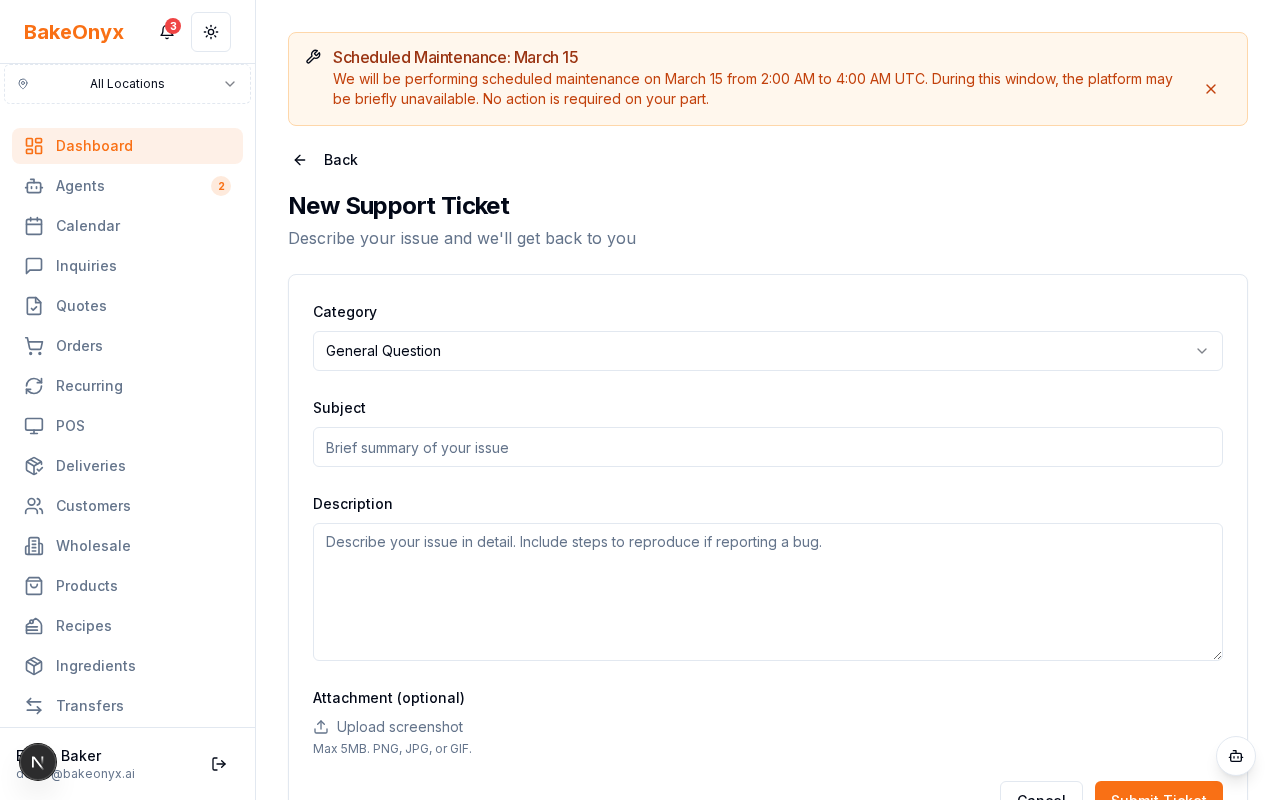
- Fill in the support form with the following information:
- Subject (required): A brief, clear title for your issue. For example, "Orders not syncing to inventory" or "Request: Recipe scaling feature."
- Category (required): Select the type of issue:
- Bug Report — Something isn't working as expected
- Feature Request — You'd like to suggest a new capability
- Billing — Questions about your subscription or invoice
- General Question — How-to questions or general support
- Data Issue — Missing or incorrect data in your account
- Feedback — General comments or suggestions
- Priority (required): Choose how urgent your issue is:
- Low — Nice to have, not affecting daily work
- Medium — Affecting some workflows, but workarounds exist
- High — Significantly impacting your bakery's operations
- Urgent — Critical issue preventing you from working
- Description (required): Explain your issue in detail. Include:
- What you were trying to do
- What happened instead
- Any error messages you saw
- Steps we can take to reproduce the problem (if applicable)
- Attach an Image (optional): Upload a screenshot to show us the problem. This is especially helpful for bug reports.
- Click Submit Ticket.
After You Submit
Once you submit your ticket, BakeOnyx generates a unique ticket number in the format TK-YYMMDD-NNN (for example, TK-240315-042). You'll see this number in a confirmation message — save it for your records.
Your ticket is now in our system and visible in your Support dashboard. You can view all your tickets, check their status, and reply to messages from our team at any time.
Choosing the Right Priority Level
Selecting the correct priority helps us respond to the most critical issues first. Here's a quick guide:
- Urgent: Your bakery can't operate (e.g., you can't access orders, payments aren't processing)
- High: A core feature is broken or significantly slowing down your work
- Medium: A feature isn't working perfectly, but you have a workaround
- Low: A minor inconvenience or a "nice to have" feature request
Next Steps
- Tracking and Replying to Support Tickets — Learn how to monitor your ticket status and communicate with our team
- Welcome to BakeOnyx — Get an overview of the platform and its key features
- Understanding Subscription Plans — Learn about billing and subscription options