Tracking and Replying to Support Tickets
View your open tickets, reply to team responses, and track resolution progress.
Tracking and Replying to Support Tickets
- View all your open and closed support tickets in one place
- Reply to BakeOnyx team responses and reopen tickets when needed
- Track the status and progress of your support requests
Accessing Your Support Tickets
All your support conversations with the BakeOnyx team are organized in your Support dashboard. To view your tickets:
- Log in to your BakeOnyx account
- Click Support in the main navigation menu
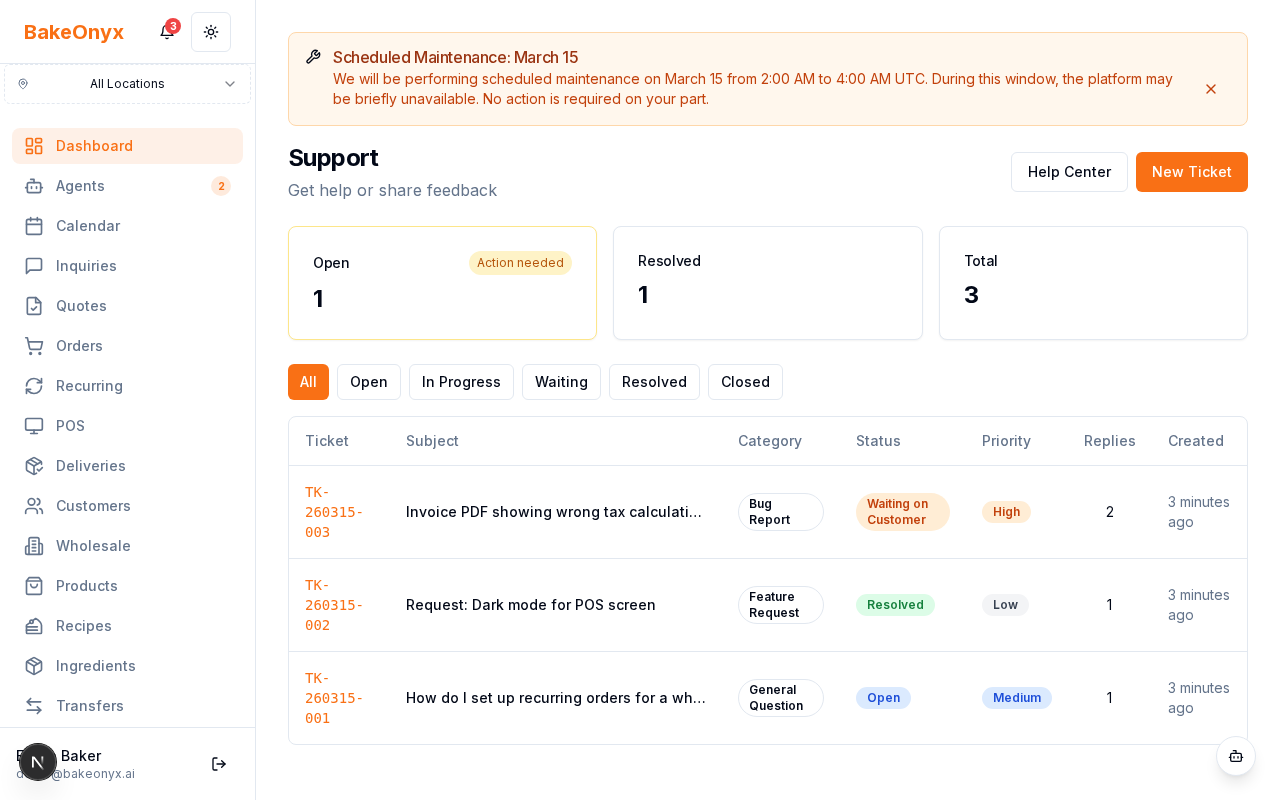
- You'll see your Support Tickets list showing all open and closed requests
Understanding Your Ticket List
Each ticket in your list displays important information at a glance:
- Ticket Number: A unique identifier for your request (e.g., #1234)
- Status: Shows whether the ticket is
Open,Waiting on Customer,In Progress, orResolved - Priority: Indicates how urgent the issue is (Low, Medium, High, or Critical)
- Category: The type of issue (Bug Report, Feature Request, Billing, General Question, etc.)
- Creation Date: When you first submitted the ticket
Tip: Use the filter options at the top of the list to quickly find tickets by status or category. This is especially helpful if you have many open requests.
Viewing Ticket Details and Conversation History
Click on any ticket to open its detail page and see the full conversation thread with the BakeOnyx team.
- From the Support Tickets list, click the ticket number or title
- The ticket detail page opens, showing:
- Your original description and request
- All replies from the BakeOnyx support team
- Any replies you've sent
- Timestamps for each message
- System messages that track status changes
Replying to Your Support Ticket
When the BakeOnyx team responds to your ticket, you can reply directly in the conversation thread:
- Scroll to the bottom of the ticket detail page
- Click in the reply text box
- Type your response or additional information
- (Optional) Click Attach Image to add screenshots or photos that help explain your issue
- Click Send Reply to submit your message
Note: If your ticket status is "Waiting on Customer," replying automatically reopens the ticket and moves it back to "In Progress." This lets the team know you've provided the information they requested.
Feature Request Tickets
If you've submitted a feature request, your ticket will display a build status badge showing the current state of that feature:
Backlog— The feature is logged but not yet scheduledPlanned— The feature is scheduled for a future releaseIn Progress— The team is actively building the featureShipped— The feature has been released and is available to you
Check back on your feature request tickets to see when your requested improvements are on the way!
Warning: Internal admin notes and team-only comments are hidden from your view. You'll only see messages intended for you and the conversation thread related to your issue.
Best Practices for Support Tickets
- Respond promptly when the team asks for more information — this helps resolve your issue faster
- Attach screenshots or images when describing visual issues or errors
- Check your ticket status regularly to stay informed about progress
- Keep replies focused on the original issue; create a new ticket if you have a different problem
Next Steps
- Read Common Questions and Troubleshooting for quick answers to frequent issues
- Visit Welcome to BakeOnyx to learn more about platform features
- Check Understanding Subscription Plans if you have billing-related questions
Was this article helpful?