Connect AI Assistants to Your Bakery (MCP)
Let Claude, ChatGPT, or other AI assistants read your bakery data so you can ask plain-English questions about orders, recipes, costs, and more — safely and read-only.
What this does
You can connect an outside AI assistant — such as Claude, ChatGPT, or Cursor — directly to your bakery. Once connected, you can ask it questions in plain English and it pulls the answer straight from your live data instead of guessing:
- “How many orders are due this weekend?”
- “What does my chocolate ganache cake cost to make right now?”
- “Which ingredients are running low?”
- “Show me this month’s unpaid invoices.”
This connection uses an open standard called MCP (Model Context Protocol). You don’t need to know anything technical — BakeOnyx handles the plumbing. You just sign in and start asking.
It is read-only — it cannot change anything
This is the most important thing to understand: the AI can only read your data. It can never create, edit, delete, or place an order, and it can never charge a customer or send a message on your behalf. Connecting an assistant is safe by design — the worst it can do is answer a question.
Who can use it
- Plan: Growth or Scale. On smaller plans the page will invite you to upgrade.
- Role: Only the bakery owner can set up and manage AI access. Managers and staff can’t see or change these settings.
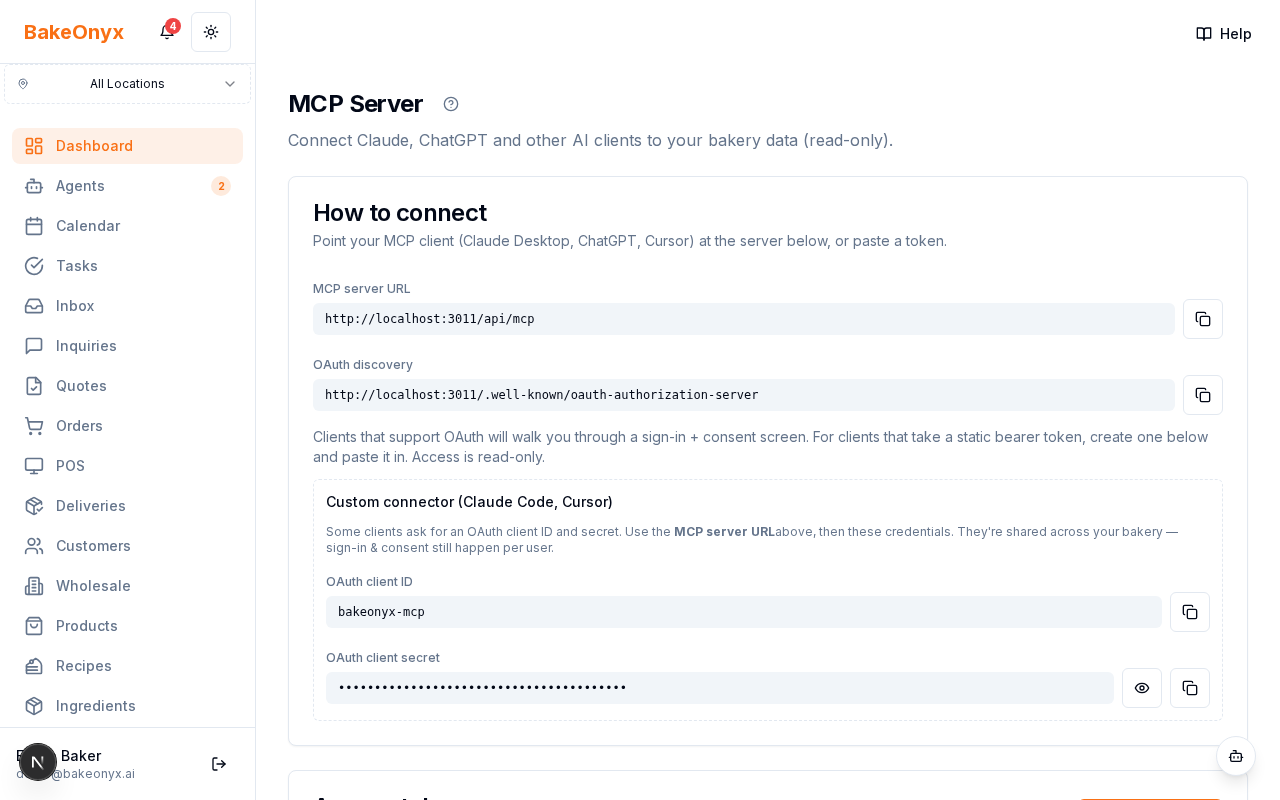
You’ll find everything under Settings → MCP Server.
What the assistant can see
A connected assistant can read across your bakery: orders, recipes and their costs, customers, products, ingredients and low-stock alerts, suppliers, purchase orders, invoices, quotes, inquiries, deliveries, loyalty, and expenses. It only ever sees your bakery — never another business’s data.
Two ways to connect
Which one you use depends on the AI app you have.
1. Sign-in (recommended)
Most modern assistants support a one-tap sign-in. You give the app the MCP server URL from the settings page, and the app then opens a BakeOnyx sign-in and a short “Allow access?” consent screen. You approve it, and you’re connected — nothing to copy or paste, and the connection is tied to your login.
- Go to Settings → MCP Server.
- Copy the MCP server URL.
- In your AI app, add a new connector / integration and paste that URL.
- Sign in to BakeOnyx when prompted and approve the access request.
2. Access token (for apps that ask for a key)
Some apps don’t do the sign-in dance and instead ask you to paste a key. For those, create a read-only access token:
- On the MCP Server page, click Create token.
- Give it a name you’ll recognise later — e.g. “My Claude Desktop” or “Office ChatGPT”.
- Click Create. The token is shown once — copy it immediately and paste it into your AI app. For security you can’t see it again afterwards.
- Paste it wherever your app asks for an API key or bearer token, alongside the MCP server URL.
Each token lasts 90 days and is read-only. When it expires, just create a fresh one.
Custom connector (Claude Code, Cursor)
A few developer-style tools ask for an OAuth client ID and client secret in addition to the server URL. If your app needs these, you’ll see them on the MCP Server page (the secret has a show/hide eye button). Copy the server URL, the client ID, and the client secret into the app’s connector form. These credentials are shared for your bakery, but each person still signs in and approves access individually — so access always stays tied to a real user.
Keeping it safe and revoking access
Everything about this feature is built to be reversible and low-risk:
- Read-only — no assistant can ever change your data.
- Time-limited — tokens expire after 90 days on their own.
- Revocable instantly — to cut off a connection, find the token under Access tokens and click Revoke. Any app using it loses access immediately. Do this if you stop using an app, change devices, or think a token may have leaked.
- Visible — the page shows how many calls were made in the last 30 days and when each token was last used, so you can spot anything unexpected.
Tips
- Create a separate token per app or device, named clearly — then you can revoke just one without disturbing the others.
- Treat a token like a password: don’t paste it into emails, chats, or shared documents.
- If an assistant says it can’t reach your bakery, check the token hasn’t expired or been revoked, and that you copied the full MCP server URL.