Staff Scheduling and Shift Management
Create staff schedules with shifts, track availability, and monitor labor costs.
Staff Scheduling and Shift Management
Managing your bakery's staff schedule is one of the most important parts of running a smooth operation. BakeOnyx's scheduling tools help you create shifts, track availability, control labor costs, and even handle shift swaps—all in one place.

- Create and manage weekly staff shifts with start/end times and breaks
- Monitor labor costs and get alerts when hours exceed 40 per week
- Let staff request shift swaps with an approval workflow
Accessing Your Schedule
To get started, head to the Schedule section in your BakeOnyx dashboard. You'll see a weekly grid view that displays all your staff members down the left side and the seven days of the week across the top. This gives you a clear snapshot of who's working when.
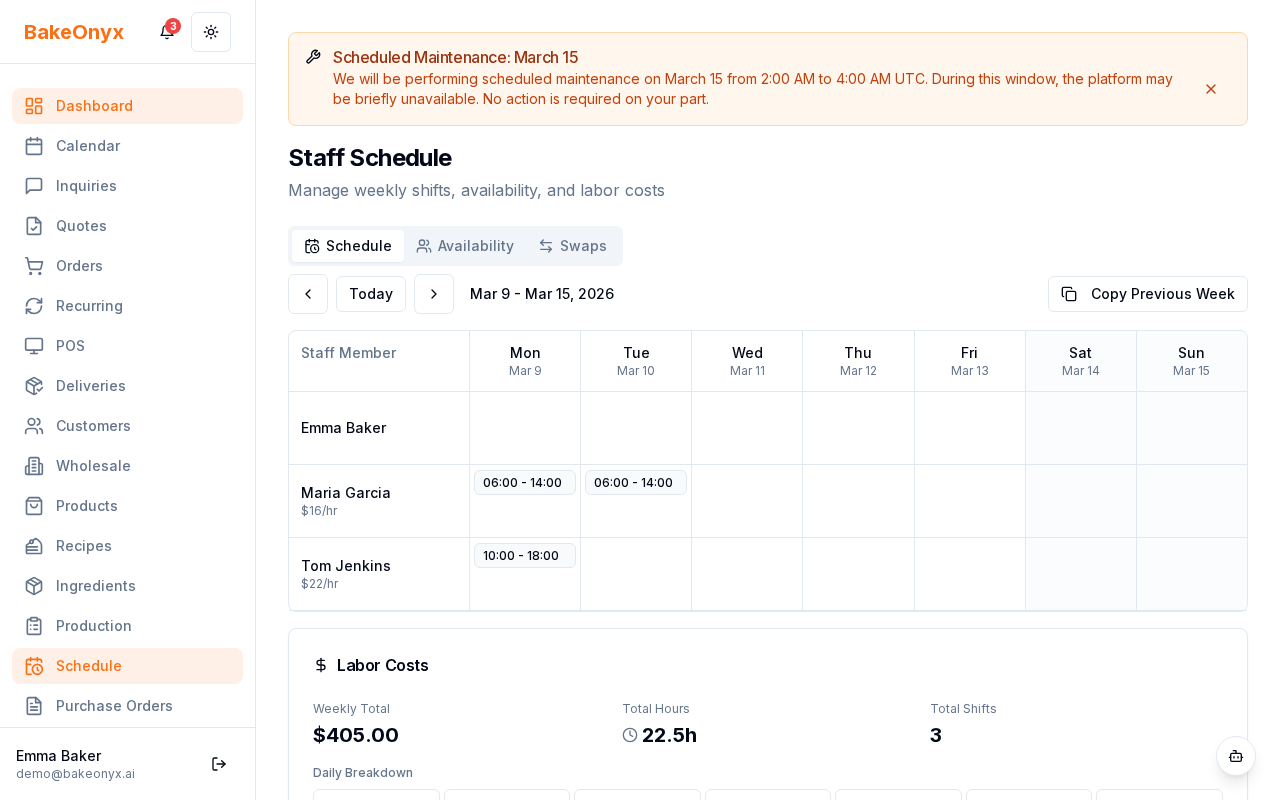
Creating a New Shift
To add a shift for a staff member:
- Click on the empty cell where the staff member's name meets the day you want to schedule them.
- A shift form will open. Fill in:
- Staff Member — Select the person from the dropdown
- Date — Confirm the date (auto-filled based on where you clicked)
- Start Time — Enter when their shift begins (e.g., 5:00 AM for early bakers)
- End Time — Enter when their shift ends
- Break Minutes — Add unpaid break time (e.g., 30 minutes for lunch)
- Status — Choose Scheduled (default), Confirmed, Completed, or Cancelled
- Notes (optional) — Add reminders like "Cover front counter" or "Train new hire"
- Click Save Shift.
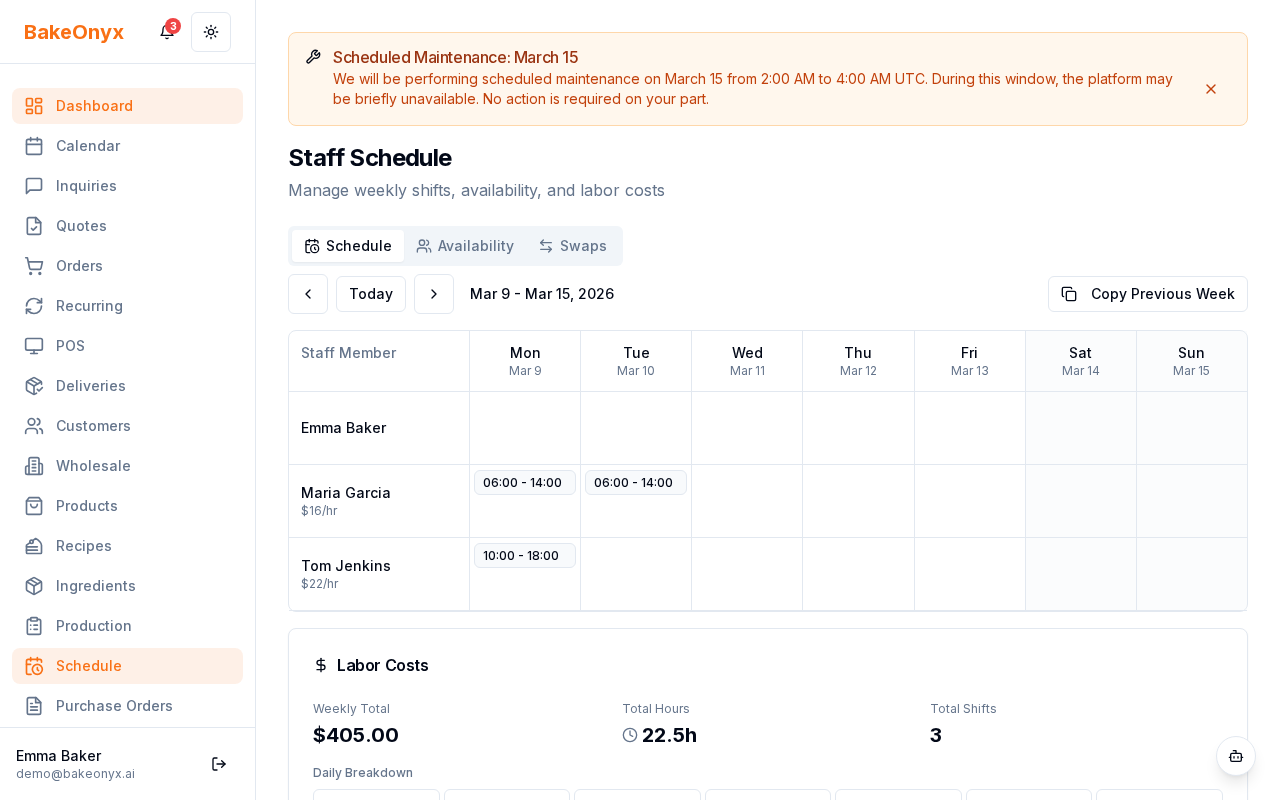
Using Bulk Copy to Speed Up Scheduling
If your schedule repeats week to week, you don't have to recreate it from scratch. Use the Bulk Copy Week feature to duplicate an entire week's schedule:
- Click the Copy Week button at the top of your schedule grid.
- Select the week you want to copy from.
- Choose the week(s) you want to paste it into.
- Click Confirm.
This is a huge time-saver if your bakery runs the same shifts most weeks.
Tracking Staff Availability
Before you schedule someone, check their availability. Each staff member can set preferred start and end times for each day of the week. When you're creating a shift, BakeOnyx will show you if the shift conflicts with their stated availability—but you can still schedule them if needed (for example, in an emergency).
Managing Labor Costs
BakeOnyx tracks labor costs automatically using each staff member's hourly rate. The system watches for overtime: if anyone is scheduled for more than 40 hours in a week, you'll see an overtime alert. This helps you stay on top of payroll expenses and make adjustments before costs spiral.
Handling Shift Swap Requests
Staff members can request to swap shifts with each other through BakeOnyx. When a swap request comes in, you'll see a notification. Review the request to make sure coverage is maintained, then approve or deny it. This keeps shift changes organized and documented.
Next Steps
- Sync your BakeOnyx schedule with Google Calendar to share shifts with staff
- Update your business profile settings to set your bakery's hours and labor policies
- Learn more about the calendar view for a different way to visualize your schedule