Using Bake Buddy (AI Assistant)
Chat with Bake Buddy to get quick answers about your orders, recipes, inventory, and business data.

Using Bake Buddy (AI Assistant)
- How to access Bake Buddy and ask questions about your bakery data
- What kinds of tasks Bake Buddy can help with — from order lookups to inventory updates
- How to confirm actions and understand when Bake Buddy needs your approval
What is Bake Buddy?
Bake Buddy is your AI-powered assistant built right into BakeOnyx. It's available from your dashboard sidebar and can answer questions about your orders, recipes, inventory, customers, expenses, and much more. Think of it as a smart helper who knows your entire bakery operation and can fetch information or make updates on your behalf — all through a simple chat interface.
Getting Started with Bake Buddy
Step 1: Open the Chat
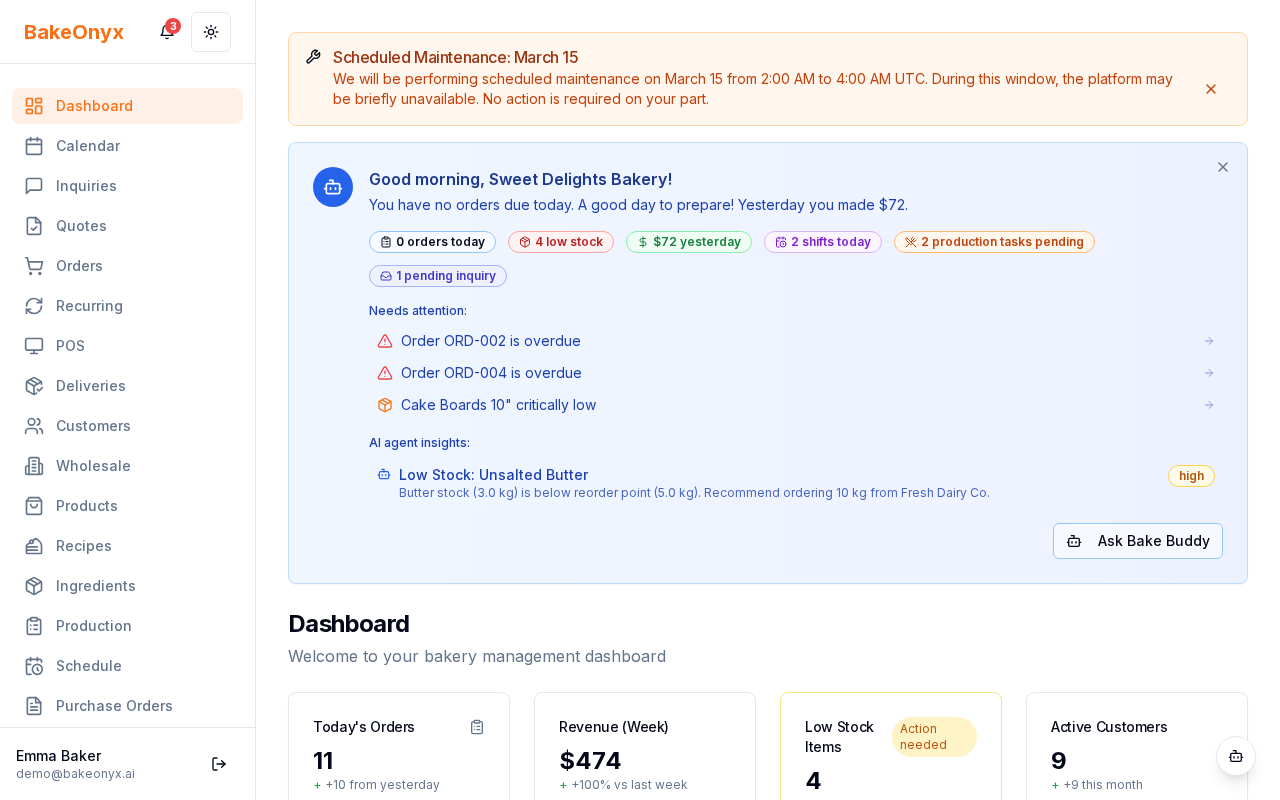
- From your BakeOnyx dashboard, look for Bake Buddy in the left sidebar.
- Click on it to open the chat window.
- You'll see a greeting message and a text input field at the bottom.
Step 2: Ask Your Question
Type your question or request in plain English. Bake Buddy understands a wide range of queries, such as:
- "What orders do I have for tomorrow?"
- "Show me low-stock ingredients"
- "How much did I spend on flour last month?"
- "Create a new order for John Smith"
- "Update the sourdough recipe"
Just type naturally — you don't need special commands or technical language.
Step 3: Review Bake Buddy's Response
Bake Buddy will respond with the information you requested or confirm what action it's about to take. If you're asking a simple question (like checking your order list), you'll get an immediate answer. If you're asking Bake Buddy to make a change (like updating inventory or creating an order), you'll see a confirmation card.
Understanding Confirmation Cards
When Bake Buddy needs to create, update, or delete something in your bakery, it shows you a confirmation card before taking action. This is a safety feature to make sure changes happen exactly as you intend.
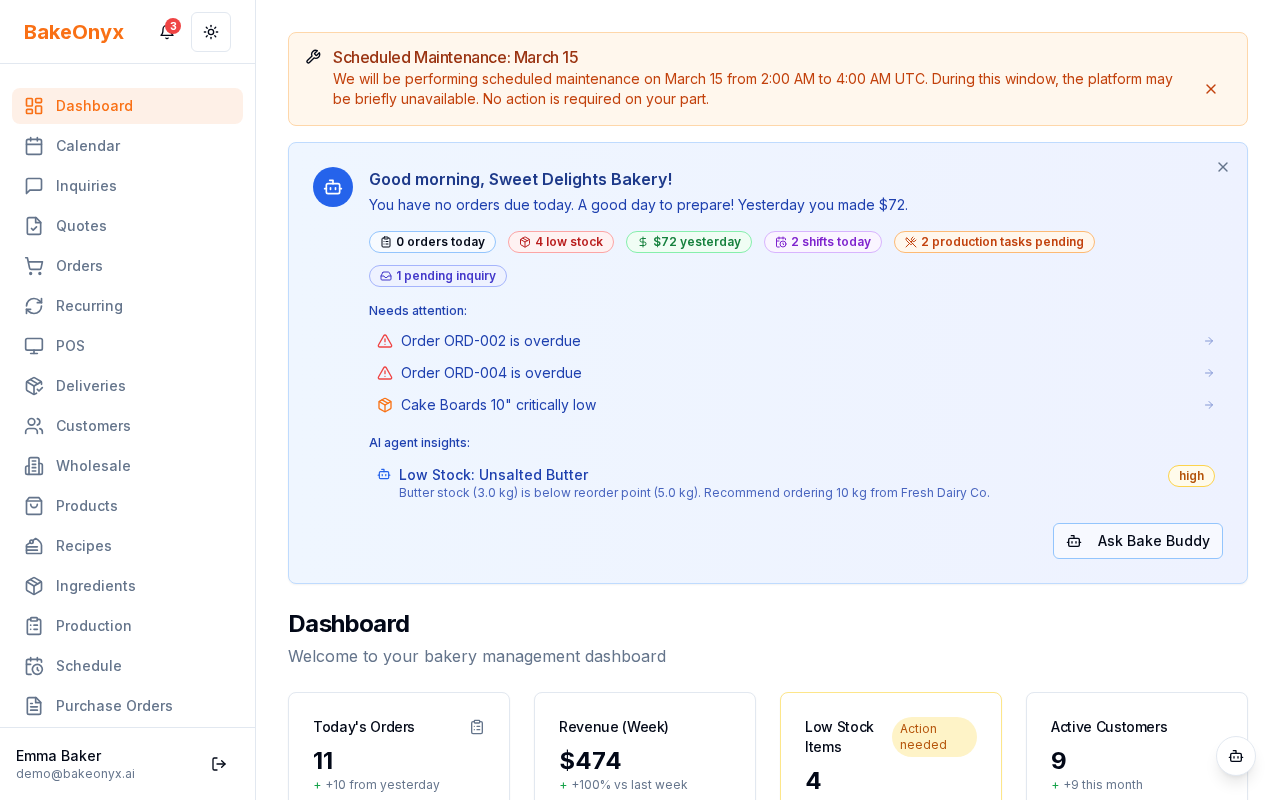
On the confirmation card, you'll see:
- What's being changed — the specific details of the action
- A risk badge — green (low risk), amber (medium risk), or red (high risk) to help you understand the impact
- Approve or Cancel buttons — click Approve to proceed, or Cancel to stop
Using the Morning Briefing
When you first open Bake Buddy each day, it provides a morning briefing tailored to your timezone. This gives you a quick snapshot of what's happening today:
- Deliveries scheduled for today
- Staff shifts you have scheduled
- Production tasks on your list
- Pending customer inquiries
- Quotes that are about to expire
Smart Suggestions Based on Your Page
Bake Buddy is aware of which page you're currently viewing in BakeOnyx. If you're looking at your orders, for example, Bake Buddy might suggest questions like "Show me unpaid invoices" or "What's the status of order #1234?" These page-aware suggestions help you ask the right questions at the right time.
Clearing Your Chat History
If you want to start fresh, you can clear your chat history at any time. Look for the Clear Chat button in the Bake Buddy window. This removes your conversation history but doesn't affect any actions you've already approved.
Rate Limits and Subscription Tiers
Bake Buddy usage is based on your BakeOnyx subscription tier. Higher-tier plans allow more daily questions and requests. If you reach your daily limit, you'll see a message letting you know. Limits reset each day at midnight in your timezone.
Next Steps
- Learn about AI Pricing Optimizer — another AI feature to help you set competitive prices
- Creating a Recipe — use Bake Buddy to help manage your recipe library
- Adding and Managing Ingredients — keep your inventory updated with Bake Buddy's help