Inquiries and Quotes
Handle customer inquiries and generate quotes before converting them to orders.
An inquiry captures a customer's request; a quote turns it into a priced, formal offer you send; accept it and it converts to an order. Here's how to create and manage both in BakeOnyx.
What are Inquiries and Quotes?
Think of inquiries as your bakery's "maybe" list. When a potential customer reaches out with a request that isn't an immediate order – like asking about a custom wedding cake or a large batch of cupcakes for an event – you can create an inquiry in BakeOnyx. This helps you keep track of these potential sales opportunities without cluttering your active orders. Once you've gathered the details of their request, you can generate a formal quote. This quote provides a clear, itemized breakdown of costs and can be easily emailed to the customer. If they love your quote and decide to proceed, you can convert the entire inquiry into a new order with just a few clicks, ensuring no details are lost.Creating a New Inquiry
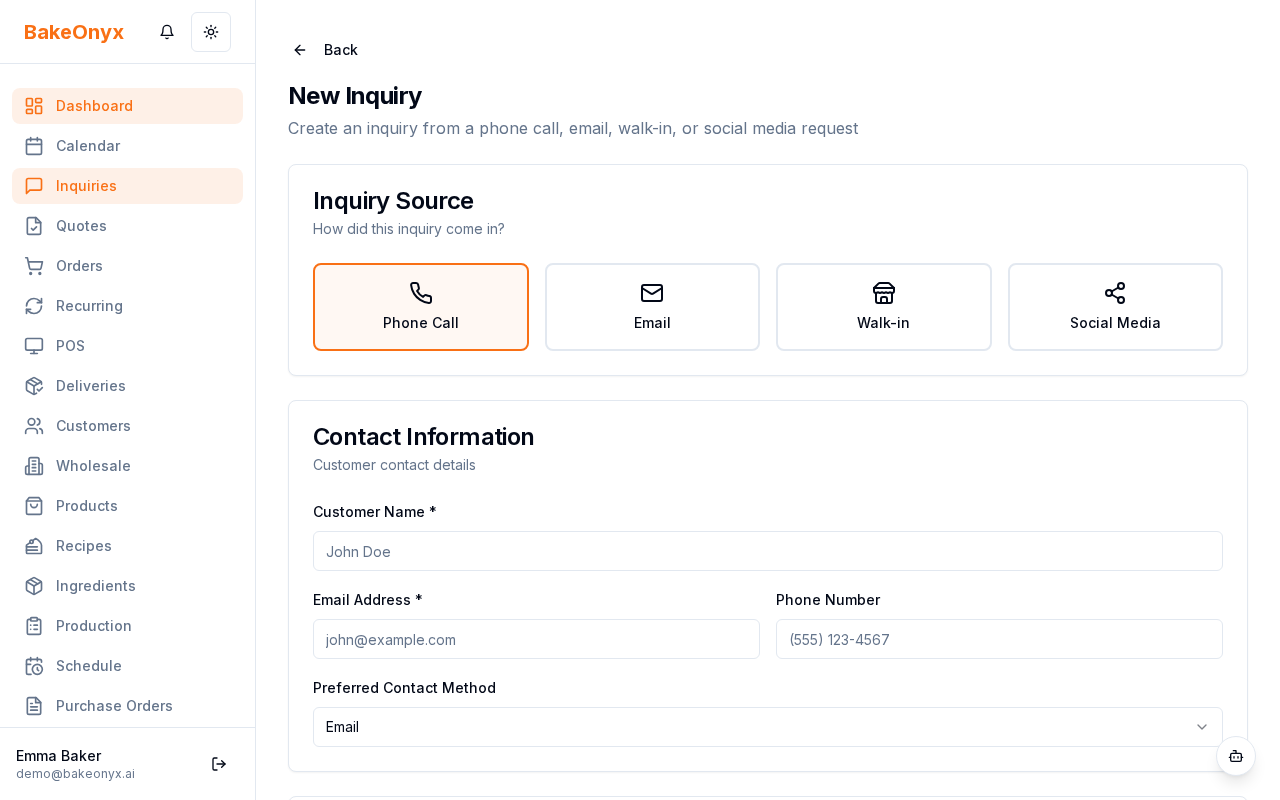
When a new customer request comes in, follow these steps to create an inquiry:- Navigate to the Inquiries section in the main menu.
- Click the New Inquiry button.
- In the New Inquiry form, you'll see several fields to fill out:
- Customer: Start typing the customer's name. If they are already in your system, they will appear, and you can select them. If they are new, you can create a new customer profile here.
- Event Type: Select the type of event the inquiry is for (e.g., Wedding, Birthday, Corporate Event, Holiday, Other).
- Event Date: Enter the date of the customer's event.
- Description: Provide a detailed description of what the customer is requesting. Include specifics like flavors, sizes, quantities, decorations, and any special instructions.
- Budget: If the customer has shared their budget, enter it here. This can help you tailor your quote.
- Status: The default status is New. You'll update this as you progress through the inquiry.
- Click the Save Inquiry button.
Updating Inquiry Status
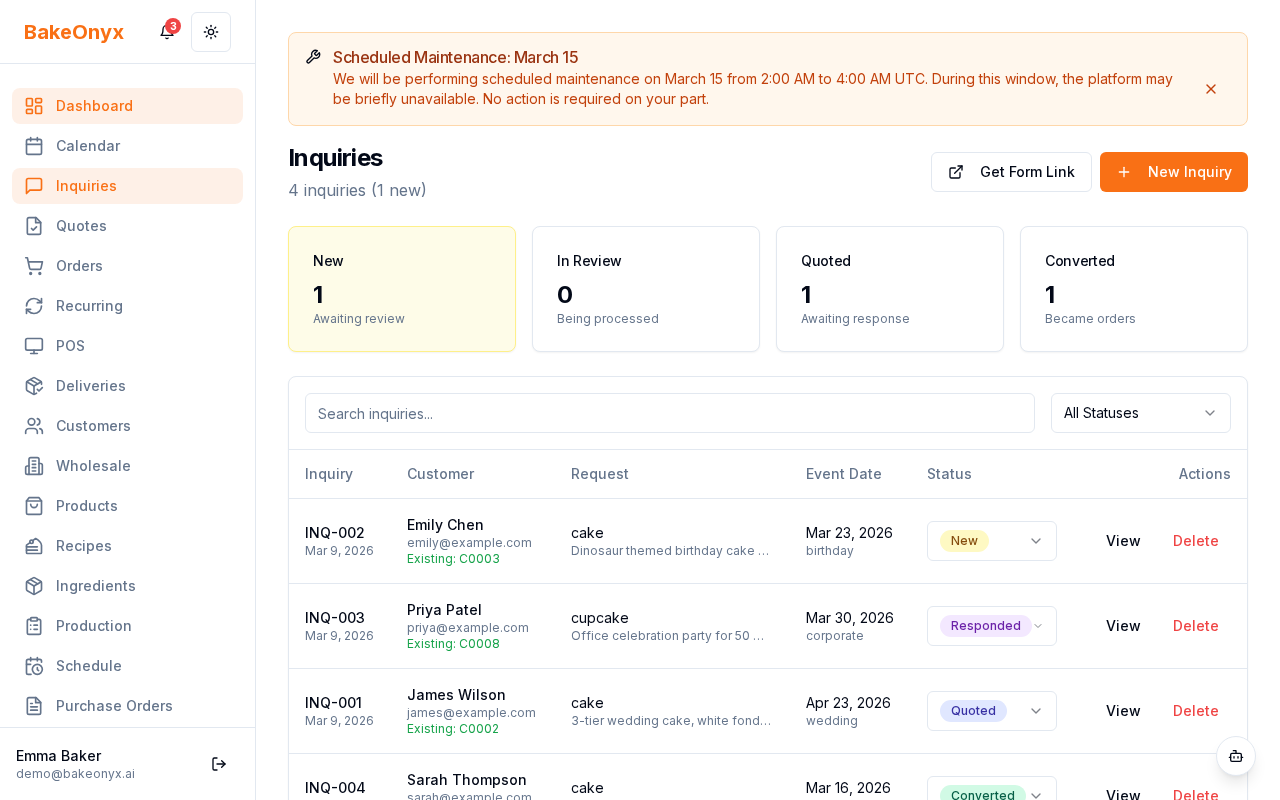
As you communicate with the customer and work on their request, you'll want to update the inquiry's status to reflect its progress. The typical status flow is:- New: The inquiry has just been created.
- Contacted: You have responded to the customer's initial inquiry.
- Quoted: You have sent a formal quote to the customer.
- Converted: The customer has accepted your quote and it has been turned into an order.
- Lost: The customer decided to go with another bakery or canceled their request.
Tip: Regularly updating the status helps you and your team see at a glance where each potential order stands. This is crucial for managing your sales pipeline effectively.
Generating and Sending a Quote
Once you have all the details and have decided on the pricing, you can generate a formal quote:- Open the inquiry you want to create a quote for.
- Click the Create Quote button.
- A new quote form will appear, often pre-populated with customer and event details from the inquiry.
- Add Items: Use the Add Item button to add each product or service the customer is requesting. For each item, specify:
- Product/Service: Select from your existing product list or enter a custom description.
- Quantity: The number of units.
- Unit Price: The price per unit.
- Total: This will calculate automatically.
- Add Notes: You can add any specific notes or terms and conditions to the quote that the customer should be aware of.
- Review the quote carefully for accuracy.
- Click Save Quote.
- Once saved, you'll have options to Email Quote or Print Quote. Use the Email Quote option to send it directly to the customer from BakeOnyx.
Converting an Inquiry to an Order
When a customer accepts your quote, the next step is to convert the inquiry into a confirmed order. This is a simple process that transfers all the relevant information:- Open the inquiry that the customer has approved.
- Ensure the Status is set to Quoted or click the Convert to Order button.
- A confirmation prompt may appear. Click Yes or Confirm to proceed.
- BakeOnyx will automatically create a new order, populating it with the customer's details, event information, and all the items from the quote.
- You will be redirected to the newly created order. Review all the details. You can now add payment information, schedule fulfillment, and manage the order like any other.
Note: Converting an inquiry to an order automatically updates the inquiry's status to Converted.
Next Steps
* [Chatting with Customers on the Inquiry Link](/help/customers/inquiry-chat-with-customers) * [Creating a New Order](/help/orders/creating-an-order) * [Managing Wholesale Customers](/help/wholesale/wholesale-customers)Was this article helpful?