AI-Drafted Replies: How They Work
When a customer messages you, the assistant pre-writes a reply you can send, edit, or discard — nothing goes out without you.
A reply, already written for you
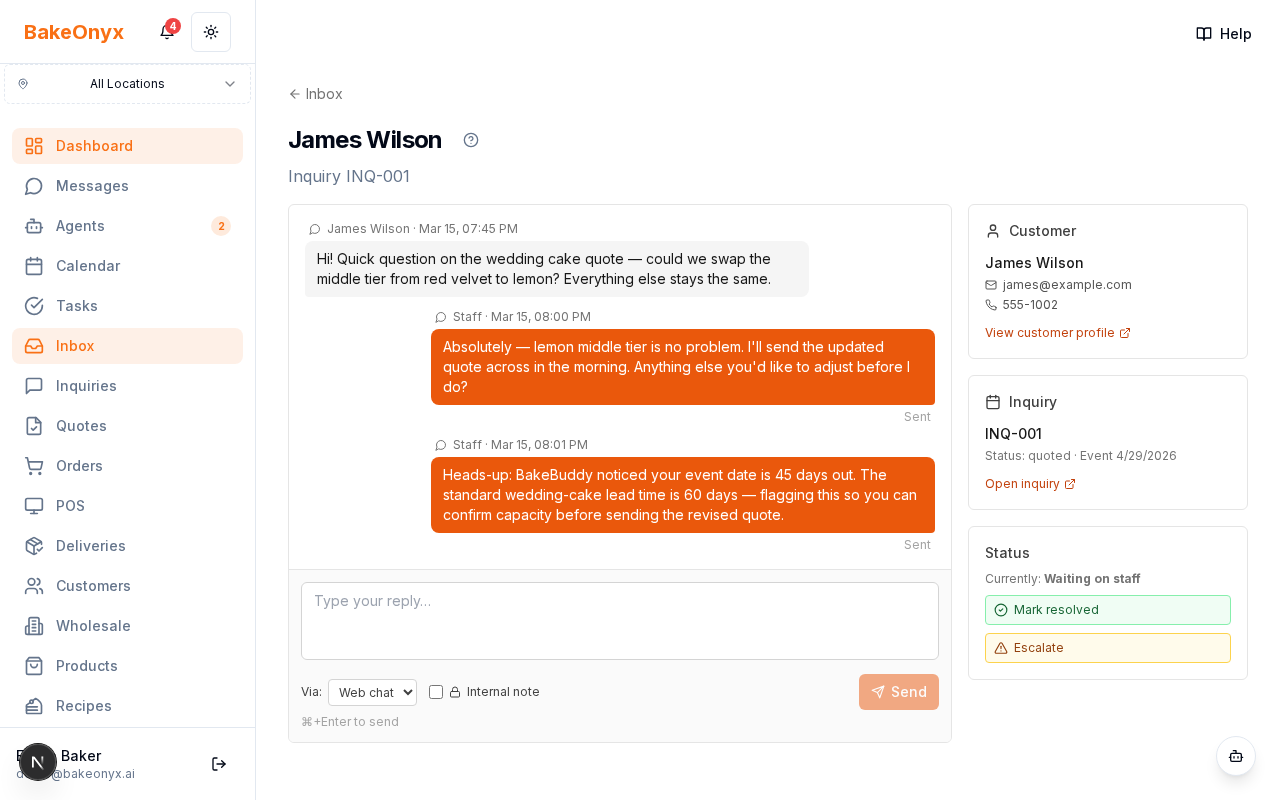
When AI draft replies are switched on, the assistant reads each new customer message and writes a suggested reply for you. It appears in the conversation as a draft card — you stay completely in control of what actually gets sent.
Your three choices
- Use draft — send it as written
- Edit — tweak the wording first, then send
- Discard — ignore it and write your own
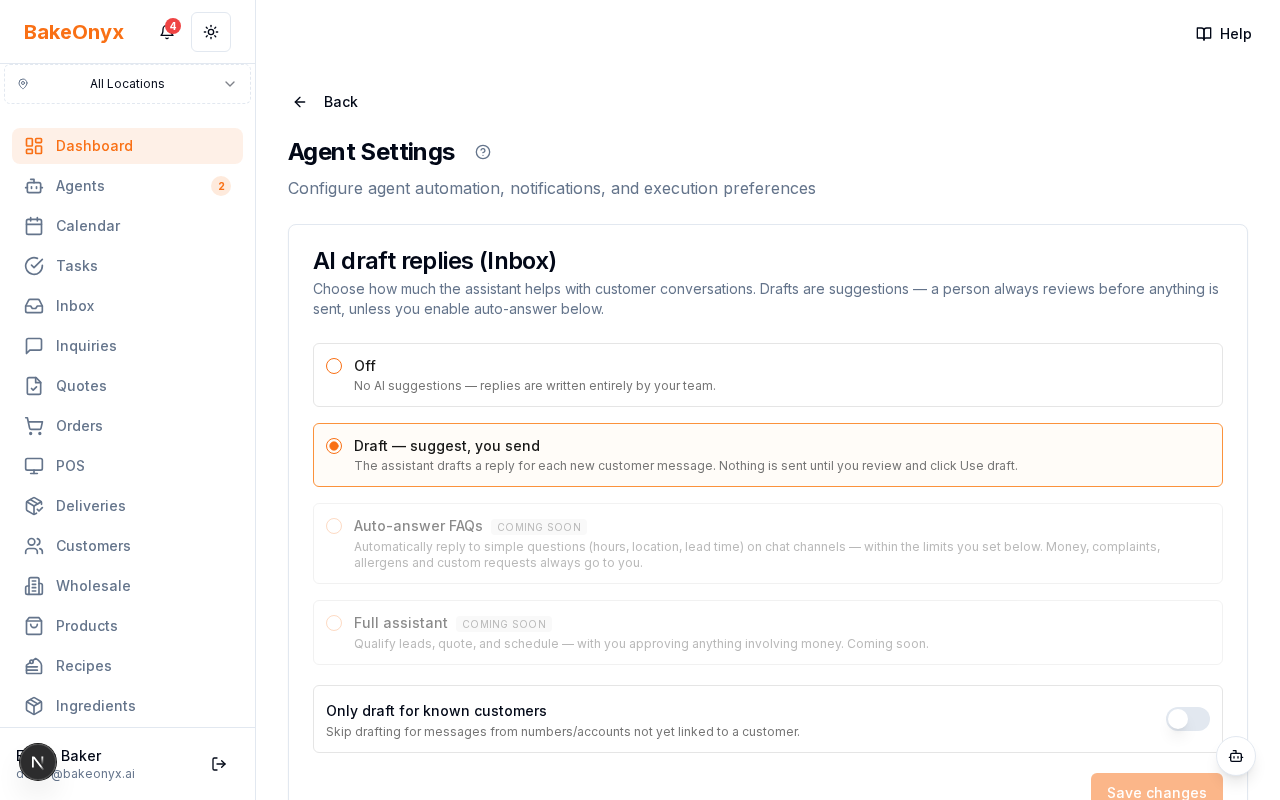
At the Draft level, nothing is ever sent automatically. A person always clicks send.
What the draft is based on
Drafts aren't generic. They're built from the conversation history plus your bakery's real information — your catalog, prices, lead times, delivery zones, and policies. See Grounding AI Replies in Your Catalog & Rules for how that works.
Sensible caution built in
- Sensitive topics — money, complaints, allergens, custom requests — are written carefully and always left for you to review.
- You can choose to only draft for known customers and skip messages from people not yet linked to a customer record.
- Each draft carries a confidence score the assistant uses internally to decide how cautious to be.
Editing makes it smarter over time
When you edit a draft before sending, that still counts as "accepted." Those signals feed the quality stats that decide whether the upcoming auto-answer feature can ever be unlocked for your bakery — so the assistant only earns more autonomy once it has proven reliable.
Turning it on
Go to Settings → Agent Settings and choose Off or Draft. Draft is the recommended starting point.
Next steps
- AI Assistant Settings & Activity — track accept rate, cost, and outcomes
- Grounding AI Replies in Your Catalog & Rules