From a Chat to an Order: Linking Customers, Inquiries & Quotes
A WhatsApp or Messenger chat came in — here is how to turn it into a customer, then an inquiry, quote, or order, all linked together.
The one rule: the customer is the hub
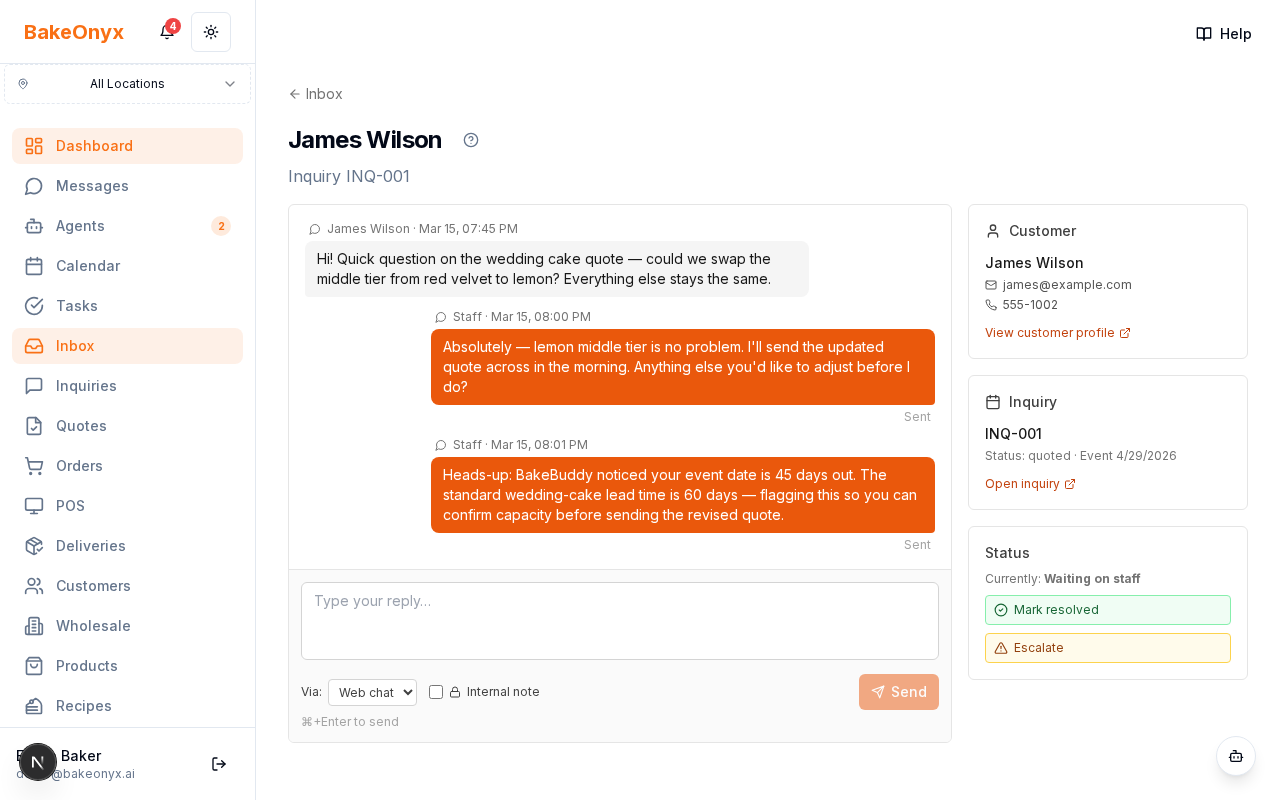
A chat, an inquiry, a quote, and an order are all tied together through the Customer record. Link a conversation to a customer first, and everything you create for that customer afterwards — an inquiry, a quote, an order — shows up alongside the chat on the customer's page. Get the customer right and the rest connects itself.
Two kinds of threads
A channel chat is your ongoing WhatsApp, Messenger, or SMS conversation with one person — one continuous thread per person. An anchored thread is the messages attached to a specific inquiry, quote, or order. The inquiry, its quote, and the resulting order all share one anchored thread as the deal progresses.
A channel chat stays its own thread — it does not merge into the inquiry or order thread. The two are connected through the customer, so you never lose context: open the customer and you see the chat, the inquiries, the quotes, and the orders together.
Step 1 — Identify the person
When a message arrives, BakeOnyx tries to match the sender to an existing customer automatically — by their phone number on WhatsApp/SMS, or their Facebook ID on Messenger. If it recognises them, the chat is already linked to that customer.
If it doesn't, the conversation shows as an unknown sender with two buttons in the sidebar:
- Create customer — makes a new customer, pulling in the name and phone from the message.
- Link to existing — search your customers and connect the chat to the right one.
You only do this once. Every future message from that person attaches to the customer automatically.
Step 2 — Create from the chat
Once a chat is linked to a customer, a Create from this chat button appears in the conversation sidebar. It opens the full New Inquiry, New Quote, or New Order form with that customer already selected — no re-typing, no re-searching. You fill in the cake details, pricing, and dates exactly as you normally would.
The common situations
You already have an inquiry and a chat with the same person. Open the chat, choose "Link to existing", and pick that inquiry's customer. The inquiry and the chat now both sit under the customer.
You added an order by hand and also chat on Messenger. Make sure the order's customer is the same one the chat is linked to. The order and the chat are then connected through the customer, and you can reply from either place.
A prospect is chatting and you want to send a quote. Link or create the customer, then use "Create from this chat" → New Quote and build the quote. It produces a shareable link you can paste straight into the chat. When the customer accepts, the quote becomes an order — and the inquiry, quote, and order all stay on one thread.
The general rule for every case: link the chat to a customer first, then create the inquiry, quote, or order for that customer.
The 24-hour Messenger window
Facebook Messenger (and WhatsApp) only let you reply within 24 hours of the customer's last message — this is the platform's rule, not BakeOnyx's. Unlike WhatsApp, Messenger has no templates for messaging outside that window, so once 24 hours pass you must wait for the customer to write again, or reach them by email or phone. The inbox shows an amber banner when you're outside the window.
A note on history
When you first connect a Messenger page, only messages sent after you connect appear in the inbox — older Facebook conversations are not pulled in. This is normal. New messages flow in within seconds, so the quickest way to confirm the connection works is to have someone send a fresh message to your page.