AI Assistant Settings & Activity
Choose how much the assistant helps, restrict it to known customers, and track its accept rate, cost, and outcomes.
Where to find it
Open Settings → Agent Settings. This is where you decide how much the assistant helps with customer conversations, and where you can see exactly how it has performed.
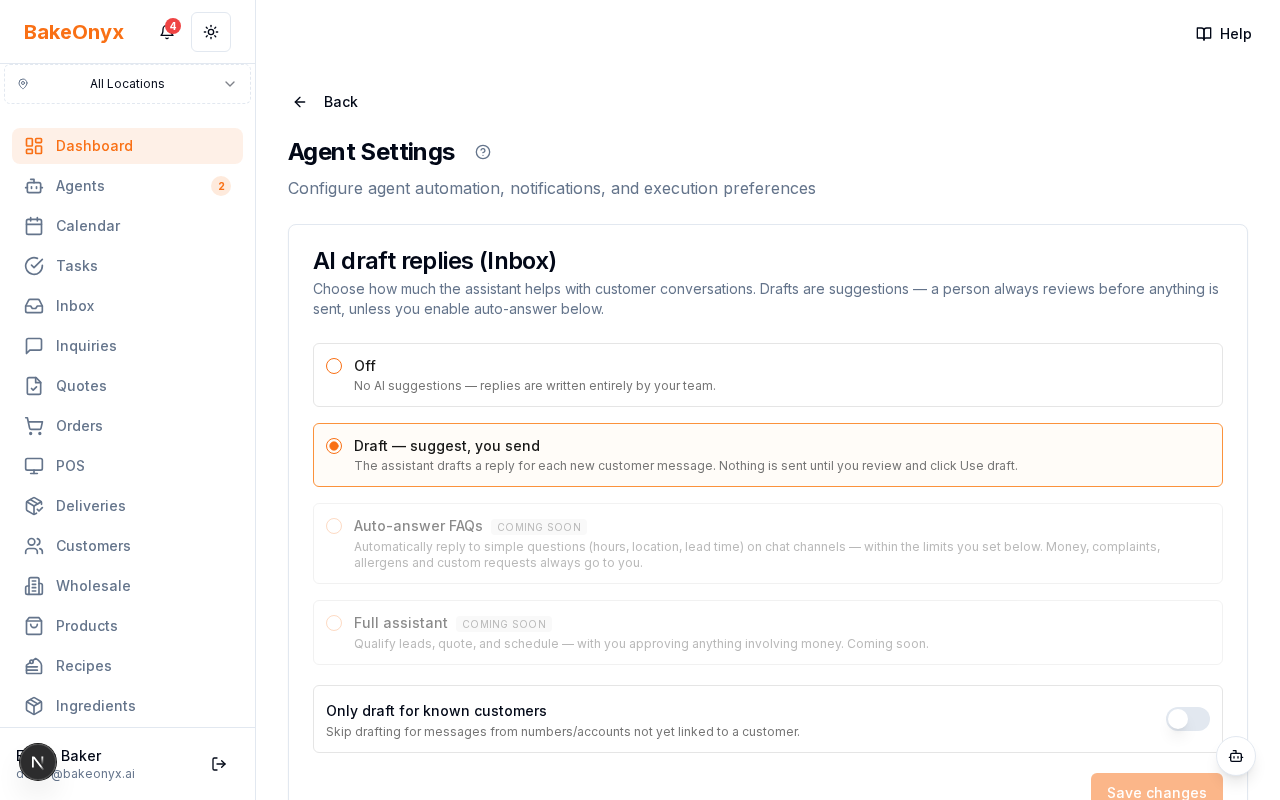
The levels
- Off — no AI suggestions; your team writes every reply.
- Draft — the assistant drafts a reply for each new customer message; you review and send. Recommended starting point.
- Auto-answer FAQs and Full assistant — shown as "Coming soon" and unlocked later, once your drafts have proven reliable.
There's also an "Only draft for known customers" toggle to skip drafting for senders not yet linked to a customer record.
The activity view: Inbox AI performance
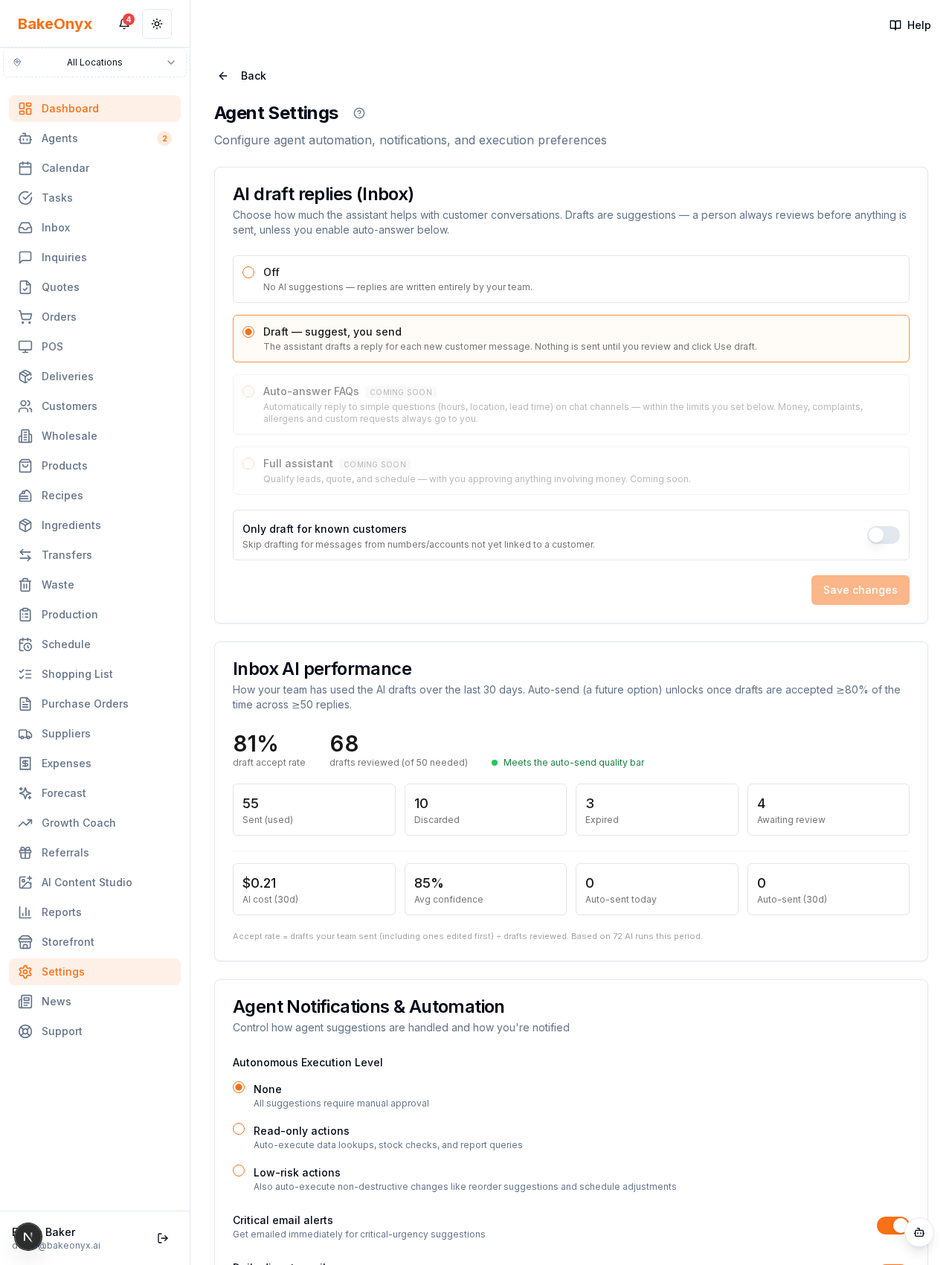
Right below the settings, the Inbox AI performance panel shows how your team has actually used AI drafts over the recent period:
- Draft accept rate — how often your team sent the assistant's drafts (edited or as-is)
- Drafts reviewed and an outcome breakdown: Sent, Discarded, Expired, Awaiting review
- Average confidence and the AI cost for the period
The quality bar
A progress indicator shows whether your drafts are accepted often enough, across enough replies, to qualify for the upcoming auto-answer feature. This is how BakeOnyx makes sure automation only turns on after the assistant has earned your trust.
Who can change it
Owners and managers. Tip: start on Draft, watch the accept rate climb, and refine your agent guidelines if you find yourself editing drafts the same way repeatedly.