WhatsApp Automation Delivery
Send any customer automation flow via WhatsApp instead of email. Requires Meta template approval per flow.
Why WhatsApp for Automation
WhatsApp open rates sit around 90% — roughly 4× email. For geographies where customers live in WhatsApp (most of Europe, LATAM, SEA, ME), switching a single flow to WhatsApp often doubles conversion.
BakeOnyx sends any of the four automation flows (Welcome, Re-engagement, Top Customer, Birthday) via WhatsApp — but only once Meta has approved the specific template for your WhatsApp Business account.
Prerequisites
- WhatsApp Business API configured. Settings → Messaging → fill in Business ID, Phone Number ID, and Access Token. Test the connection.
- Meta template submitted. In Meta Business Manager, submit a template matching one of the four automation template names (see below) with the correct variable count.
- Meta approval received (usually 24-48 hours).
- Mark the template approved in BakeOnyx — see next section.
Template Approval UI
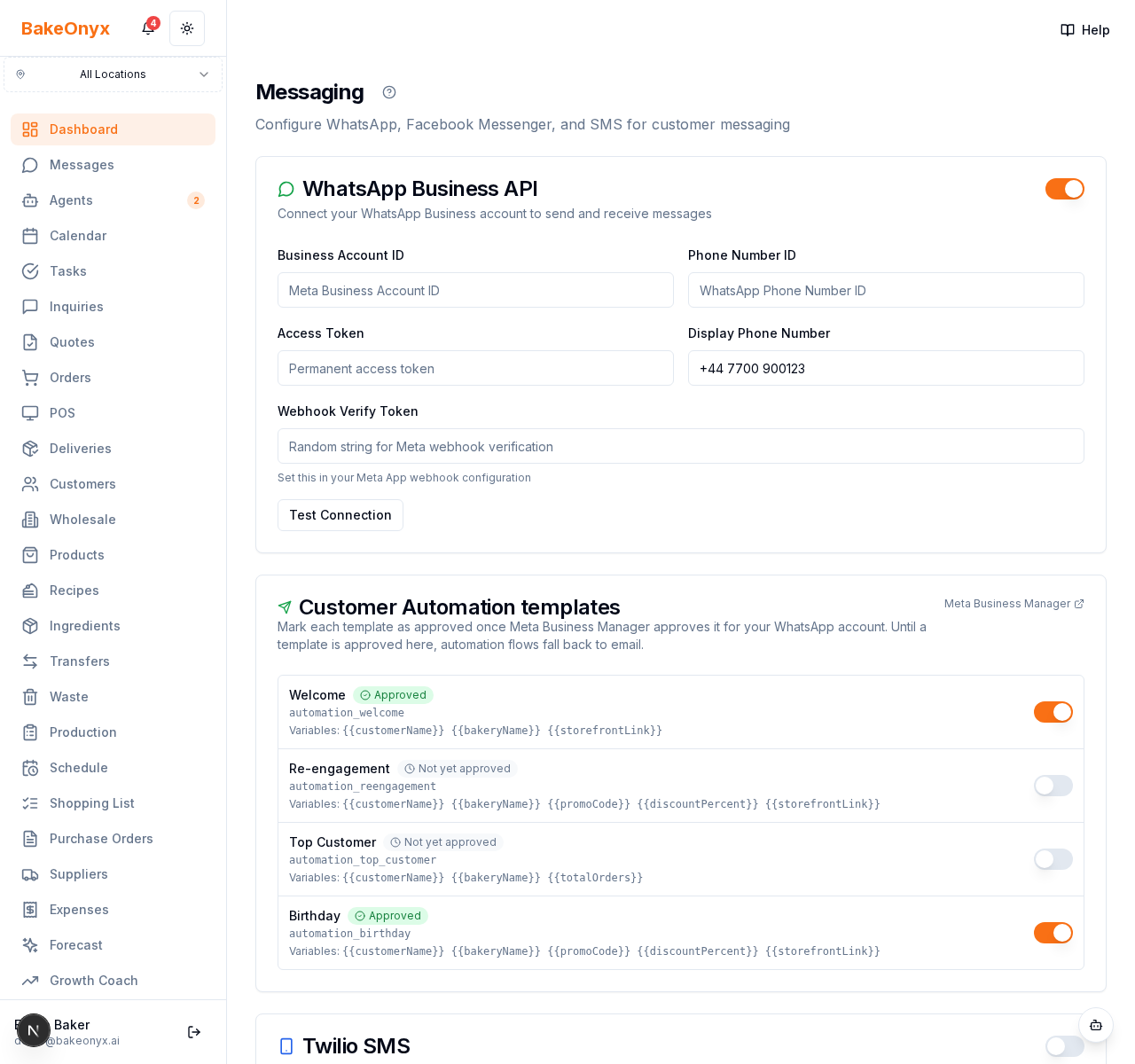
After a template is approved by Meta, toggle it on under Settings → Messaging → Customer Automation templates. The toggle only enables sending — BakeOnyx never submits templates to Meta for you; that's a manual step in Business Manager.
The Four Templates
| Flow | Template name in Meta | Variables (in order) |
|---|---|---|
| Welcome | automation_welcome |
customerName, bakeryName, storefrontLink |
| Re-engagement | automation_reengagement |
customerName, bakeryName, promoCode, discountPercent, storefrontLink |
| Top Customer | automation_top_customer |
customerName, bakeryName, totalOrders |
| Birthday | automation_birthday |
customerName, bakeryName, promoCode, discountPercent, storefrontLink |
Variable order matters — Meta templates use positional variables ({{1}}, {{2}}, …), so submitting them in a different order produces garbled messages. Use the variable list above as your authoritative spec when filling in Meta's template body.
Switching a Flow to WhatsApp
On each automation flow card (Settings → Customer Automation), there's a Send via toggle once WhatsApp is enabled platform-wide:
- Email (default) — always available.
- WhatsApp — only selectable if the corresponding template is approved in BakeOnyx. If the template is pending/rejected, the WhatsApp option is greyed out with an explanatory tooltip.
Automatic Fallback to Email
Even when a flow is set to WhatsApp, BakeOnyx falls back to email on any failure. Failure reasons include:
- Customer has no phone number on file.
- Phone number isn't in E.164 format.
- WhatsApp isn't enabled for your bakery globally.
- The template isn't marked approved.
- Meta API returns an error.
- Your access token failed to decrypt (re-paste the token to fix).
The fallback reason is logged on the step row as errorMessage: whatsapp_fallback:<reason> for diagnostics. The customer still receives the message — just via email.
Platform Parity Rule
Every WhatsApp-capable flow ships a matching email template default. BakeOnyx refuses to boot the worker if this invariant is broken — which means you can flip a flow from Email to WhatsApp and back freely without worrying about missing copy.
Where Messages Get Logged
WhatsApp sends are stored in the Messages inbox alongside order-confirmation and customer-reply messages. Opens and clicks flow through Meta's webhooks into the same status pipeline. The automation step's channel field reflects the channel that actually delivered (so a WhatsApp-with-email-fallback step will show email).
Cost
Meta charges a conversation fee per WhatsApp template send — roughly $0.005-0.05 depending on country. This is paid directly to Meta, not BakeOnyx. For high-volume bakeries, the WhatsApp conversion lift usually dwarfs the fee.
Common Gotchas
- "Template not approved" stays on forever. Meta takes 24-48 hours. After Meta approves in Business Manager, you still need to toggle it on in BakeOnyx — we don't auto-sync.
- Variable-count mismatch. If your submitted Meta template has fewer variables than our contract, WhatsApp sends will fail silently (Meta rejects, we fall back to email). Compare your Meta template body against the Variables column above.
- Customer missing a phone number. Welcome flow only checks email at enrolment; the phone check happens at send time. A Welcome with no phone falls back to email, not skipped.
See Also
- Customer Lifecycle Automation — the full flow documentation.