Setting Up WhatsApp & SMS
Connect your WhatsApp Business account and Twilio SMS to send and receive messages.
Setting Up WhatsApp & SMS
- Connect your WhatsApp Business account to send order updates and reminders to customers
- Set up Twilio SMS for text message notifications
- Configure which channel (WhatsApp, SMS, or email) BakeOnyx uses by default for new customers
WhatsApp and SMS let you reach customers where they're already messaging. This guide walks you through connecting both channels to BakeOnyx so you can send order confirmations, ready notifications, delivery reminders, and payment updates directly to your customers' phones.
Before You Start
You'll need accounts set up on two platforms:
- For WhatsApp: A Meta Business Account with access to the Meta Developer portal
- For SMS: A Twilio account
If you're only setting up one channel right now, that's fine—you can add the other later.
Connecting WhatsApp Business
WhatsApp messaging in BakeOnyx uses Meta's Cloud API. Here's what you need from the Meta Developer portal:
- Log in to your Meta Business Account and navigate to the Developer Portal
- Find your Business Account ID and copy it
- Create or select a WhatsApp Business app, then locate your Phone Number ID (the unique identifier for your WhatsApp business phone number)
- Generate a permanent Access Token with WhatsApp message permissions
- Note your Display Phone Number (the actual phone number customers will see, formatted with country code—for example, +14155552671)
- Create a Webhook Verify Token (a random string you'll use to verify webhook requests)
Once you have these details:
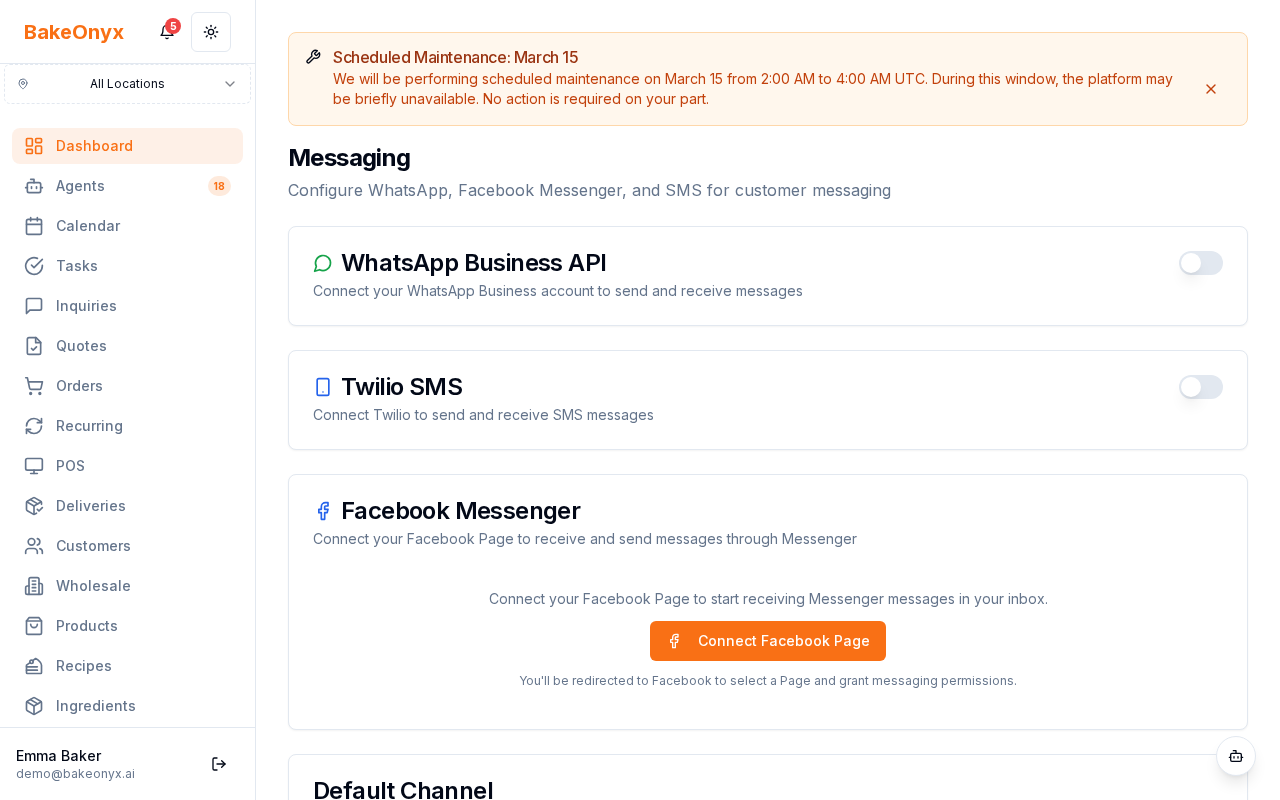
- In BakeOnyx, go to Dashboard → Settings → Messaging
- Find the WhatsApp section
- Enter your Meta Business Account ID
- Enter your Phone Number ID
- Paste your Access Token (BakeOnyx encrypts this automatically)
- Enter your Display Phone Number
- Enter your Webhook Verify Token
- Click Test Connection to verify all credentials are correct
Setting Up Twilio SMS
To send SMS text messages, you'll need your Twilio credentials:
- Log in to your Twilio Console
- Find your Account SID (under Account Info)
- Generate or copy your Auth Token
- Note the Phone Number you'll be sending from (formatted in E.164 format, like +14155552671)
To add SMS to BakeOnyx:
- In BakeOnyx, go to Dashboard → Settings → Messaging
- Find the SMS (Twilio) section
- Enter your Account SID
- Paste your Auth Token (BakeOnyx encrypts this automatically)
- Enter your Phone Number in E.164 format
- Click Test Connection to verify your Twilio account is connected
Setting Your Default Messaging Channel
When you add a new customer to BakeOnyx, the system needs to know which channel to use for sending them notifications. You can set a default preference:
- On the Messaging settings page, find Default Channel for New Customers
- Choose from: Email, WhatsApp, SMS, or Messenger
- Click Save
Customers will receive automated notifications (order status updates, payment reminders, delivery reminders) through this channel. They'll also always receive email notifications alongside their preferred channel.
Next Steps
- Connecting Facebook Messenger — Add Messenger as another customer communication channel