Settings Overview: What to Configure
A map of all settings areas — find where to configure anything in BakeOnyx.
Settings Overview: What to Configure
- Understand the layout of BakeOnyx settings and where each feature lives
- Know which settings to configure first when you're getting started
- Find the right settings area for any task — from team management to invoices to integrations
BakeOnyx has a lot of settings, but they're organized into clear sections so you can find what you need. This guide maps out every settings area so you know exactly where to go.

Accessing Settings
- Log in to your BakeOnyx dashboard
- Click the Settings icon or menu item (usually in the bottom left or top right of your sidebar)
- You'll see the main settings page with all available sections
Business Settings
Start here when you first set up BakeOnyx.
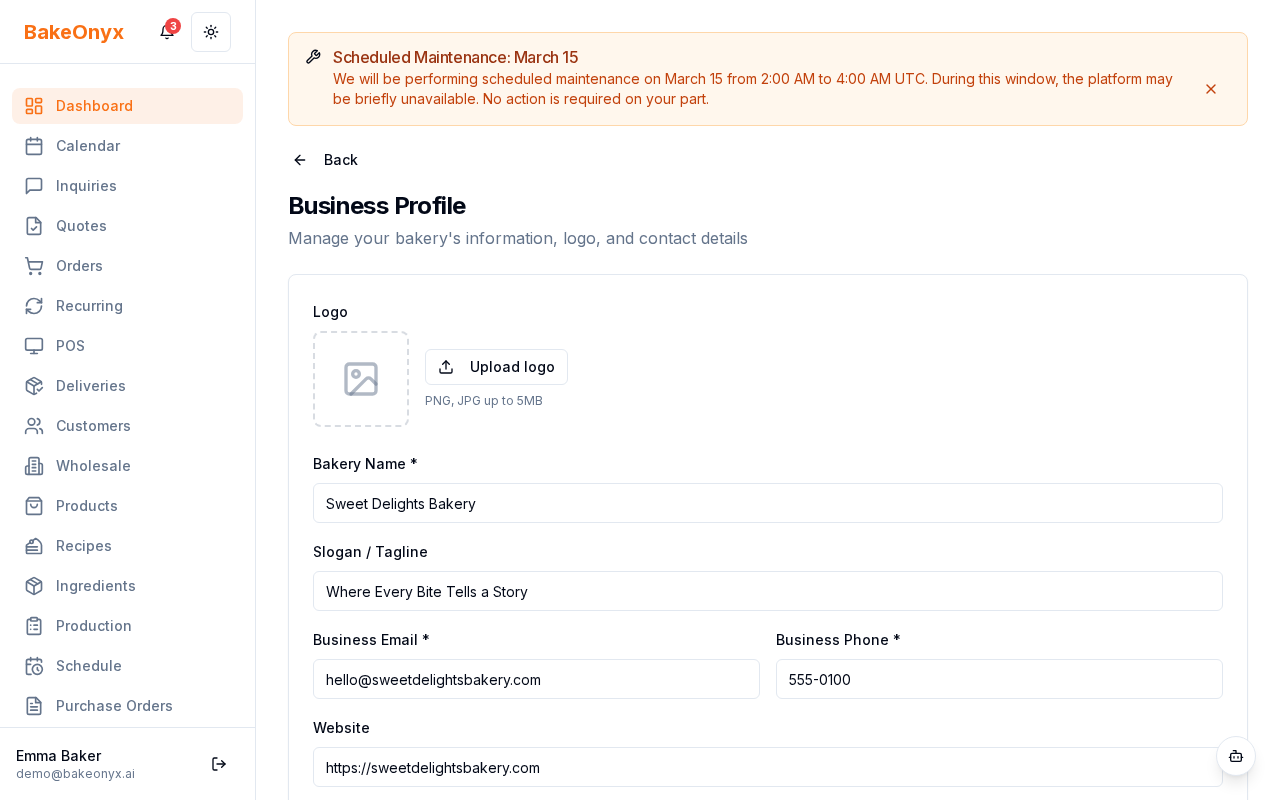
Business Profile
Configure your bakery's basic information:
- Business name and logo
- Address and contact details
- Timezone and currency
- Default language
Team Management
Add staff members and assign roles:
- Owner — full access to all settings and data
- Manager — can manage orders, inventory, and staff (but not billing or core settings)
- Staff — limited access, typically for production or delivery tasks
Set up team members after your first week of using BakeOnyx.
Financial Settings
Configure how BakeOnyx calculates costs and pricing.
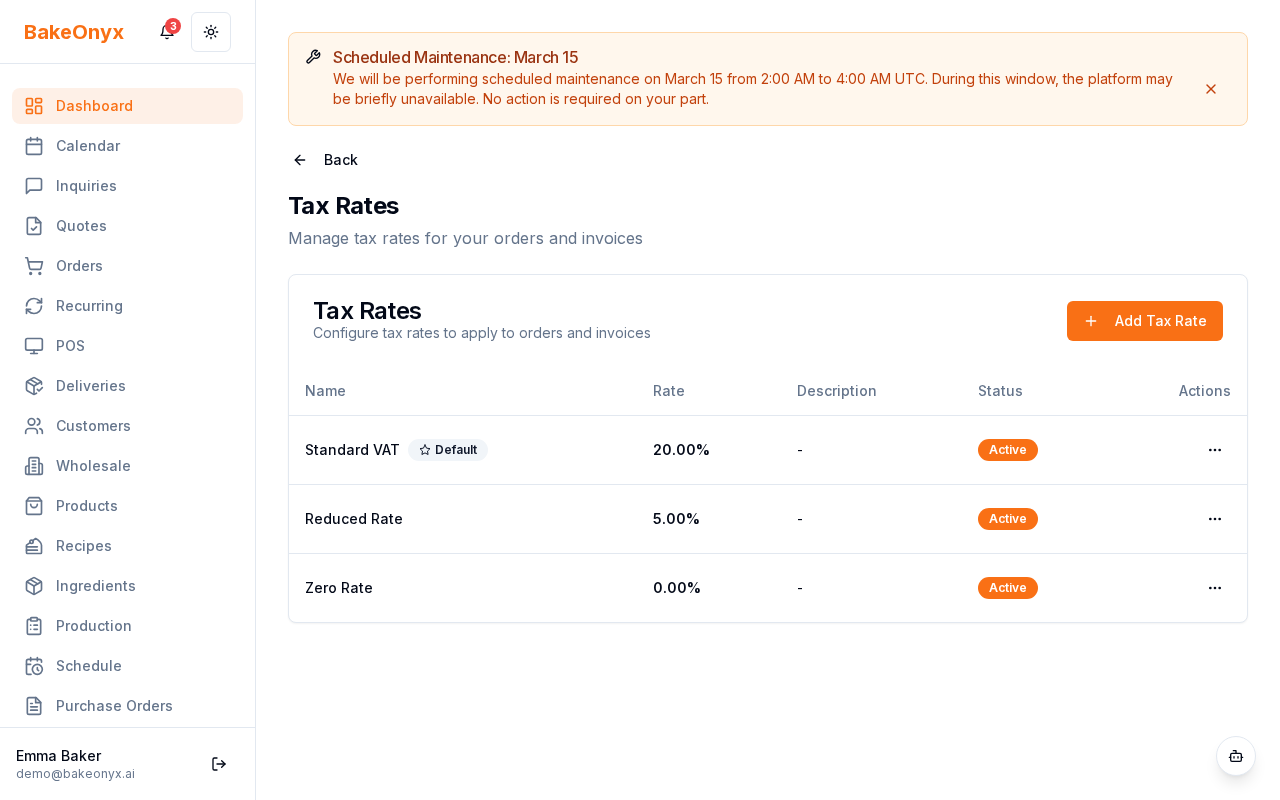
Tax Rates
Set up regional tax rates that apply to your orders:
- Create default tax rates for your region
- Assign different rates to specific product categories if needed
- Tax will automatically calculate on new orders
General Settings (Financial)
Set system-wide financial defaults:
- Labour Rate Per Hour — used to calculate production costs
- Default Markup % — automatic profit margin on products
- Overhead Method — how monthly costs are allocated to production
Overhead Costs
Track fixed monthly expenses like rent, utilities, and equipment that get allocated to your product costs.
Document Settings
Customize how your invoices, receipts, job sheets, and quotes look.
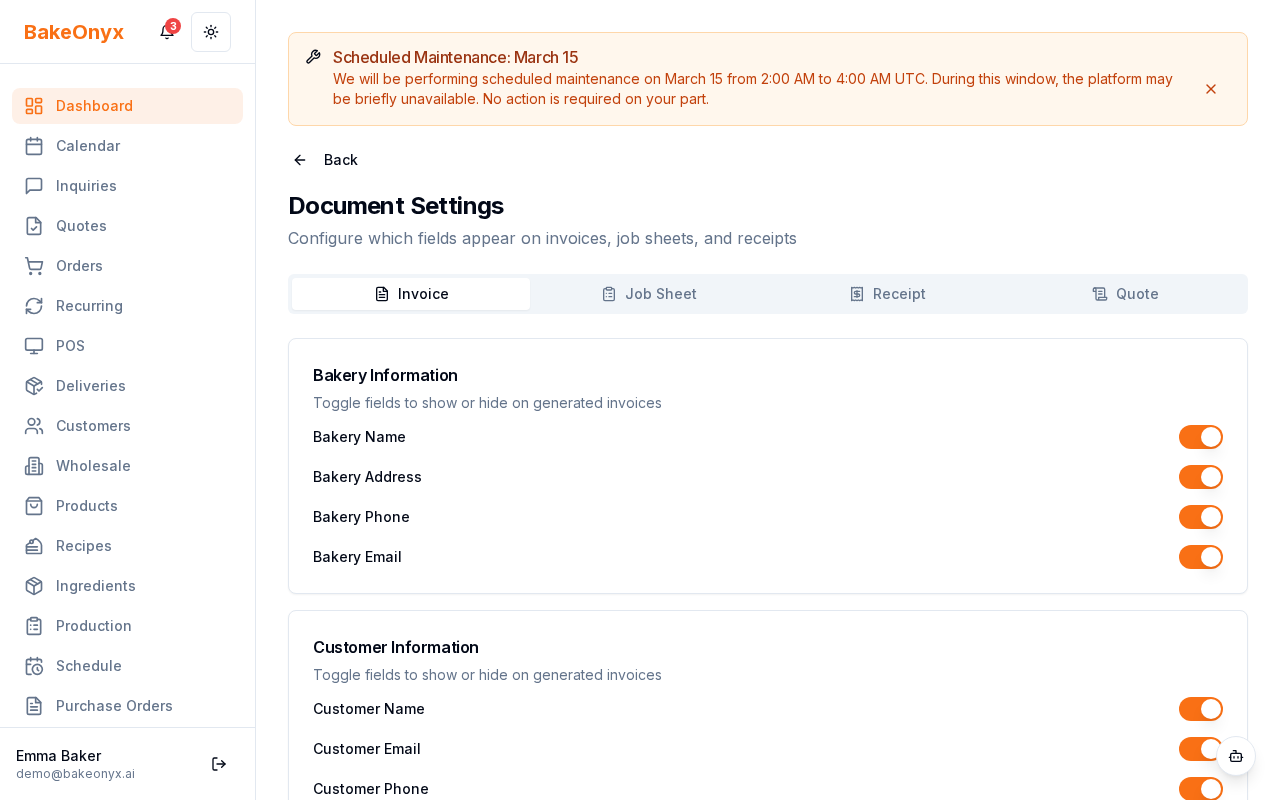
Document Display Settings
Choose which fields appear on each document type:
- Invoices
- Job Sheets
- Receipts
- Quotes
- Delivery Notes
Invoice Customization
Add your branding, payment terms, and custom notes to invoices.
Email Templates
Customize automated emails sent to customers:
- Order confirmation
- Delivery reminder
- Payment overdue notice
- Custom transactional emails
Email Settings
Set your sender name and reply-to address for all outgoing emails.
Product Settings
Suppliers
Store supplier contact information, payment terms, and lead times. This information links to purchase orders and ingredient tracking.
Lists of Values
Customize dropdown options throughout BakeOnyx:
- Product categories
- Payment methods
- Order sources (e.g., "walk-in," "website," "phone")
- Custom fields for your workflow
Product Configurator
Define custom options for complex products — like cake sizes, flavors, fillings, and decorations that customers can mix and match.
Integrations
Online Payments
Connect Stripe or Square to accept card payments directly in BakeOnyx.
Google Calendar Sync
Automatically sync order due dates to your Google Calendar.
Accounting Integration
Connect QuickBooks Online or Xero to sync financial data automatically.
AI Settings
AI Features & Usage Limits
Enable or disable AI-powered features and monitor your usage.
AI Agent Settings
Configure autonomous agents to handle routine tasks like order reminders or inventory alerts.
Other Settings
Navigation
Customize which menu items appear in your sidebar — hide features you don't use to keep your dashboard clean.
Account
Manage your subscription, billing, and account closure.
Next Steps
- Business Profile Settings — step-by-step guide to set up your bakery's basic information
- Welcome to BakeOnyx — full onboarding guide for new users
- Understanding Subscription Plans — learn about your account options
New Settings Page: Post-Order Growth Emails
Settings → Post-Order Growth Emails is the one place to control every automatic email BakeOnyx sends on your behalf:
- The 3-step post-order email chain (thank-you / review request / 5-star Google invite / low-rating alert)
- The Weekly Business Digest (Monday morning summary)
- Pricing margin alerts (Growth+)
- At-risk customer dashboard + win-back emails (Growth+)
- Top-customer thresholds (order count + lifetime spend)
Each feature has a master toggle plus optional Preview buttons that send sample emails to your owner address. Every customer-facing email includes an unsubscribe link, and individual orders can opt out of the post-order chain via the order detail page.