Setting Availability and Blocked Dates
Configure your weekly order schedule and block specific dates when your bakery is closed.
Setting Availability and Blocked Dates
Managing when you accept orders and which dates you're closed keeps your bakery running smoothly and prevents customer confusion. BakeOnyx lets you set your weekly schedule and mark specific dates when you're unavailable.

- Set which days of the week you accept orders
- Define your maximum order capacity per day
- Block specific dates for holidays, vacations, or maintenance
Setting Your Weekly Availability
Your weekly availability tells customers which days you're open for orders and how many orders you can handle each day.
- Go to Settings in the main menu
- Click Availability
- You'll see a form with each day of the week listed
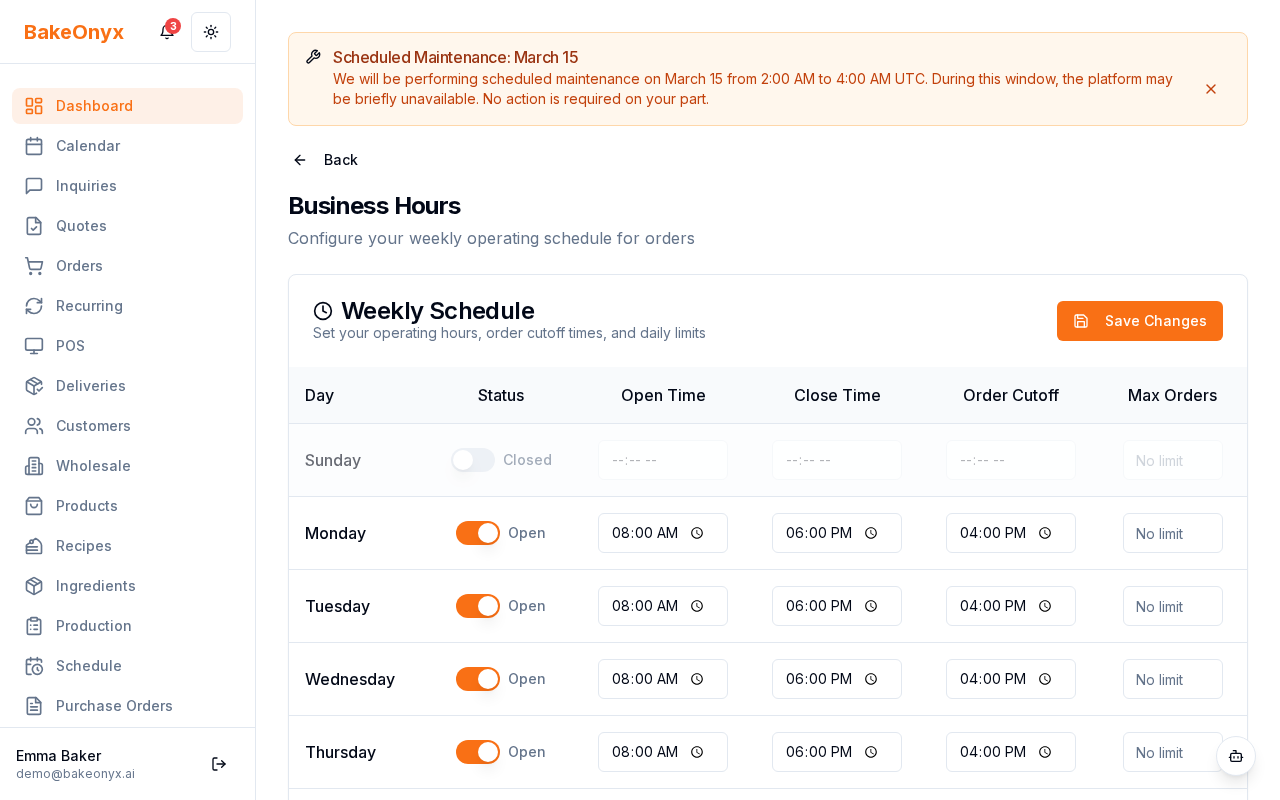
For each day:
- Toggle the switch to On if you accept orders that day, or Off if you're closed
- Enter your Maximum Orders Per Day — this is the maximum number of orders you can fulfill on that day. For example, if you set Monday to 15, customers won't be able to place orders once you've received 15 orders for that Monday
- Repeat for all days of the week
- Click Save Changes at the bottom of the form
Blocking Specific Dates
Use blocked dates to mark days when your bakery is completely unavailable — like holidays, vacation days, or when you're doing equipment maintenance.
- Go to Settings in the main menu
- Click Blocked Dates
- Click the + Add Blocked Date button
- Select the date (or date range) you want to block
- Optionally, add a reason — this helps your team remember why the date is blocked. For example: "Holiday — Bakery Closed" or "Annual Maintenance"
- Click Save
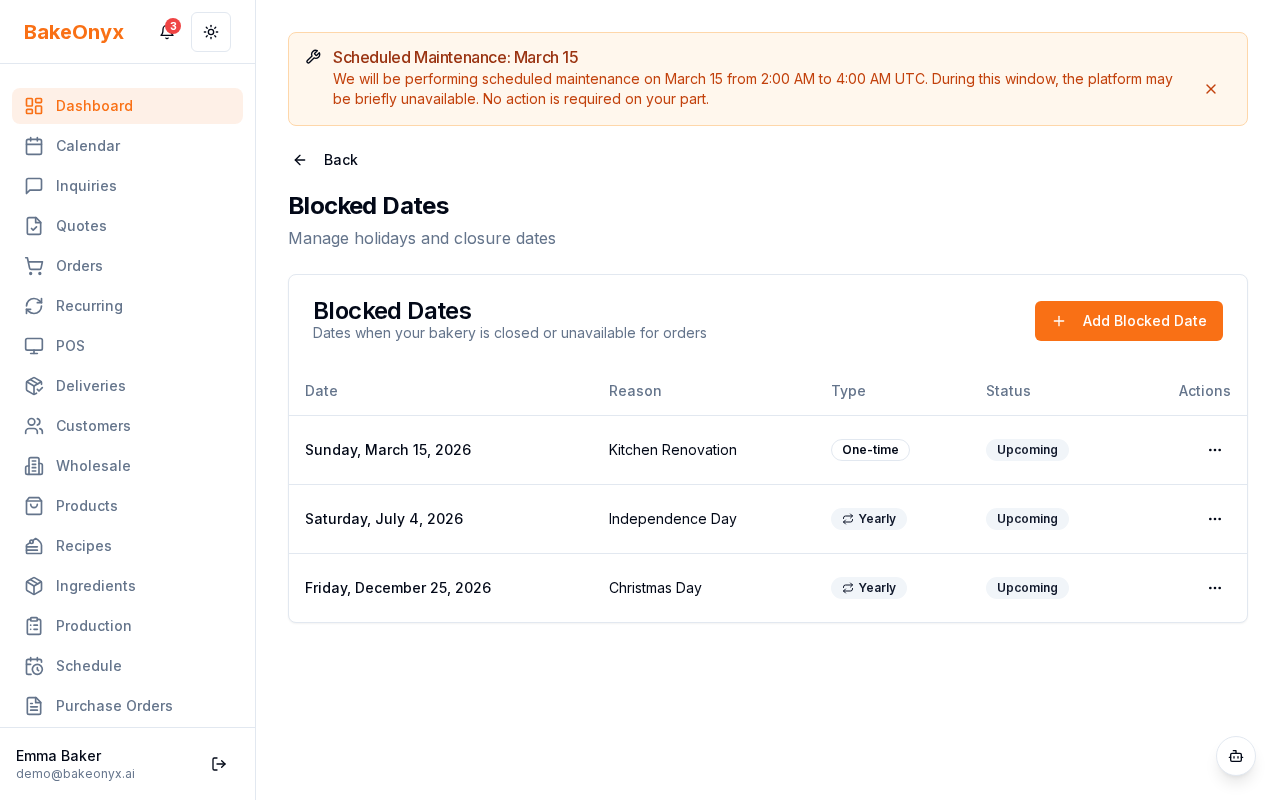
You can add as many blocked dates as you need. They'll appear in a list so you can see all your unavailable dates at a glance.
Managing Blocked Dates
Need to remove or edit a blocked date?
- To delete a blocked date, click the trash icon next to it in the list
- To edit a blocked date, click on it to open the details and make your changes
How Blocked Dates Affect Your Business
When a date is blocked:
- Customers can't place new orders for that date
- Recurring orders won't automatically generate for that date
- The date appears as unavailable in your production scheduler
If you run multiple bakery locations, you can set different availability and blocked dates for each location. This is useful if one location has different hours or closure dates than another.
Next Steps
- Creating a New Order — Learn how to manually enter orders in BakeOnyx
- Production Scheduler Overview — See how your availability settings affect your production schedule
- Business Profile Settings — Configure Google Calendar sync and other business details