Connecting Facebook Messenger
Connect your Facebook Page to receive and send Messenger messages directly from your BakeOnyx inbox.
Connecting Facebook Messenger
- Set up your Facebook Page to receive customer messages in BakeOnyx
- Understand the 24-hour messaging window and how to reply to customers
- Link unknown senders to your customer database
What is Facebook Messenger integration?
Facebook Messenger integration lets you receive and reply to customer messages directly from your BakeOnyx inbox. Instead of switching between Facebook and BakeOnyx, all your messages appear in one place. This is especially useful if customers contact you through your bakery's Facebook Page to ask about orders, custom cakes, or availability.
Connect your Facebook Page
- Log in to BakeOnyx and go to Settings in the left sidebar.
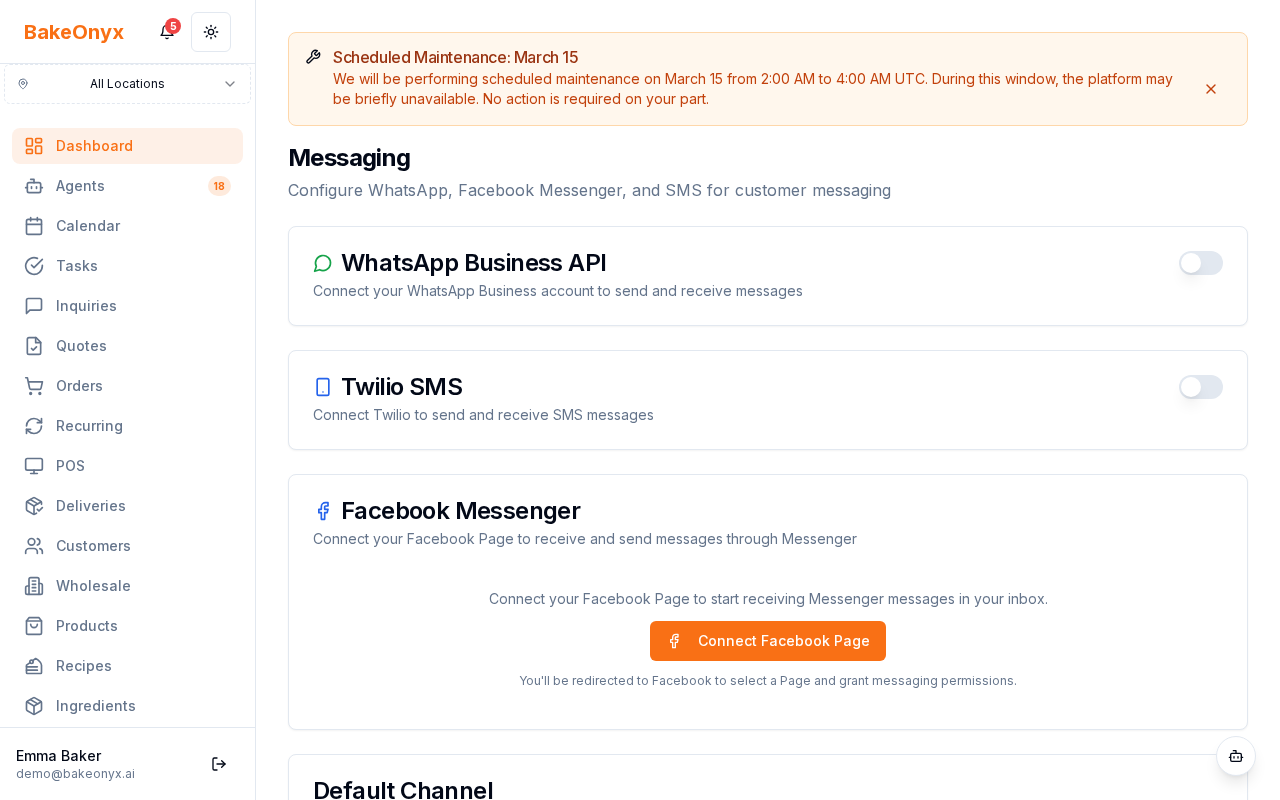
- Click Messaging to open the messaging settings page.
- Find the Facebook Messenger section and click Connect Facebook Page.
- You'll be redirected to Facebook. Log in if prompted and select the Facebook Page you want to connect to BakeOnyx.
- Review the permissions BakeOnyx is requesting (messaging access and page management). Click Allow or Continue to grant access.
- You'll be redirected back to BakeOnyx. Your Facebook Page name and ID will now appear in the Facebook Messenger section.
Verify your connection
After connecting, BakeOnyx automatically subscribes your Page to receive messages. To confirm everything is working:
- In the Facebook Messenger section, click Test Connection.
- A confirmation message will appear if your connection is active and valid.
- If the test fails, disconnect and reconnect your Page (see "Disconnect your Facebook Page" below).
Understanding the 24-hour messaging window
Facebook Messenger enforces a 24-hour standard messaging window. This means:
- You can reply to any customer message within 24 hours of when they sent it.
- After 24 hours, you cannot send a reply unless the customer messages you again.
- Once a customer replies, a new 24-hour window opens.
Unlike WhatsApp, Messenger doesn't have a template system to send messages outside the 24-hour window. Plan your outreach accordingly—for example, if you want to notify customers about a promotion or order status, consider using email or SMS instead.
Link unknown senders to your customer database
When someone messages your Page for the first time, they may appear as an unknown sender in your inbox. To link them to a customer record:
- Click on the unknown sender's message in your inbox.
- Click Link to Customer or the customer icon.
- Search for the customer by name, phone number, or email.
- Select the matching customer from the list, or click Create New Customer to add them to your database.
Once linked, all future messages from that sender will be associated with their customer profile.
Disconnect your Facebook Page
If you want to stop receiving Messenger messages in BakeOnyx:
- Go to Settings > Messaging.
- In the Facebook Messenger section, click Disconnect.
- Confirm the disconnection. BakeOnyx will remove the webhook subscription and clear all stored access tokens.
- You'll no longer receive Messenger messages in BakeOnyx, but customers can still message your Page on Facebook.
Next steps
- Sending and Receiving Messages — Learn how to reply to customers and manage conversations in your BakeOnyx inbox.