Delivery Tracking and Proof of Delivery
Track delivery progress and capture proof of delivery with photos and timestamps.
Delivery Tracking and Proof of Delivery
- Monitor real-time delivery status from dispatch to completion
- View delivery timelines, driver assignments, and customer addresses in one place
- Capture and store proof-of-delivery photos automatically
Understanding Delivery Status
BakeOnyx tracks your deliveries through four key stages, each with a timestamp so you know exactly when things happen:

- Pending: Order is ready for delivery but hasn't been assigned to a driver yet
- Assigned: A driver has been assigned to the delivery
- In Transit: Driver has picked up the order and is on the way to the customer
- Delivered (or Failed): Driver has completed the delivery or encountered an issue
Each status change is recorded with the exact date and time, so you have a complete record of your delivery timeline.
Tracking a Delivery
You can check delivery progress from two places in BakeOnyx:
From the Order Details Page
- Go to Orders in the main menu
- Find and click the order you want to track
- Look for the Delivery Status section on the order detail page
- You'll see the current status (Pending, Assigned, In Transit, or Delivered) and when it was last updated
From the Delivery Detail Page
- Go to Deliveries in the main menu
- Click on the delivery you want to monitor
- The delivery detail page opens, showing you the complete picture
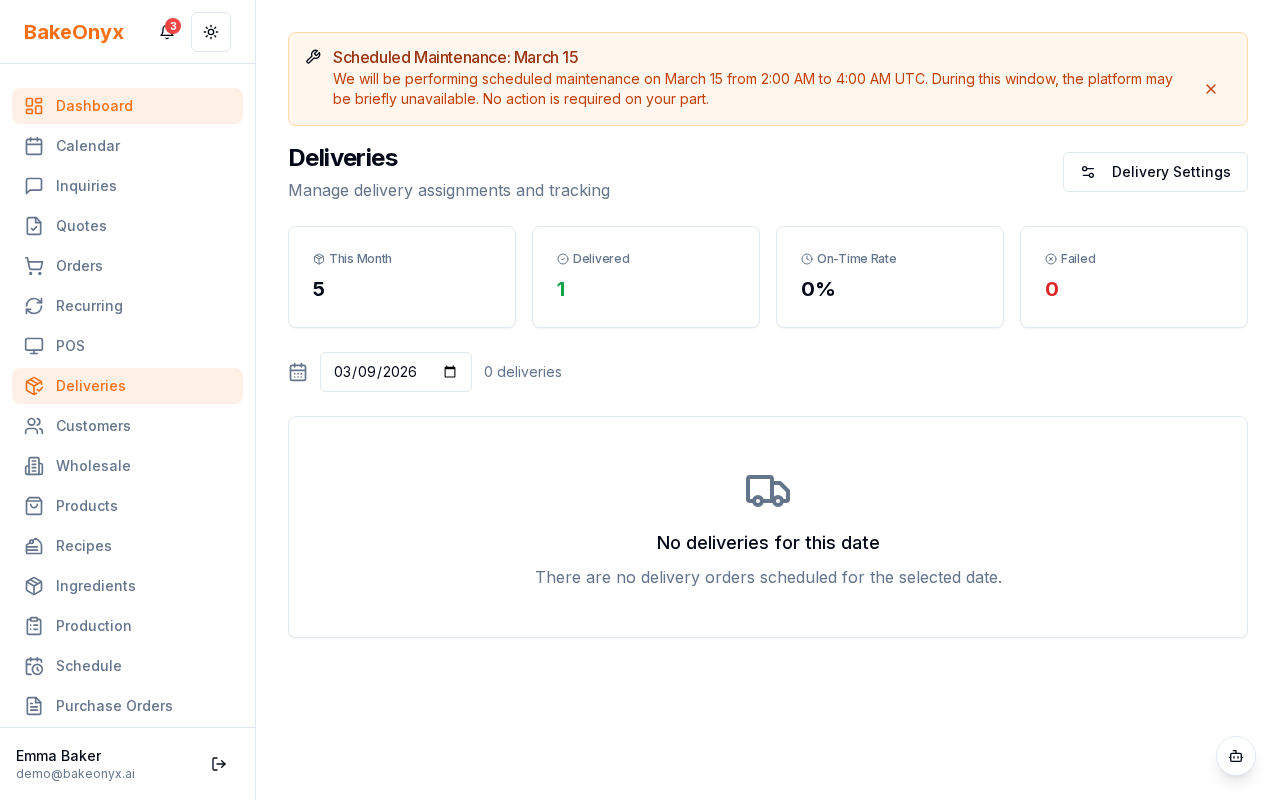
What You'll See on the Delivery Detail Page
The delivery detail page gives you everything you need to know about a single delivery:
- Customer Address: The delivery destination
- Driver Assignment: Who is handling the delivery
- Timeline: A complete record of when the delivery was dispatched, when it was in transit, and when it was completed
- Proof of Delivery Photo: A photo uploaded by the driver showing the completed delivery
- Delivery Status: Current stage of the delivery process
Handling Failed Deliveries
Sometimes deliveries don't go as planned. When a delivery fails, your driver will record the reason why. You can see this information on the delivery detail page under Failure Reason.
Common failure reasons include:
- Customer not available
- Address not found
- Customer refused delivery
- Traffic or vehicle issues
Once you see a failed delivery, you can contact the customer to reschedule or arrange a new delivery attempt.
Proof of Delivery Photos
When a driver completes a delivery, they can upload a photo as proof. This photo is stored on the delivery detail page and serves as documentation that the order was delivered.
Proof-of-delivery photos are helpful for:
- Settling customer disputes about whether an order arrived
- Verifying driver performance
- Building a record of successful deliveries for your business
Next Steps
Now that you're tracking deliveries, you might want to:
- Learn how to create a new order and set it up for delivery
- Explore setting up your online store so customers can place delivery orders directly
- Use the calendar view to plan and visualize all your deliveries for the day