Auto-Reorder from Forecast Predictions
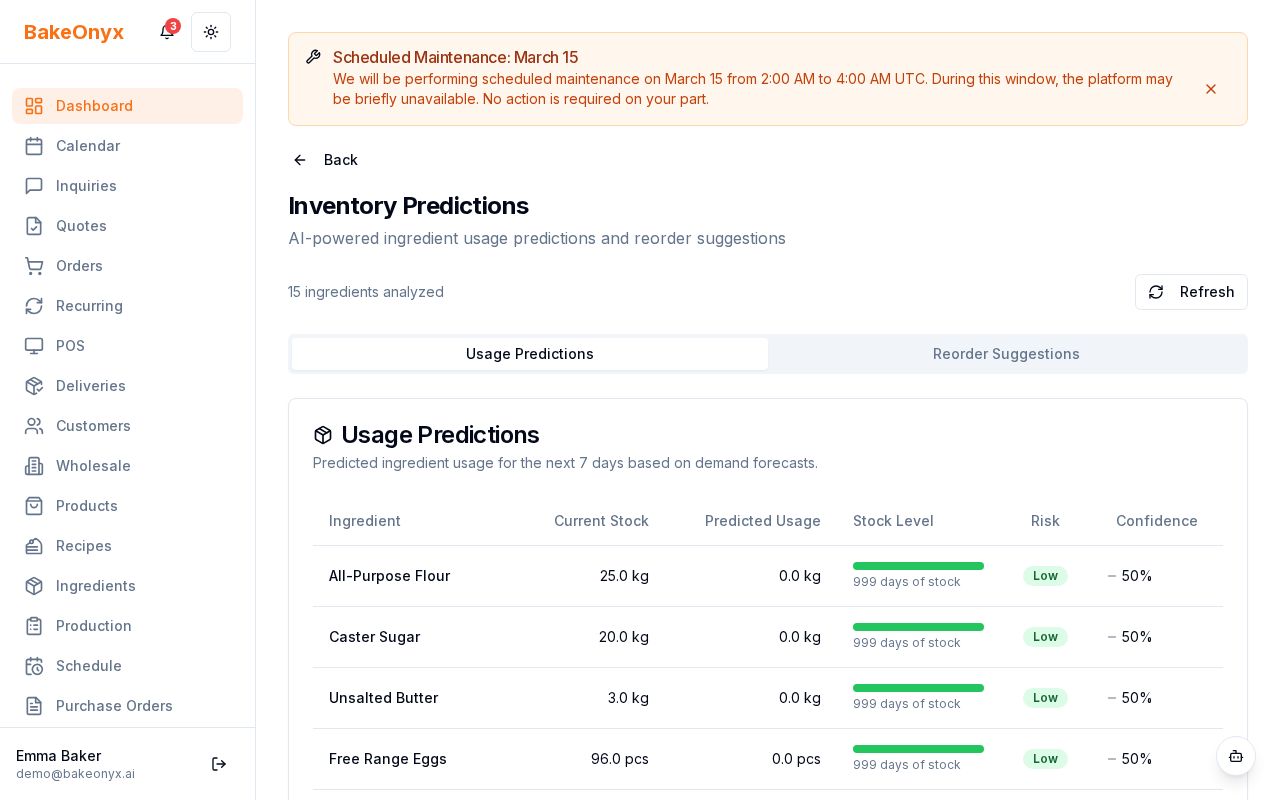
Enable automatic purchase order creation when forecast predictions indicate low ingredient stock.
Auto-Reorder from Forecast Predictions
- Enable automatic purchase order creation when your AI forecasts predict low ingredient stock
- Control which urgency levels trigger purchase orders (critical or high)
- Review and manage draft orders before sending them to suppliers
What is Auto-Reorder?
Auto-reorder is an intelligent feature that watches your ingredient forecasts and automatically creates draft purchase orders when the system predicts you're running low on stock. Instead of manually checking inventory levels and creating orders, BakeOnyx does the work for you—but keeps everything as a draft so you always have final approval before ordering.
Enable Auto-Reorder in Your Bakery Settings
- Log in to BakeOnyx and go to Settings (usually found in the top navigation or user menu)
- Navigate to Bakery Settings
- Look for the Auto-Reorder section
- Toggle Enable Auto-Reorder to On
- Choose your urgency threshold:
- Critical Only (default): Creates purchase orders only for ingredients predicted to be critically low
- High & Critical: Creates purchase orders for both high-urgency and critical items, giving you earlier notice
- Click Save Settings
How Auto-Reorder Works
Once enabled, BakeOnyx continuously monitors your AI-powered forecast predictions. When an ingredient hits your chosen urgency threshold, the system automatically creates a draft purchase order.
Here's what happens behind the scenes:
- Grouping by supplier: The system groups low-stock ingredients by their preferred supplier and creates one draft purchase order per supplier. This keeps your ordering organized and efficient.
- Always as drafts: Purchase orders are never automatically sent to suppliers. They're created as drafts so you can review quantities, prices, and timing before confirming.
- Smart deduplication: Within a 24-hour window, the system won't create duplicate orders for the same supplier, preventing accidental double-ordering.
- Preferred supplier required: Ingredients without a preferred supplier assigned are skipped. Make sure your ingredients have preferred suppliers set up in your inventory.
Review and Approve Draft Purchase Orders
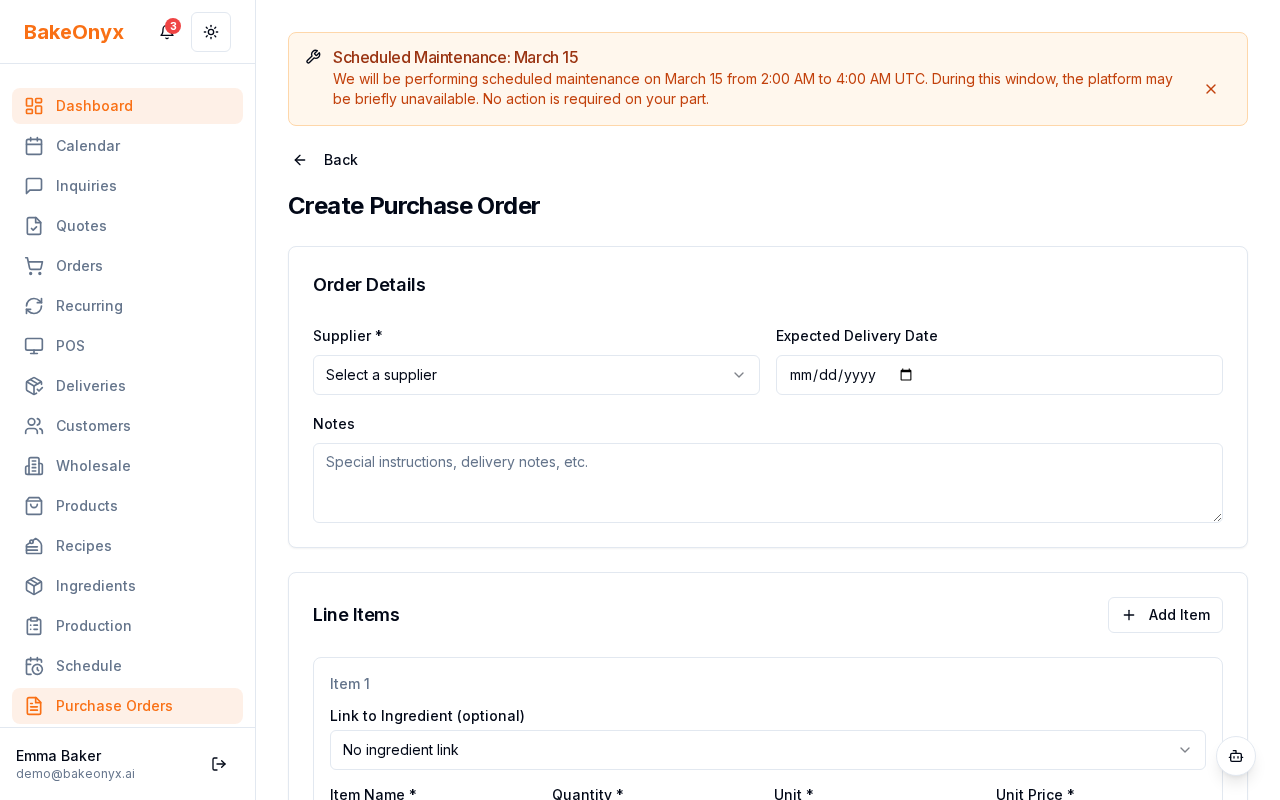
When auto-reorder creates a draft purchase order, you'll receive a notification. Here's how to review and send it:
- Go to Purchasing in the main menu
- Click Purchase Orders
- Find the draft order marked as auto-generated (usually with a label or timestamp)
- Click to open the order and review:
- Ingredient quantities and pricing
- Supplier details and delivery dates
- Total cost
- Make any adjustments if needed
- Click Send to Supplier when you're ready to place the order
Improve Forecast Accuracy Over Time
The more you use auto-reorder, the smarter your forecasts become. BakeOnyx tracks the difference between predicted and actual ingredient usage, then adjusts future predictions based on what really happens in your bakery. This feedback loop means your auto-reorder suggestions get more accurate the longer you use the feature.
Next Steps
- Adding and Managing Ingredients — Set up preferred suppliers for your ingredients
- Using Bake Buddy (AI Assistant) — Learn more about AI-powered insights in BakeOnyx
- Production Scheduler Overview — Coordinate forecasts with your production schedule