Bulk Print Orders and Invoices
Print multiple order summaries or invoices at once for efficient batch processing.
Select multiple orders and print them together in one batch — as order summaries, invoices, or detailed order sheets. It's how you print a day's production sheets or a run of wholesale invoices in a single click instead of one at a time. Here's how.
When to Use Bulk Print
Bulk printing is perfect for bakeries that need to:
- Print daily production sheets — Print all orders for the day at once to hand to your production team
- Process wholesale invoices — Generate invoices for multiple wholesale customers in one go
- Batch order summaries — Create compact sheets for kitchen staff showing what needs to be made
How to Bulk Print Orders
Step 1: Go to Your Orders List
From the BakeOnyx dashboard, click Orders in the main menu. You'll see your complete orders list with all pending, completed, and archived orders.
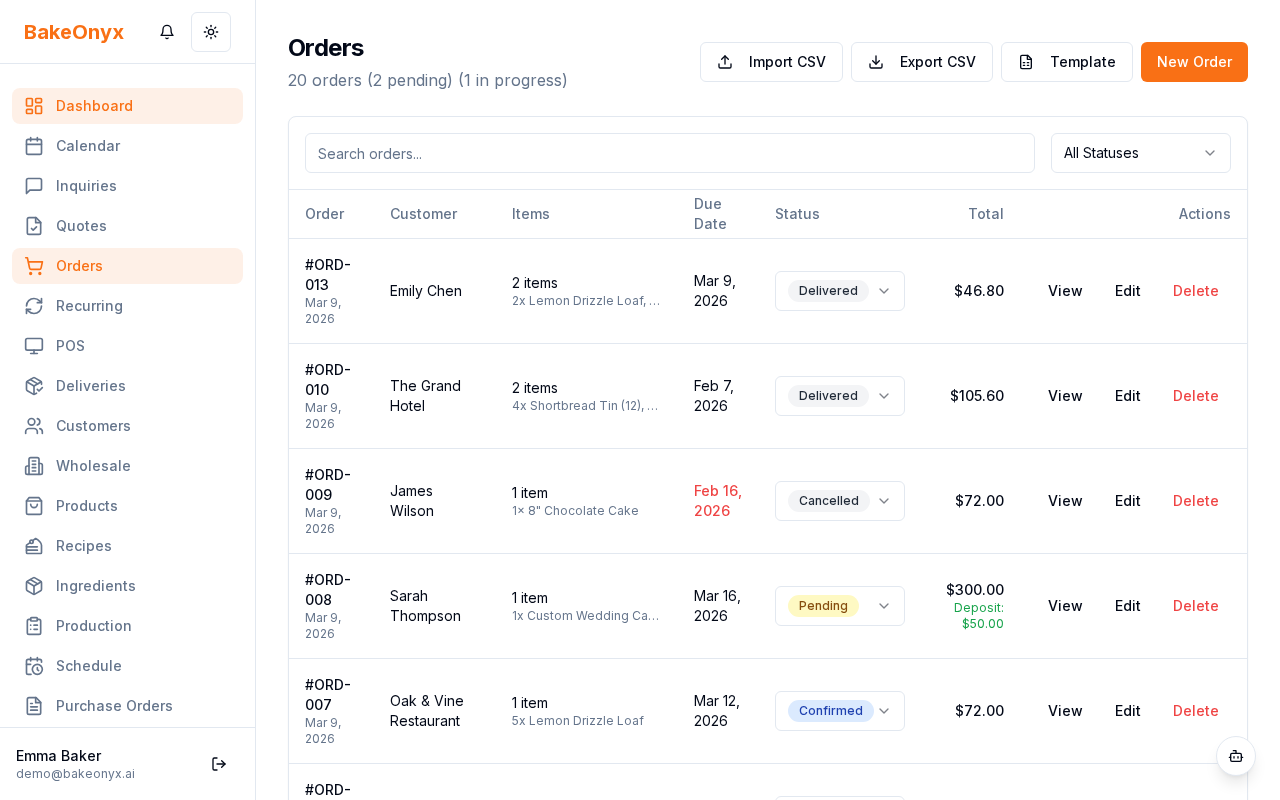
Step 2: Select Multiple Orders
Check the checkbox next to each order you want to print. You can:
- Click individual checkboxes to select specific orders
- Use the Select All checkbox at the top to select all visible orders on the current page
- Mix and match — select orders from different dates or customers
Step 3: Click Bulk Print
Once you've selected your orders, a Bulk Print button will appear at the top of the orders list. Click it to open the bulk print options.
Step 4: Choose Your Print Format
You'll see three print format options. Choose the one that fits your workflow:
- Order Summaries — Compact, production-focused sheets with item names, quantities, and special notes. Perfect for handing to bakers on the production floor.
- Invoices — Full invoice PDFs with pricing, customer details, and payment information. Use this for wholesale customers or record-keeping.
- Order Sheets — Detailed breakdowns including ingredients, decorations, delivery dates, and customer contact info. Best for complex custom orders.
Step 5: Review and Print
BakeOnyx will generate a combined PDF with all your selected orders in the format you chose. The PDF will open automatically in your browser. From here, you can:
- Review the preview on screen
- Click Print to send to your printer
- Click Download to save the PDF to your computer for later printing or archiving
Pro Tips for Efficient Batch Printing
- Print daily production sheets — Each morning, filter for "today's orders" and bulk print order summaries. Hand them to your team before the day starts.
- Batch wholesale invoices — At the end of each week, select all wholesale orders and bulk print invoices for your records and customer delivery.
- Organize by customer — Filter by a specific wholesale customer, then bulk print their invoices for easy filing or email delivery.
- Use order sheets for custom orders — If you have a batch of custom cake orders with special requests, print order sheets so your decorators have all the details in one place.
Next Steps
- End-to-End: From Inquiry to Delivery — Learn how orders flow through BakeOnyx from start to finish
- Managing Customers — Set up wholesale customers and track their order history
- Creating a Recipe — Build the recipes that power your order production