AI Content Studio — Caption Every Product in One Click
Upload a product photo and get ready-to-paste Instagram, Facebook, storefront, and email copy from AI vision. Scale plan only.
What It Does
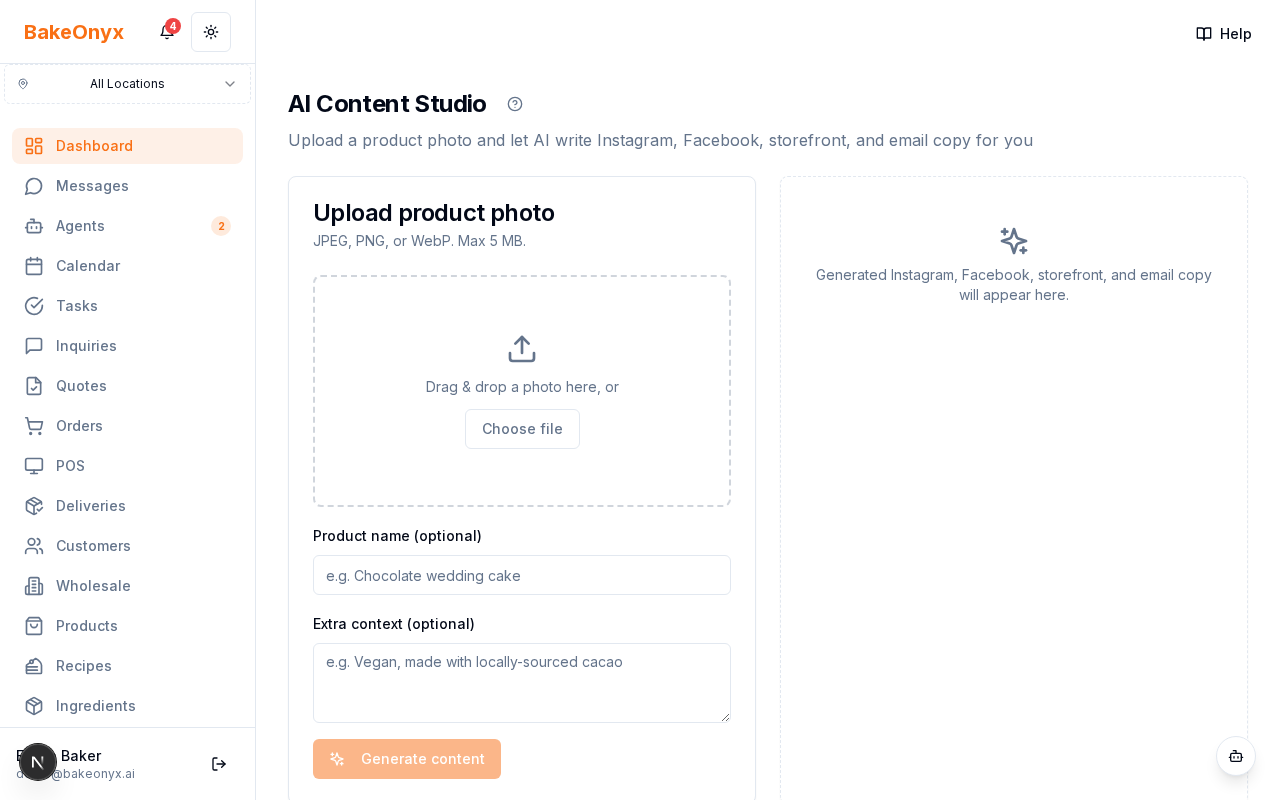
AI Content Studio turns a product photo into four pieces of copy in one click. Upload a cake shot; get back an Instagram caption with hashtags, a Facebook post, a polished storefront description, and a short email blurb — all written in warm, on-brand bakery voice and based on what the AI actually sees in the photo.
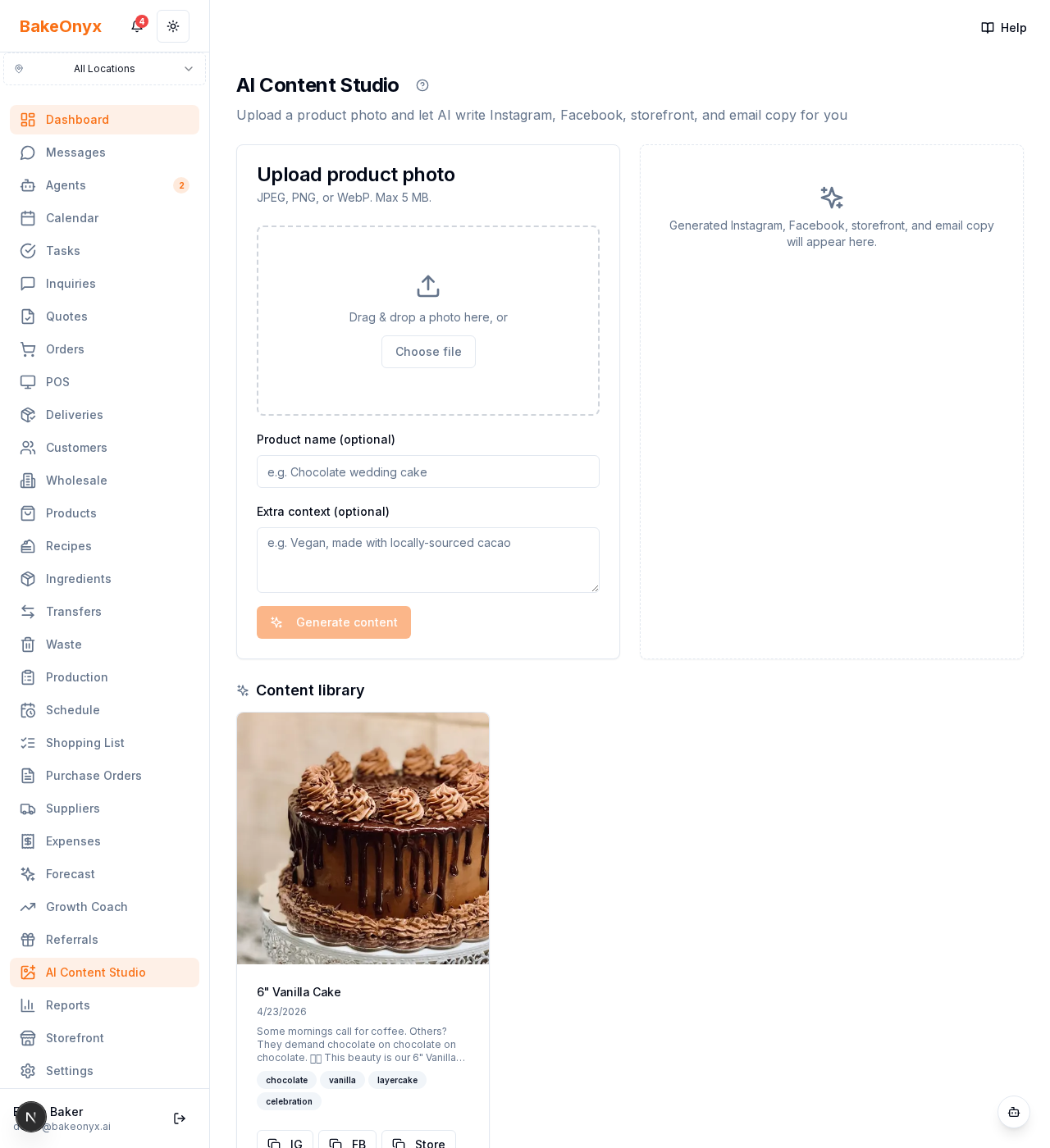
Every generation is saved to your Content Library, so you can re-copy, edit, or apply it to a product later.
Tier and Access
- Scale plan only. Growth and Essentials bakeries see the sidebar entry as a locked upgrade card.
- Vision calls use Claude Sonnet. Platform kill switch:
CONTENT_STUDIO_ENABLED=falsehides the feature everywhere.
How to Generate Content
- Open AI Content Studio from the sidebar.
- Drag & drop a photo (or click Choose file). JPEG / PNG / WebP, up to 5 MB. Use good natural light — the AI literally describes what it sees.
- Product name (optional): helps the AI anchor the copy. Linking the generation to a real Product also pulls in the product's category, allergens, and price so the copy stays factually correct.
- Extra context (optional): one sentence of positioning — e.g. "hand-finished with seasonal berries" or "vegan, gluten-free". Anything you'd tell a new staff member.
- Click Generate content. Takes 3-8 seconds.
The Four Outputs
- Instagram — 150-300 words with 3-5 tasteful emoji and 20-30 hashtags. The hashtags are returned clean (no
#prefix); the app adds the prefix when you copy. - Facebook — 80-180 words, conversational, ends with a question to drive engagement.
- Storefront description — 50-100 words, no emoji, mentions visible allergens. Paste into the Product's Storefront description field directly, or use Apply to product (see below).
- Email blurb — one punchy sentence + CTA, 20-40 words. Goes into a newsletter or broadcast.
Your Content Library
Every generation becomes a card in the library, below the upload form. Each card shows the photo, tags, the first lines of the Instagram caption, and copy-to-clipboard buttons for each channel.
Apply to Product
The Apply button on any library card opens a product picker. Search by name, select a product, and the generated storefront description overwrites that product's storefrontDescription field. The picker warns you in amber if you're about to overwrite existing copy.
Quality Rules Built Into the Prompt
The AI is instructed to:
- Describe only what's visible in the photo (no invented ingredients).
- Preserve every link and every template variable exactly.
- Avoid medical or health claims.
- Match your bakery's location and name (pulled automatically from your profile).
- Never mention competitors by name.
Cost and Quota
Each generation costs roughly $0.03-0.05 in AI token costs. Usage flows through your bakery's AI quota and shows up in the usage dashboard alongside other AI features. Rate-limited to 1,000 AI requests per hour per bakery.
What It Doesn't Do (Yet)
- Post directly to Instagram or Facebook. That needs per-bakery Meta OAuth which isn't built yet — for now, use the Copy buttons and paste into the native apps.
- Multi-photo generations. One photo per call. Upload each angle separately.
- Video analysis. Still images only.
Tips From Our Beta Testers
- Shoot in natural light. Window light beats overhead kitchen LEDs — the AI describes colours and textures, so better light = richer copy.
- Generate before you style. Run the generation on the photo you'd post anyway; don't restyle just for this tool.
- Edit, don't accept. The copy is a strong first draft. Five seconds of editing makes it yours.
See Also
- Customer Lifecycle Automation — send the email blurbs to real customer segments.