Let AI Draft Your Week of Posts
The AI Social Studio Agent reads your products, photo library, and calendar, then drafts 5–7 ready-to-share posts you review in one tap each. Scale plan only.
What It Does
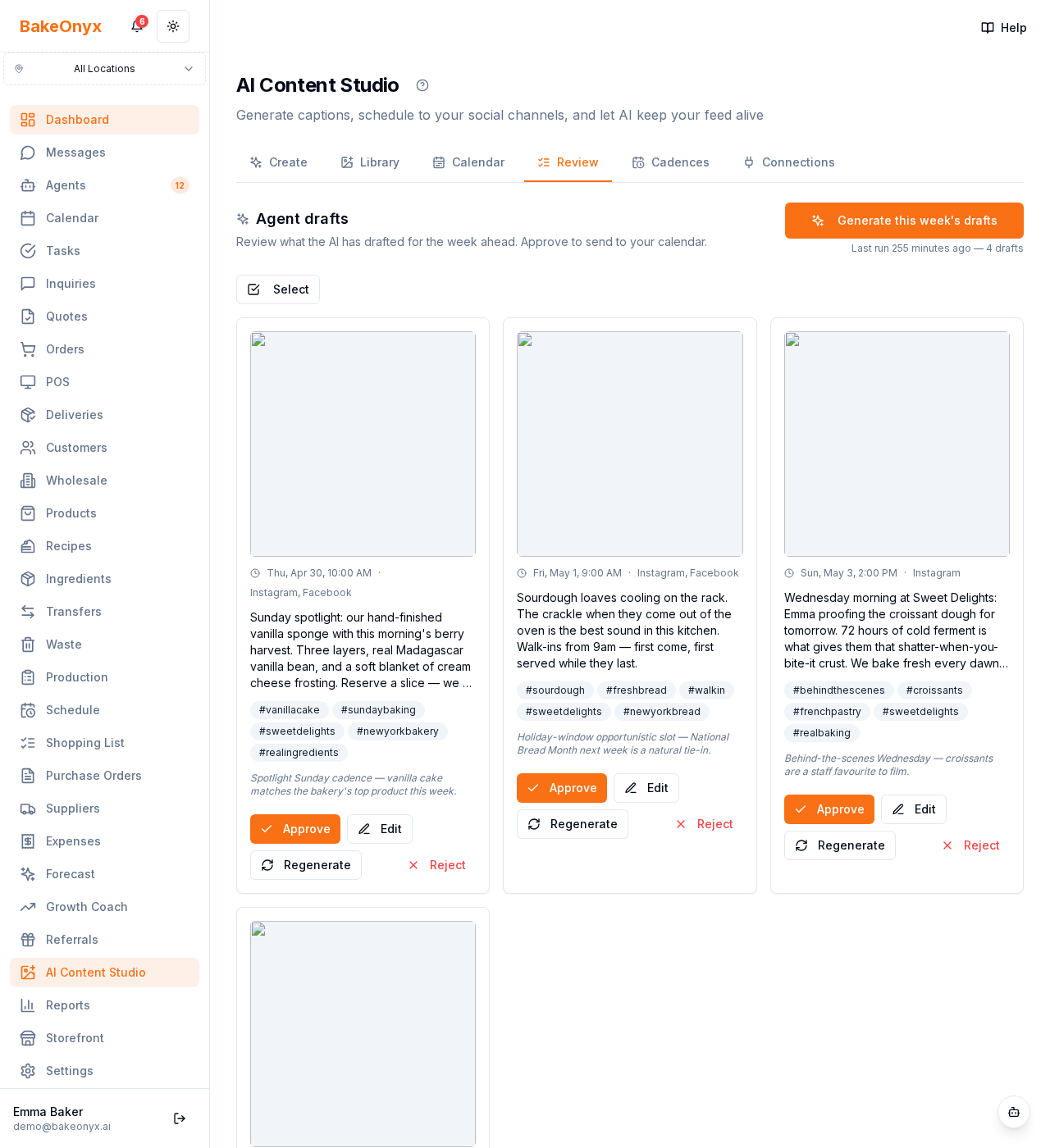
The AI Social Studio Agent drafts 5–7 social posts a week for you — caption, hashtags, target platforms, scheduled time, image — based on your bakery's products, recent photos, upcoming holidays, and your cadence preferences. You review, edit, and approve each one in one tap. Approved drafts move straight onto your calendar.
The agent's name has the word "Agent" in it because that's what it does — it autonomously reads your bakery's context and proposes a week's worth of content. Crucially, it does not auto-publish. Every draft requires your explicit approval before anything reaches your calendar, and the calendar workflow is still manual download + post + mark posted (until Phase 4 ships Meta OAuth).
Tier and Access
- Scale plan only. Growth bakeries can use the manual Calendar + Library workflow but don't get the agent.
- Sub-route:
/dashboard/content-studio/review. - Token budget: 80,000 tokens/month (~4 weekly runs). Image budget shares the bakery's monthly image-gen quota; the agent prefers reusing your existing photos before generating fresh ones.
How to Run the Agent (Manual)
- Open the Review tab. If you've never run the agent, you'll see an empty state with the Generate button at the top.
- Tap "Generate this week's drafts". The button shows a spinner; the agent runs in the background for ~30 seconds.
- Wait for the toast. "5 drafts ready for review" tells you the run finished. The page refreshes and 5–7 cards appear in a 3-column grid.
The agent will also run automatically every Sunday at 6pm in your bakery's local time once your cadences are configured — see the Cadences article.
Anatomy of a Draft Card
Each card shows everything you need to evaluate the draft in 5 seconds:
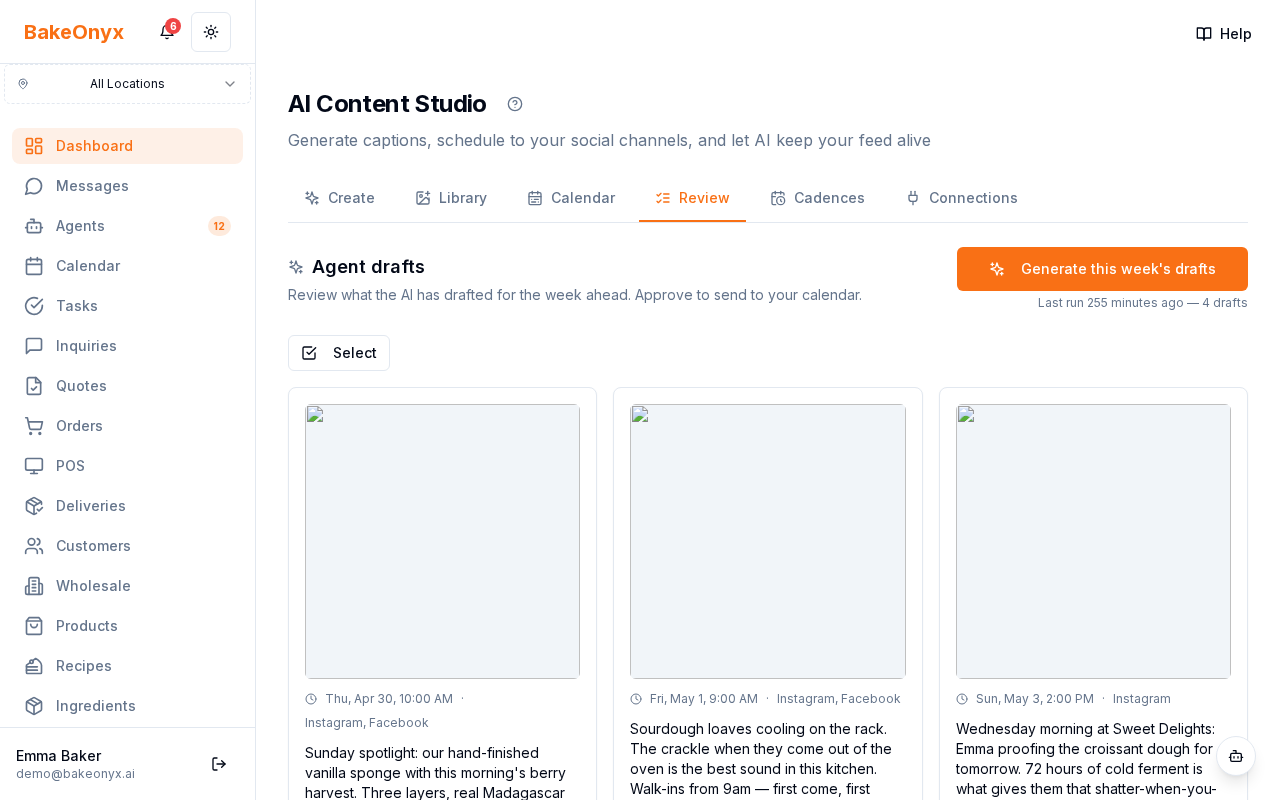
- Image — picked from your Content Library (free) or freshly generated (counts against your monthly image quota). The card tells you which.
- Caption — written by the agent in your bakery's voice. Up to 1500 characters, line-breaks preserved.
- Hashtags — 3–6 lowercase tags, no leading
#(the renderer adds it). - Target platforms — Instagram, Facebook, or both, based on your cadence configuration.
- Scheduled time — the slot the agent picked from your active cadences.
- Rationale — one sentence explaining why this slot exists ("Spotlight Sunday cadence — vanilla cake matches your top product this week").
Per-Card Actions
- Approve — flips the draft to APPROVED, creates one calendar post per target platform. Toast tells you the date so you can find them.
- Edit — opens a dialog to tweak caption, hashtags, schedule, or platforms before approving. Saved as EDITED status (still actionable as Approved/Rejected later).
- Regenerate — re-runs just this slot for a different angle. Rate-limited to 3 regenerations per draft per 24 hours so a bored cat on the keyboard can't drain your token budget.
- Reject — flips to REJECTED, removed from the queue.
How the Agent Picks Images
Image strategy is library-first, generate-as-fallback:
- Match your existing Library photos by tag overlap. If you generated content for "vanilla cake, sunday" last week and the agent is drafting a Spotlight Sunday slot with the theme "spotlight" and the hint mentions "vanilla", it'll re-use that photo.
- Generate a fresh image only when no library photo matches AND your monthly image budget has remaining quota. The card's footer will say "freshly generated" so you know.
- If the image budget is exhausted mid-run, the agent saves the draft with no image and adds "(No image — out of monthly image budget)" to the rationale. Approving still works; you can attach a photo manually after.
This means a bakery with a rich Content Library will rarely burn image budget — most weekly runs will reuse 4–5 existing photos.
Bulk Actions
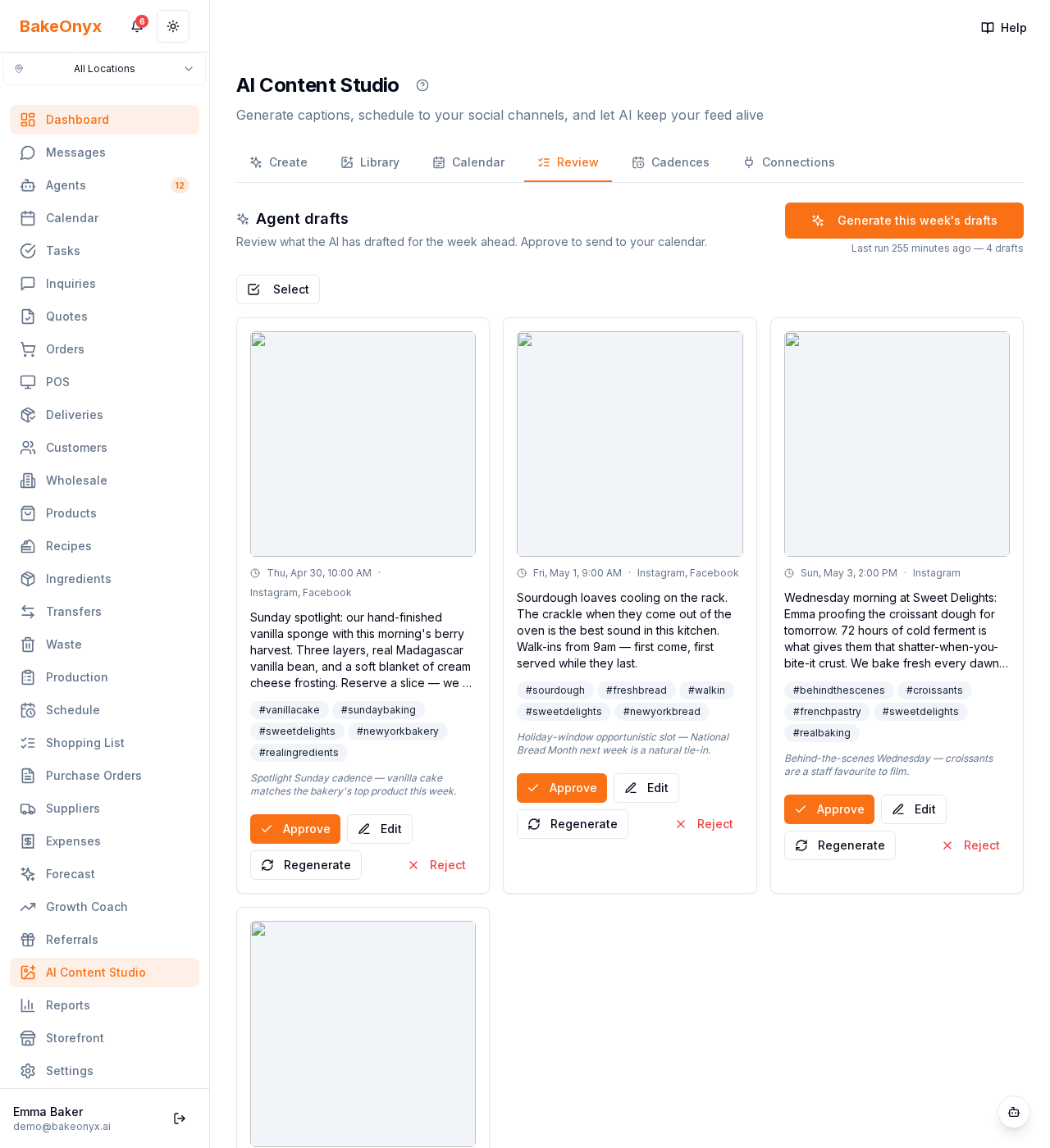
If you trust the agent, you can approve a whole week in one tap. Tap Select at the top of the Review tab, check the cards you want (or "Select all"), and tap Approve all. A sticky header shows your selection count.
See Cadences for the bulk-approve flow in detail.
Cost & Quota
A typical weekly run uses ~15,000–25,000 tokens + 0–4 image generations. Scale tier's per-feature cap (80,000 tokens/month) leaves headroom for ~4 weekly runs plus a few regenerations. If you run out mid-week, the agent skips remaining slots and marks the run partial-success; you can manually generate from Library to fill gaps.
See Also
- Customize When the Agent Drafts — configure the recurring slots that drive the weekly run.
- Schedule Posts to Your Social Calendar — where approved drafts land.
- AI Content Studio Overview — the on-demand photo→captions generator.