Customize When the Agent Drafts (Cadences + Bulk Approve)
Tell the AI agent which days, times, and themes you want it to draft for. Once configured, drafts appear automatically every Sunday evening — no button-tapping required. Scale plan only.
What It Does
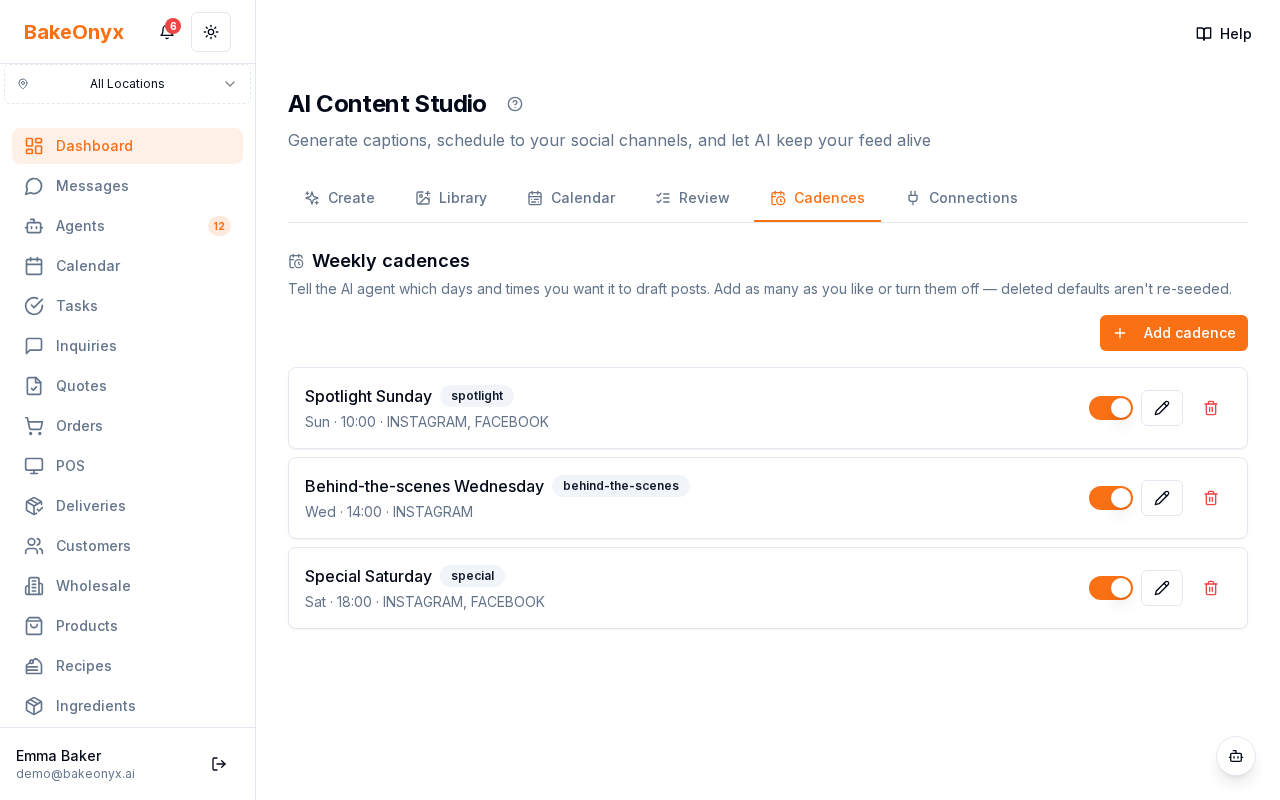
Cadences are the recurring slots that drive the AI Social Studio Agent's weekly drafting. Each cadence is a "I want a post on this day, at this time, on these platforms, with this theme" rule. The agent reads your active cadences, picks one slot per cadence, and drafts 5–7 posts for the next 7 days. Default cadences are seeded the first time the agent runs:
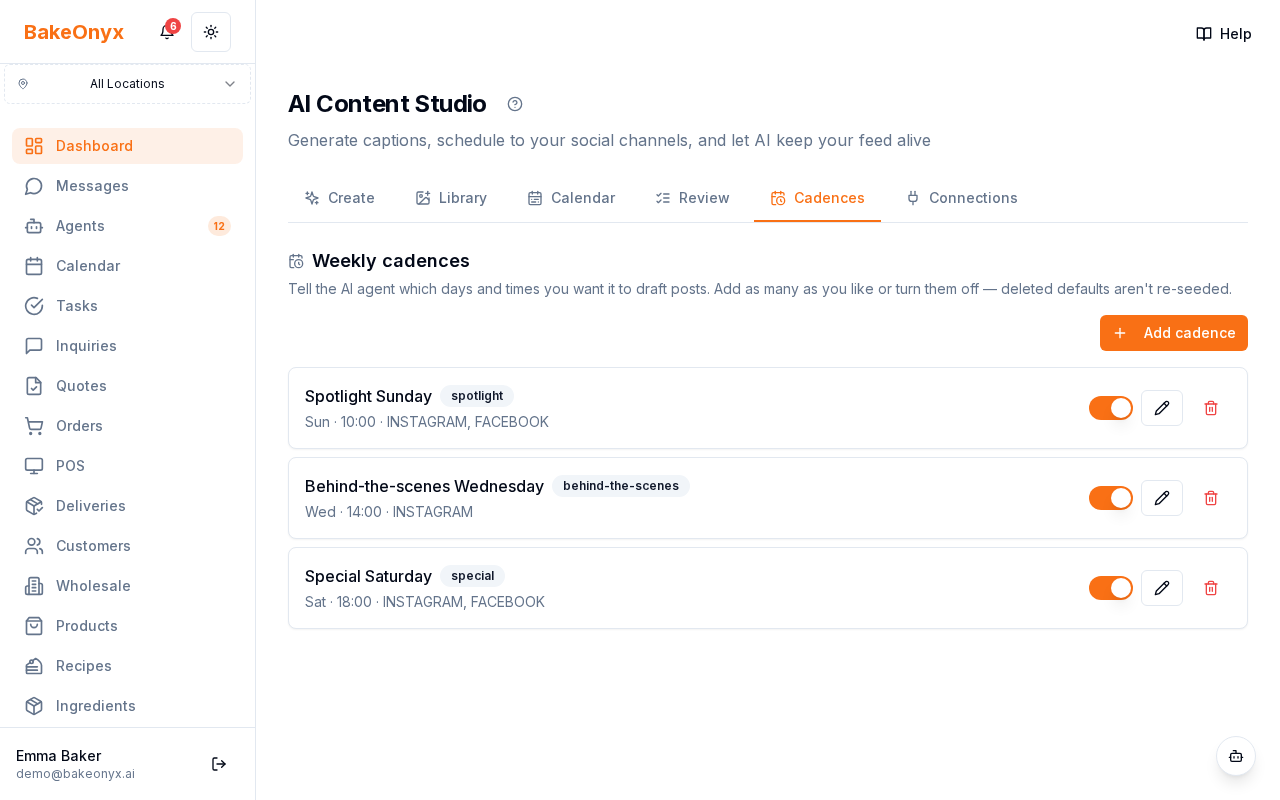
- Spotlight Sunday — Sun 10:00, theme "spotlight", Instagram + Facebook
- Behind-the-scenes Wednesday — Wed 14:00, theme "behind-the-scenes", Instagram
- Special Saturday — Sat 18:00, theme "special", Instagram + Facebook
You can add, edit, or delete cadences anytime. Deleted defaults are not re-seeded on subsequent agent runs — the seeding helper only fires once per bakery.
Tier and Access
- Scale plan only. Cadences are agent-driven; without the agent they're inert.
- Sub-route:
/dashboard/content-studio/cadences.
The Weekly Cron — Sunday at 6pm
Once you have at least one active cadence, the AI Social Studio Agent runs automatically every Sunday at 6pm in your bakery's local time. The cron checks every 15 minutes and fires the agent within a 10-minute window of 6pm — so a brief worker restart can't drop the week's draft.
Idempotent dedupe via ISO-week singleton key prevents the same week's drafts being created twice if the worker restarts during the window. If you trigger the agent manually within 5 minutes of the cron firing, the cron skips that bakery to avoid two parallel runs.
Drafts land in the Review tab. The Monday morning email digest tells you "✨ Your AI drafted N posts for the week ahead" so you don't have to remember to check.
How to Add a Cadence
- Open the Cadences tab. See the list of existing cadences.
- Tap "Add cadence". The form dialog opens.
- Name — anything memorable. "Friday Fresh Bake", "Wholesale Wednesday", "Cake of the Week".
- Day — pick a day of the week.
- Time — 24-hour format (e.g.
07:00for 7 AM,17:30for 5:30 PM). Bakery-local time. - Theme — optional but recommended. The agent uses this to seed the prompt and match images. Examples: "behind-the-scenes", "wholesale", "seasonal", "new-product".
- Platforms — pick at least one. Instagram + Facebook is the typical combo.
- Tap Add. Cadence appears in the list, active by default.
Editing or Pausing a Cadence
- Edit — change any field. The next agent run uses the new values.
- Toggle active — pause a cadence without losing the configuration. Useful for seasonal slots ("Holiday Hero" only active in November–December).
- Delete — permanently remove. The default seed-on-first-run logic won't re-add it; you'd have to add it back manually if you change your mind.
Bulk Approve and Reject
Once a week of drafts lands in your Review queue, you can approve them all at once instead of card by card.
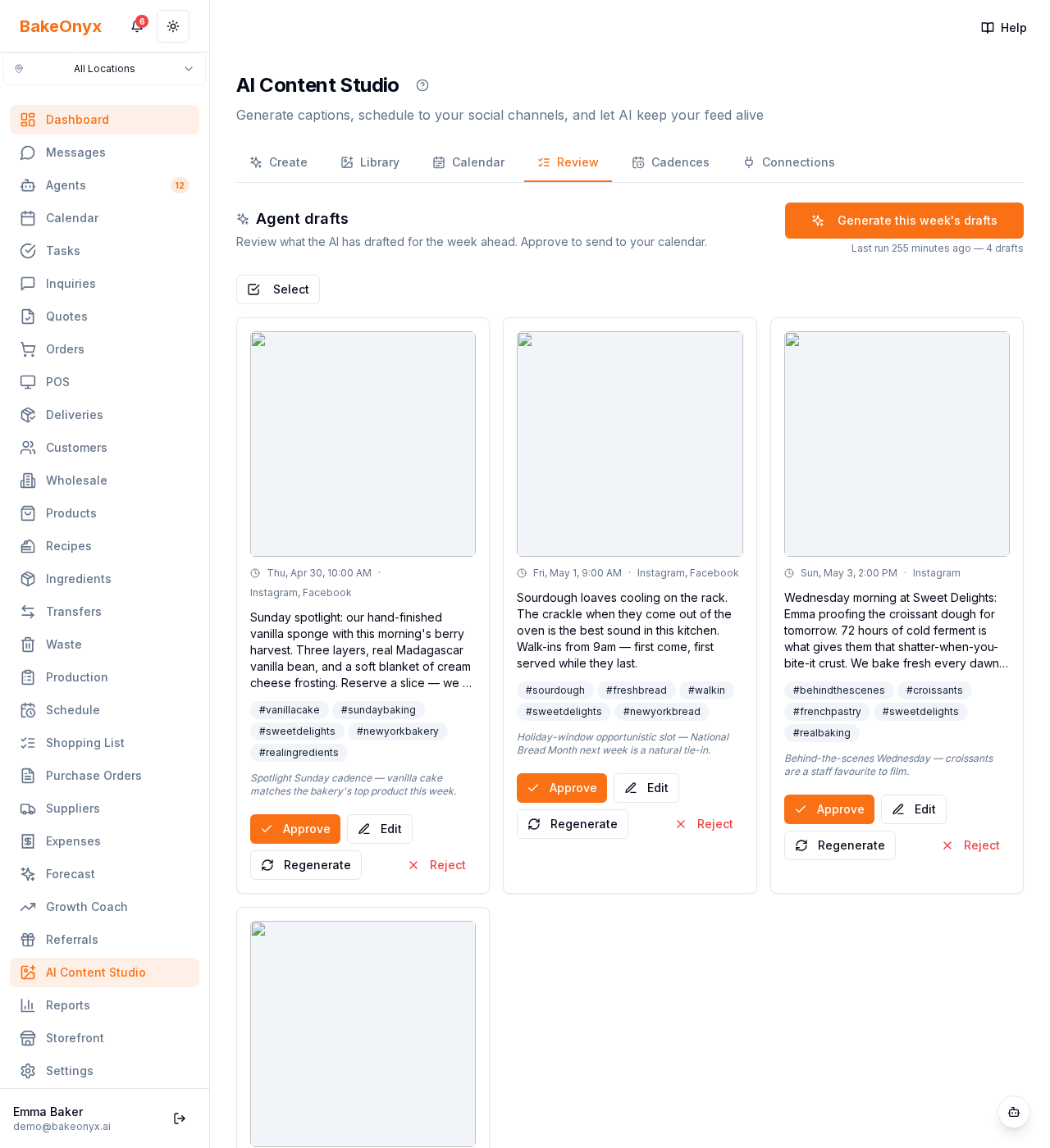
- Tap "Select" at the top of the Review tab. Cards become tap-to-select with a primary-colour ring around the selected ones.
- Tap each card to add it to your selection. Or use "Select all" to grab the whole queue.
- Tap "Approve all" in the sticky header. Toast tells you the count and the date range ("3 approved · 6 posts scheduled from May 2 to May 8").
- Or "Reject all" with a confirmation prompt for safety.
Bulk approve is transaction-safe — if a concurrent edit flips one of the selected drafts to EDITED status mid-flight, the whole transaction rolls back atomically and you'll see an error toast (no orphan calendar posts).
Common Patterns
- Aggressive — 7 cadences, 1 per day. The agent will draft 7 posts a week, one for each day.
- Light — 3 cadences (the defaults). 3 drafts/week + occasional opportunistic holiday slots.
- Theme-driven — fewer cadences with very specific themes. "Sourdough Saturday" + "Pastry Tuesday" gives the agent narrow context, often producing more focused captions.
What If I Have No Cadences?
The agent still runs (since it's gated by tier, not by cadence count) but only generates "opportunistic" slots based on upcoming holidays in the next 14 days. If there are no holidays in that window, you'll see a "0 drafts" run-status. Re-add at least one cadence to get regular weekly drafts.
See Also
- Let AI Draft Your Week of Posts — the agent that reads cadences.
- Schedule Posts to Your Social Calendar — where approved drafts land.
- Your Morning Social Digest — Monday morning email surfaces new agent drafts.