Schedule Posts to Your Social Calendar
Plan a week (or month) of social posts in one sitting: pick a date, pick the platforms, post manually, and tap Mark as posted to keep your feed in sync. Growth and Scale plans.
What It Does
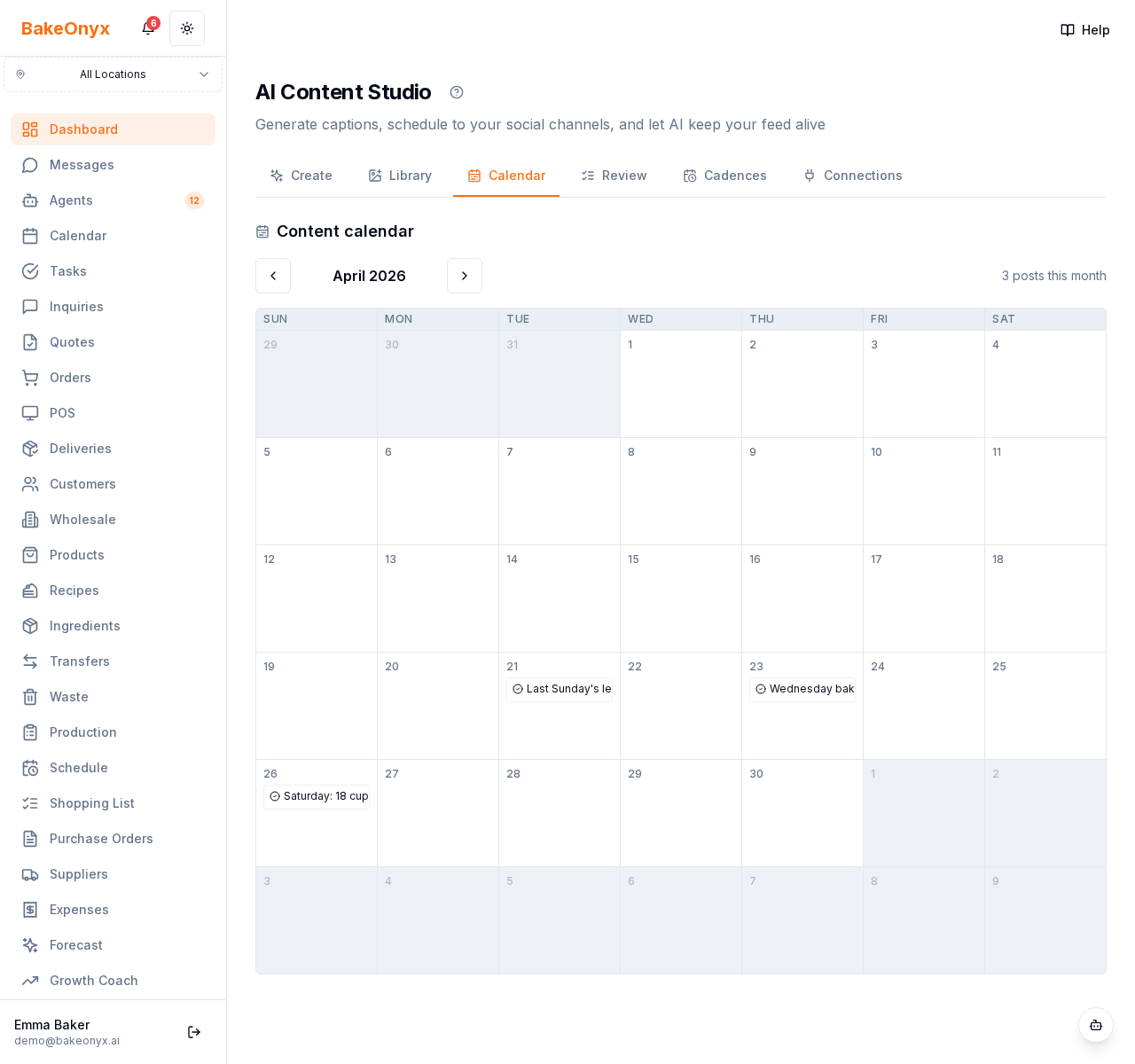
The Calendar tab gives you a visual home for every social post you have planned. Generate a caption from a product photo (Library tab), tap Schedule, pick a day and time, and the post lands on the calendar with a Scheduled badge. When the day arrives, open the card, tap Download to grab the image, Copy caption to grab the text, paste it into your Instagram or Facebook app, and tap Mark as posted to flip the badge to green.
This entire workflow is manual — no Meta OAuth required, no risk that an automation accidentally sends the wrong post. Your bakery's social channels stay 100% under your control.
Tier and Access
- Growth and Scale plans. Essentials and Trial bakeries see an upgrade card.
- Sub-route:
/dashboard/content-studio/calendar.
How to Schedule a Post
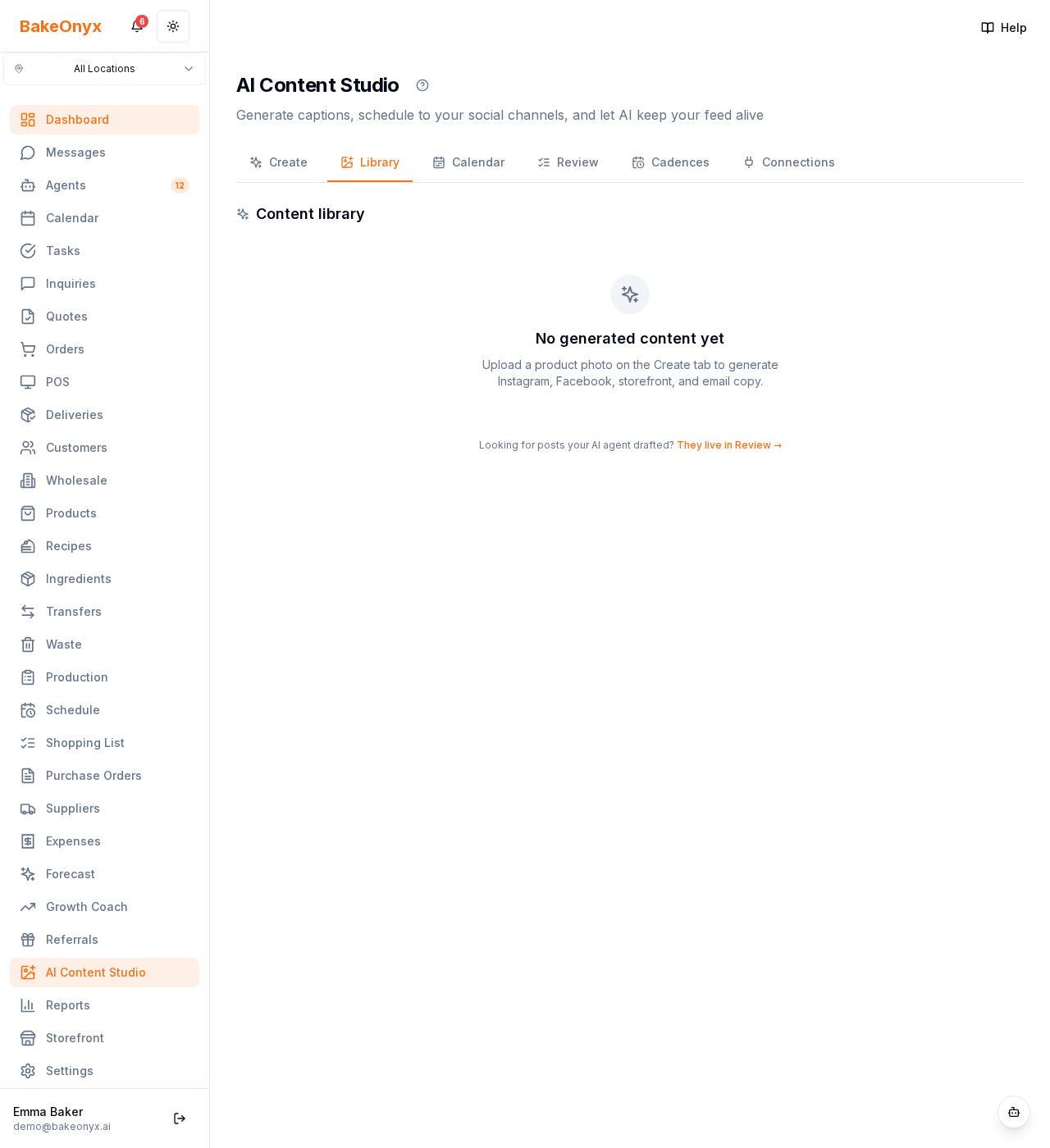
- Generate captions first. On the Create tab, upload a product photo. AI Content Studio writes Instagram, Facebook, storefront, and email copy and saves them to your Library.
- Open the Library tab. Find the card you want to schedule.
- Tap Schedule. A dialog opens with a date picker, time picker, and checkboxes for each platform you want to post to (Instagram + Facebook by default).
- Pick the date and time. Pick any future moment. The dialog uses your browser's local time — if you're traveling, double-check your bakery time zone.
- Tap Schedule. The dialog closes, the calendar gets a new card on that date, and the dashboard banner will remind you on the morning of.
The Calendar at a Glance
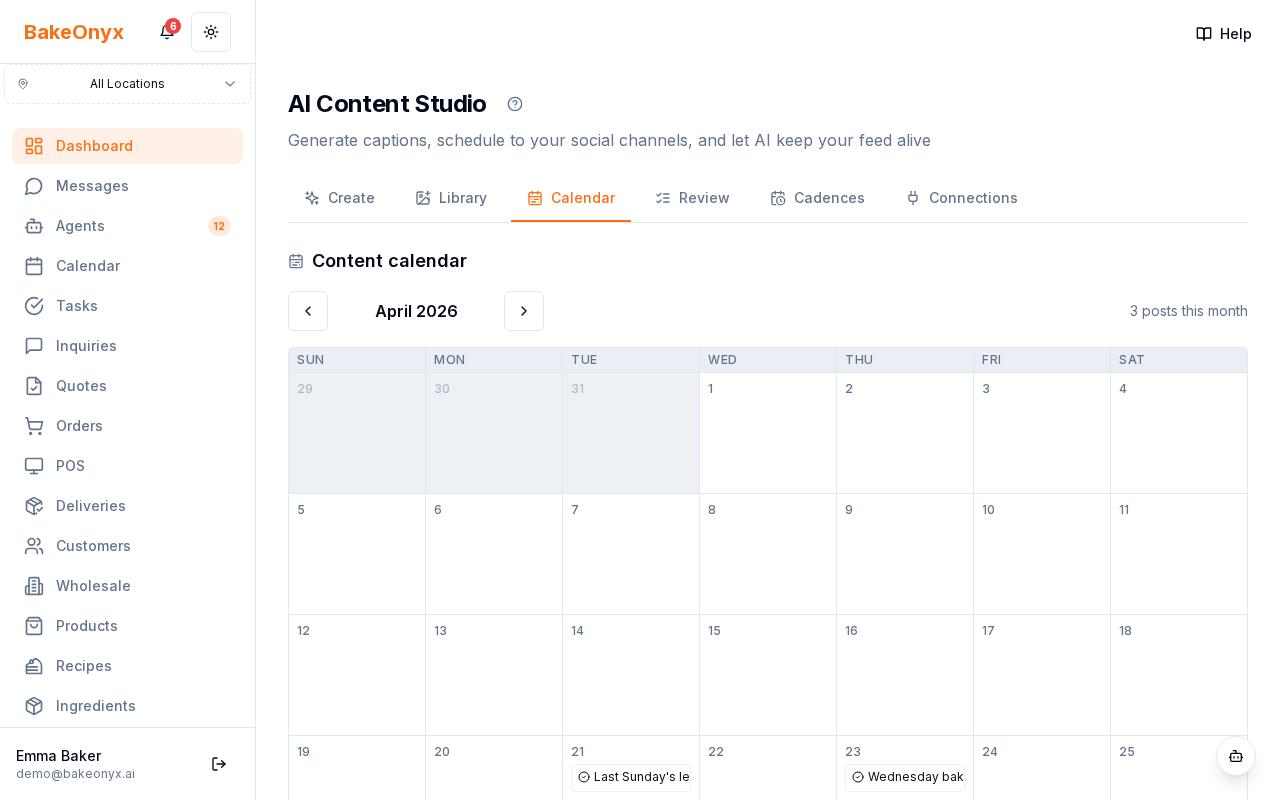
- Desktop: month grid view. Click the ‹ / › arrows at the top to navigate between months. Each cell shows the post's caption preview as a chip.
- Mobile: day-list view grouped by date — much easier to scroll on a phone than a 7-column grid.
- Status badges:
- Scheduled (blue) — coming up.
- Posted (green) — you marked it done.
- Past due (red) — scheduled time has slipped without a Mark as posted.
Per-Card Actions
Click any card to open the detail panel. You'll see four buttons:
- Download — saves the image to your phone or computer. Same image the AI assigned to the post.
- Copy caption — puts the caption + hashtags in your clipboard, ready to paste into Instagram, Facebook, or any other app.
- Mark as posted — flips the status to Posted with the current timestamp. Only available on Scheduled posts (not on Posted or Past-due).
- Delete — removes the post from the calendar entirely. Useful if you scheduled something and changed your mind.
Past-Due Posts — What to Do
If a scheduled time slips past without a Mark as posted, the card flips to a red Past due badge and the morning email digest will remind you. You have three options:
- Post it now and tap Mark as posted to clear the flag.
- Reschedule to a future day — open the card and tap Reschedule.
- Delete if it's no longer relevant.
Past-due is a render-time computation; we never silently auto-flip status. The badge stays until you make a decision.
What's NOT Auto-Posting (Yet)
Phase 4 (a future release) will add Meta OAuth so you can connect your Instagram and Facebook accounts and let BakeOnyx publish on your behalf. Until then, the workflow is manual: download → paste → mark posted. The calendar still gives you the planning surface and never-miss-a-day reminders.
See Also
- Your Morning Social Digest — the email + dashboard banner that reminds you what to post each day.
- Let AI Draft Your Week of Posts — Scale-tier feature that auto-generates a week of drafts.
- AI Content Studio Overview — the photo→captions generator that feeds into the calendar.