Managing Your Subscription
View your current plan, upgrade or downgrade, and manage billing details.
Manage your plan under Settings → Billing: see your current plan, billing cycle, and next payment date, and upgrade or downgrade anytime. Here's how to check your plan, switch tiers, and update your payment method.
Accessing Your Billing Settings
Your subscription and billing information is centralized in one place, making it easy to keep track of your plan, costs, and payment details.
- Log in to BakeOnyx and click the Settings icon in the bottom left corner of your dashboard
- Select Billing from the settings menu
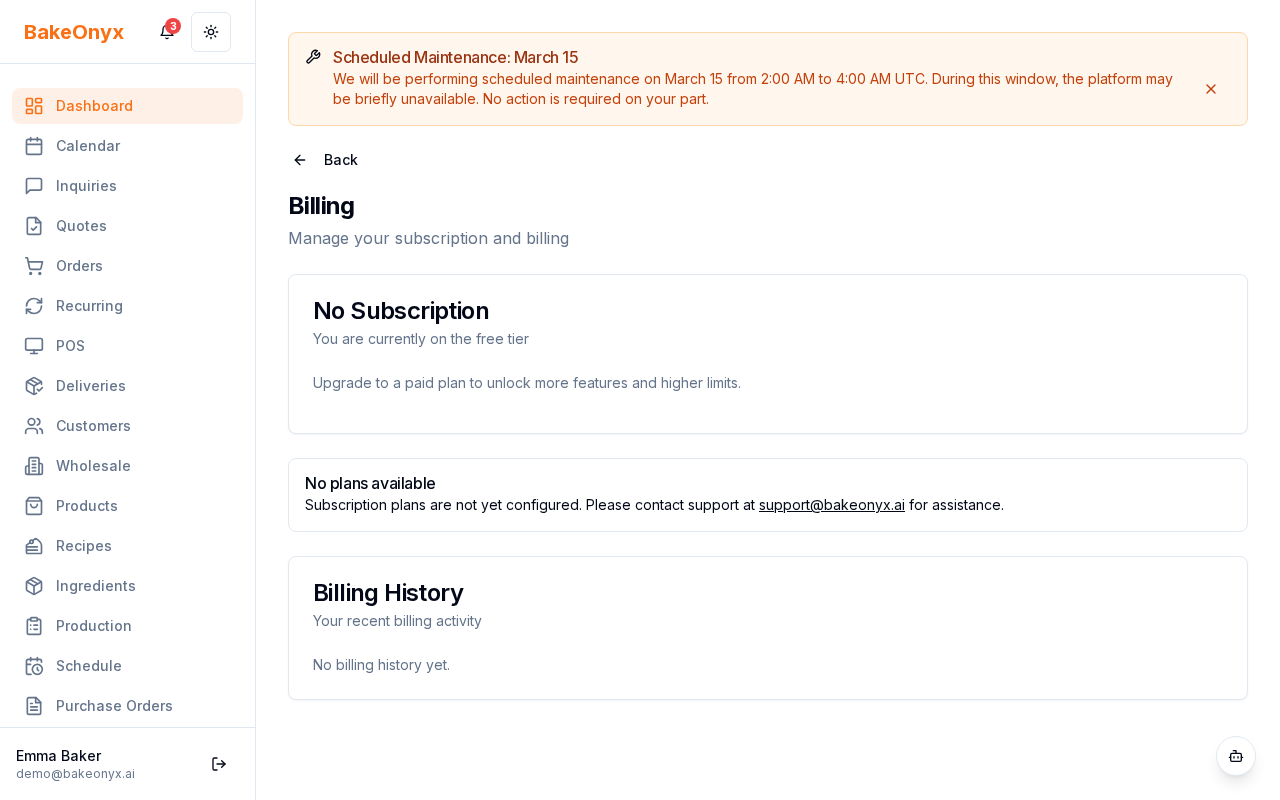
- You'll see your current plan, billing cycle, and next payment date displayed at the top of the page
Understanding Your Current Plan
The billing page shows you everything you need to know about your subscription:
- Current Plan: The name of your active plan (e.g., Starter, Professional, Enterprise)
- Billing Cycle: Whether you're on a monthly or annual plan
- Next Payment Date: When your next charge will occur
- Plan Features: A summary of what's included in your current plan
This information helps you budget for your bakery management software costs and understand exactly what features you have access to.
Upgrading Your Subscription
As your bakery grows, you may want to upgrade to a plan with more features or higher usage limits.
- Go to Settings > Billing
- Scroll down to see available plans
- Click Upgrade on the plan you'd like to switch to
- Review the plan details and confirm your selection
- Your upgrade takes effect immediately, and you'll be charged a prorated amount for the remainder of your current billing cycle
Downgrading Your Subscription
If you need to scale back your plan, downgrades are just as straightforward as upgrades.
- Go to Settings > Billing
- Find the plan you'd like to downgrade to
- Click Downgrade
- Confirm your choice
- Your downgrade takes effect at the start of your next billing cycle
Updating Your Billing Information
Keep your payment method and billing details current to avoid any interruptions to your service.
- Go to Settings > Billing
- Scroll to the Billing Information section
- Click Edit to update your payment method, billing address, or contact information
- Make your changes and click Save
Viewing Your Billing History
Need to review past invoices or payment records? Your complete billing history is available on the billing page. You can download invoices for your records or accounting purposes.
Next Steps
- Business Profile Settings — Set up your bakery's name, logo, and contact information
- Using Bake Buddy (AI Assistant) — Learn how to use AI features available in your plan