Planning Delivery Routes
Generate driver routes that meet each customer's delivery window, with an automatic start time and on-time badges for every stop.
Planning Delivery Routes
The Route Planner puts a day's deliveries in a good order for each driver. It meets each customer's delivery window first. Then it makes the round as short as possible. Every stop shows an estimated arrival time (ETA) and a badge that tells you if the stop is on time.
The Route Planner is part of the Scale plan. Trials include it.
Before you start
- Set your depot (the start and end of the round) in Settings → Delivery.
- Make sure that each delivery customer has a default address with a valid UK postcode.
- Set the delivery windows that your customers prefer (see below).
Generate a plan
- Go to Deliveries → Route Planner.
- Select the date.
- Enter the number of drivers or vans.
- Keep Auto selected for Depart at, or clear it and type a start time.
- Click Generate plan.
When you generate a plan again for the same day, the new plan replaces the old one.
Delivery windows
Each stop uses one delivery window:
- The delivery time on the order, if it has one. For example, a WooCommerce slot "08:00-11:00". A single time, such as "08:00", means "deliver by 8:00".
- If the order has no delivery time, the customer's preferred window. To set it, open the customer, click Edit, and go to the Delivery section.
A stop with no window can go at any time in the round.
Early drops
By default, an early drop is acceptable. Only a drop after the end of the window is late. The planner keeps early drops small. It does not deliver hours early only to save a few minutes of driving.
Some customers cannot receive a delivery early, for example because the shop is closed. For these customers, open the customer, click Edit, and select Do not deliver before the window opens. The route then waits until the window starts.
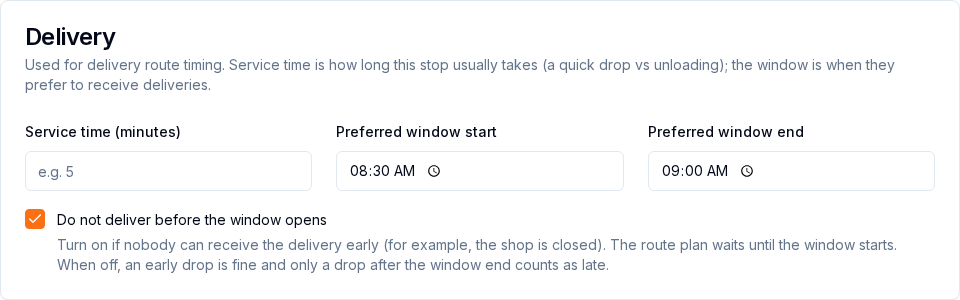
This option has an effect only when the stop has a window start. A "by 10:00" time has no start, so set a window start for these customers too.
Auto start time
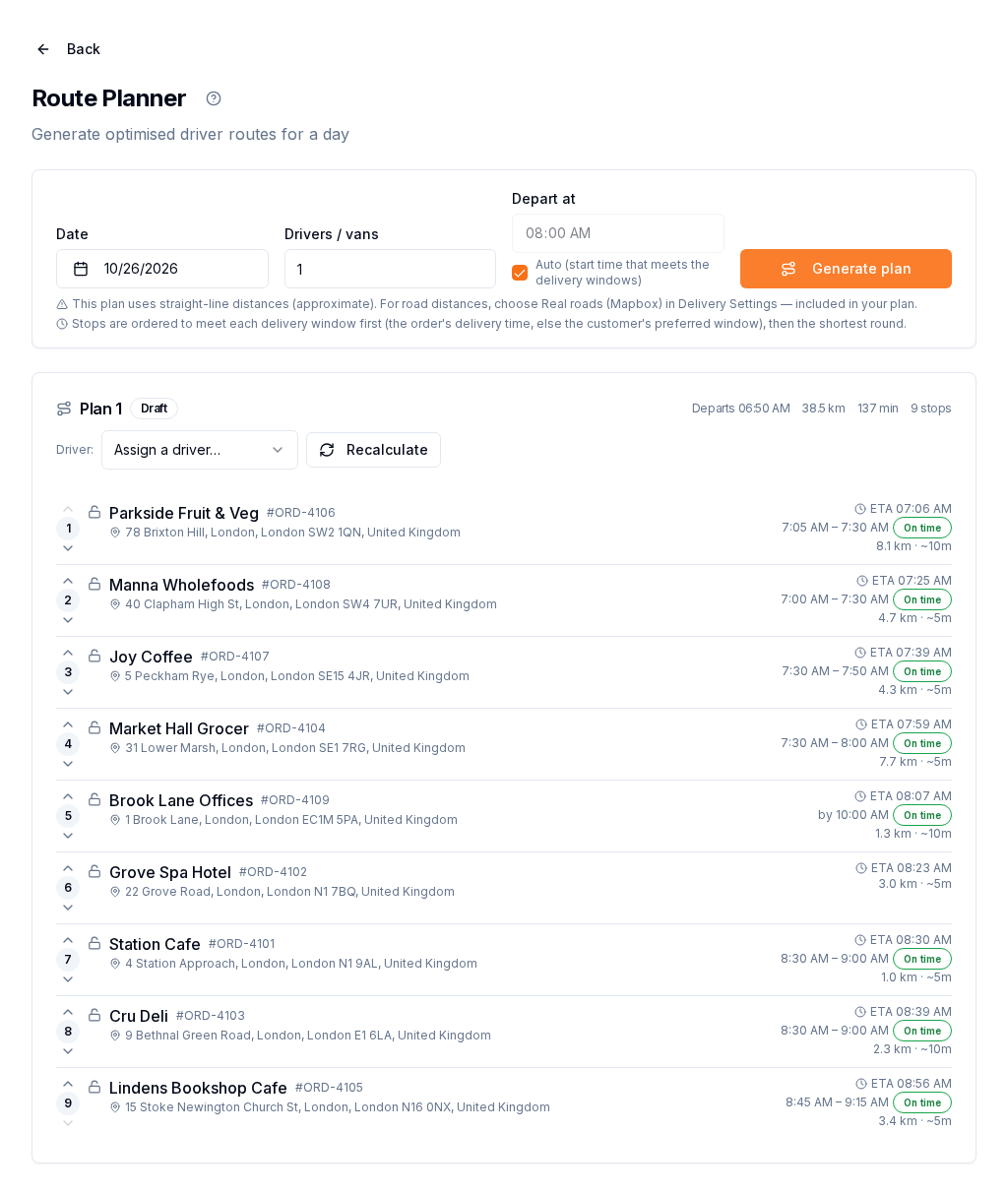
With Auto, the planner selects the start time that reaches the windows on time with the least waiting and the fewest early drops. The plan header shows the start time ("Departs 06:50"). If there are no windows on that day, the start time is 08:00.
Read the badges
- On time: the ETA is inside the window.
- Early N min: the drop is before the window starts. The customer accepts early drops.
- Waits N min: the driver arrives early and waits until the window opens.
- Late N min (red): the ETA is after the end of the window.
The plan header shows how many stops are late. If a stop is late after you generate the plan, you see a warning. To fix it, try an earlier start time, add a van, or make the window wider.
Change the order manually
- Use the up and down arrows to move a stop. The ETAs and badges update immediately.
- Click the lock icon to keep a stop in its position.
- Click Recalculate to optimise the route again. Locked stops stay in their positions.
Straight-line or Mapbox (real roads)
Go to Settings → Delivery. In the Route Planning card, select the Distance source, and click Save route settings.
- Straight-line (free): the default. It calculates distances in a straight line and uses an average speed of 30 km/h. ETAs are approximate.
- Real roads (Mapbox): it uses real road distances and drive times, so the ETAs are more accurate. It does not include live traffic. It is included in the Scale plan. It is not an add-on, it has no extra fee, and you do not have to set up a key. It works for plans of up to 25 stops. A larger plan uses straight-line distances.
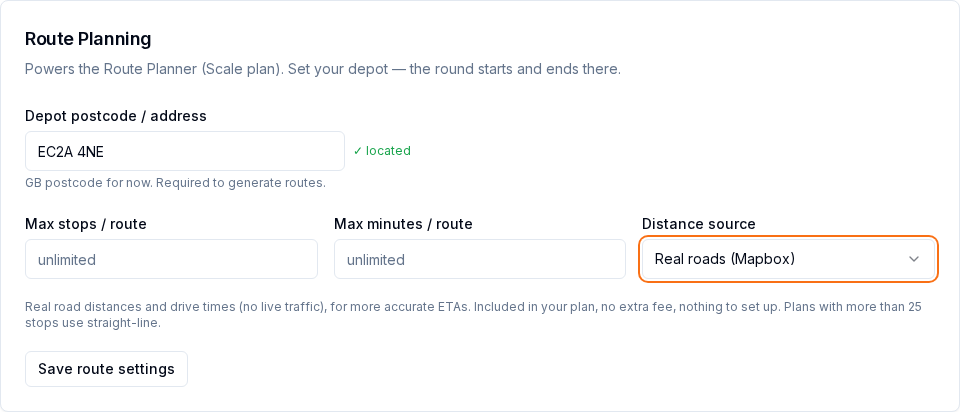
Both options use the delivery windows in the same way. Mapbox only makes the drive times more accurate. After you generate a plan, the note under the planner tells you which distance source the plan used.
Max minutes / route limits the drive and service time of each plan. Waiting for a window is not counted.
Assign the route
Select a driver in the Driver list on the plan. All the orders on that plan go to that driver's delivery board.