Managing Lists of Values (LOVs)
Customize dropdown options for order types, sizes, flavors, and other fields throughout BakeOnyx.
Managing Lists of Values (LOVs)
- Customize dropdown options for order types, cake sizes, flavors, and more
- Add, edit, reorder, or remove values used throughout BakeOnyx
- Keep your product catalog and order forms aligned with your bakery's offerings
What are Lists of Values?
Lists of Values (LOVs) are the dropdown options that appear in your order forms, inquiry forms, and product configuration screens. They let you define exactly what choices your team and customers see when filling out orders. For example, you might have a "Cake Sizes" LOV with options like "6-inch," "8-inch," and "10-inch," or a "Flavors" LOV listing all the cakes you bake.
BakeOnyx comes with 25+ LOV categories and about 130 default values already set up. You can customize all of them to match your bakery's menu and services.
Accessing the LOVs Page
- Log in to BakeOnyx and go to your Dashboard
- Click Settings in the main navigation menu
- Select Lists of Values from the settings options
You'll now see the Lists of Values page with all available categories.
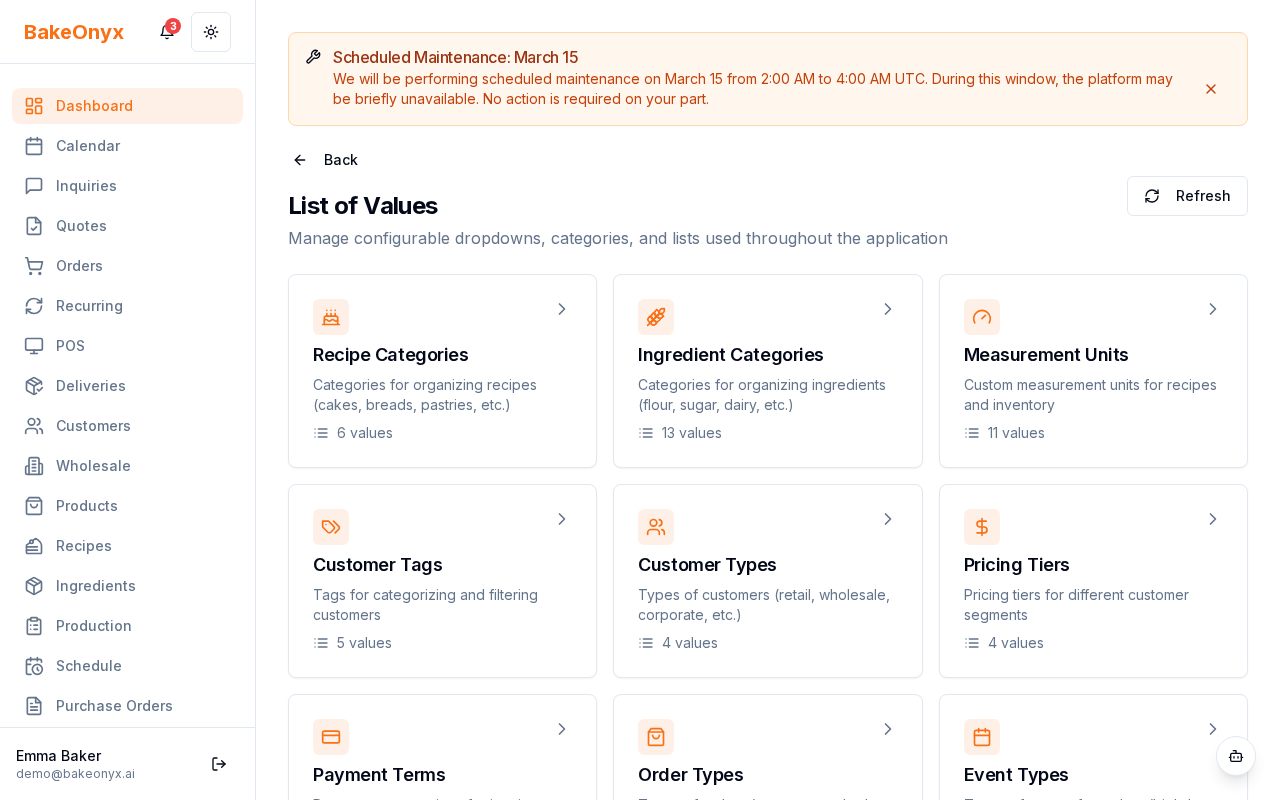
Adding a New Value
- Find the LOV category you want to customize (for example, Cake Sizes)
- Click on the category to expand it and see all current values
- Click the + Add Value button at the bottom of the list
- Enter the new value in the text field (for example, "12-inch")
- Click Save or press Enter to confirm
The new value will appear in all relevant dropdown menus across BakeOnyx within seconds.
Editing an Existing Value
- Open the LOV category containing the value you want to change
- Click on the value you want to edit
- Update the text in the field
- Click Save to confirm your changes
Reordering Values
The order of values in your LOVs determines how they appear in dropdown menus. To reorder:
- Open the LOV category you want to reorder
- Look for the drag handle (usually three horizontal lines) next to each value
- Click and drag a value to move it up or down in the list
- Release to drop it in the new position
- Click Save to confirm the new order
Removing a Value
- Open the LOV category containing the value you want to remove
- Find the value in the list
- Click the Delete or trash icon next to it
- Confirm the deletion when prompted
Common LOV Categories
Here are some of the most-used LOV categories in BakeOnyx:
- Event Types – Wedding, Birthday, Corporate, etc.
- Cake Sizes – 6-inch, 8-inch, 10-inch, sheet cake, etc.
- Cake Shapes – Round, square, rectangular, heart-shaped, etc.
- Flavors – Vanilla, chocolate, red velvet, lemon, etc.
- Fillings – Buttercream, ganache, fruit, custard, etc.
- Coverings – Fondant, buttercream, ganache, etc.
- Delivery Methods – Pickup, local delivery, shipping, etc.
- Payment Methods – Cash, card, bank transfer, etc.
- Colors – White, ivory, pink, navy, custom, etc.
Next Steps
- Welcome to BakeOnyx – Get oriented with the platform basics
- Understanding Subscription Plans – Learn about your BakeOnyx plan features
- Closing Your Account – If you need to manage your account settings