Google Calendar Sync
Sync your BakeOnyx orders, blocked dates, and events to Google Calendar.
Google Calendar Sync
- Connect your BakeOnyx account to Google Calendar
- Automatically sync orders, blocked dates, and custom events
- Stay organized with real-time calendar updates across all your devices
Why sync with Google Calendar?
Google Calendar sync keeps your bakery schedule in one place. When you create an order or block dates in BakeOnyx, those events automatically appear in your Google Calendar. This means you can check your schedule from your phone, share it with staff, or view it alongside your personal calendar—all without manual entry.
Set up Google Calendar sync
Step 1: Open Calendar Sync settings
- Log in to your BakeOnyx dashboard
- Click Settings (gear icon) in the top right
- Select Calendar Sync from the left menu
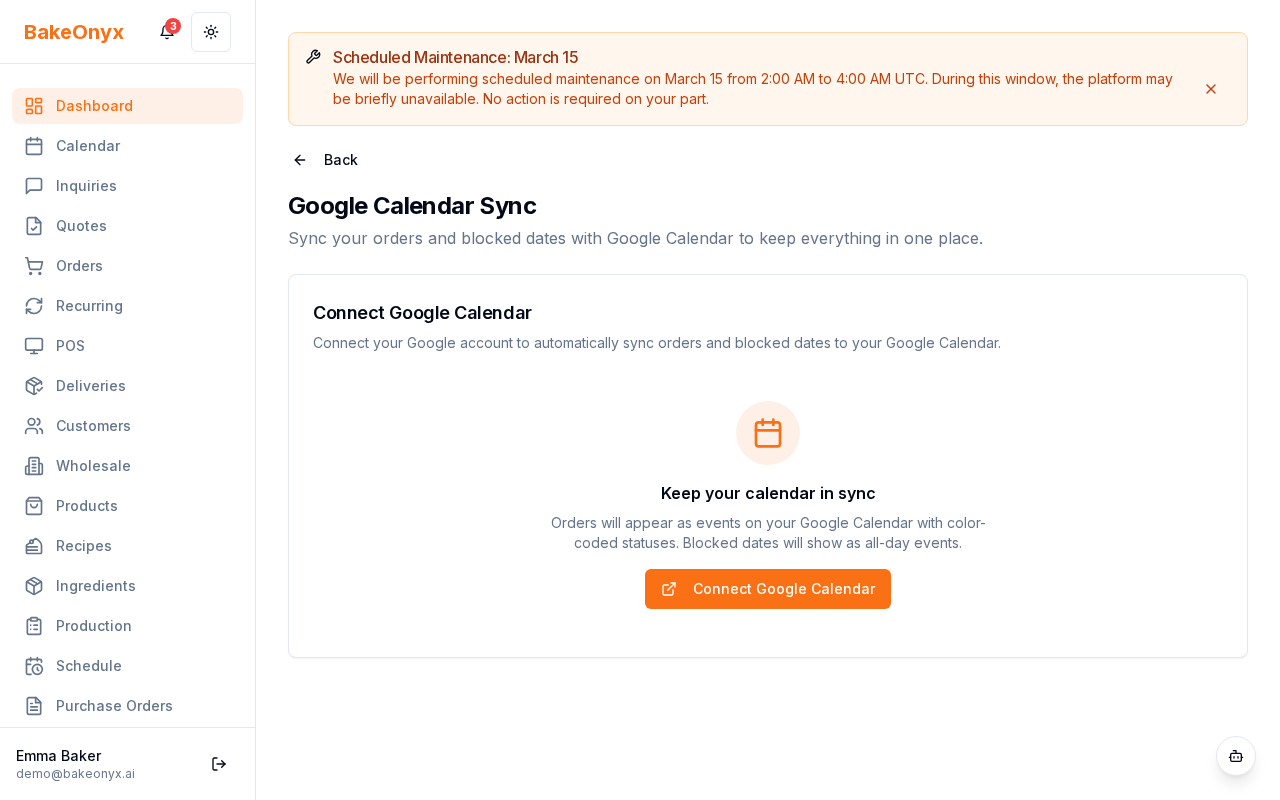
Step 2: Connect to Google
- Click the Connect Google Calendar button
- A Google sign-in window will open
- Select the Google account where you want to sync your bakery schedule
- Click Allow when prompted to give BakeOnyx permission to access your calendar
Step 3: Choose what to sync
Once connected, you'll see options for what syncs to Google Calendar:
- Orders — Each order appears as an event on your due date
- Blocked dates — Days you've marked as unavailable show up as all-day events
- Custom events — Any events you create directly in BakeOnyx
Check the boxes next to the items you want to sync, then click Save.
How syncing works
Real-time updates
When you create a new order or block dates in BakeOnyx, those changes sync to Google Calendar within seconds. If you edit or cancel an order, your Google Calendar updates automatically.
Full sync every 6 hours
BakeOnyx runs a complete calendar reconciliation every 6 hours. This ensures that if you manually edit events in Google Calendar, those changes are reflected back in BakeOnyx (if applicable). It also catches any missed updates.
Managing your synced calendar
View your bakery schedule on any device
Once synced, your BakeOnyx events appear in Google Calendar on:
- Your computer (Google Calendar website)
- Your phone (Google Calendar app)
- Any other calendar app that connects to Google Calendar
Share your calendar with staff
You can share your synced Google Calendar with team members so they see your bakery schedule. In Google Calendar, right-click the calendar name and select Settings. Under Share with specific people, add your staff members' email addresses and set their permission level.
Disconnect Google Calendar
If you need to stop syncing, return to Settings > Calendar Sync and click Disconnect Google Calendar. This removes the connection but doesn't delete events already in Google Calendar—you'll need to delete those manually if desired.
Troubleshooting
Events not appearing in Google Calendar? Check that you've enabled sync for orders, blocked dates, or custom events in your Calendar Sync settings. Also verify that your Google account has permission to create events.
Changes in BakeOnyx not showing in Google Calendar? Wait a few seconds for real-time sync, or check back in 6 hours when the full reconciliation runs. If the issue persists, disconnect and reconnect your Google Calendar.
Next steps
- Using the Calendar — Learn how to create orders and block dates in BakeOnyx
- Business Profile Settings — Set up your bakery details and hours
- Accounting Integration (QuickBooks & Xero) — Connect your financial software to BakeOnyx