Multi-Location Management
Manage multiple bakery locations with independent inventory, orders, and settings.
Multi-Location Management
What you'll learn
- How to set up and manage multiple bakery locations in BakeOnyx
- How to switch between locations and view location-specific data
- Which data is isolated by location and what's shared across all locations
Setting up your locations
If you manage more than one bakery, BakeOnyx lets you run all your locations from a single account. Each location has its own inventory, orders, and schedules, so you can keep everything organized and separate.
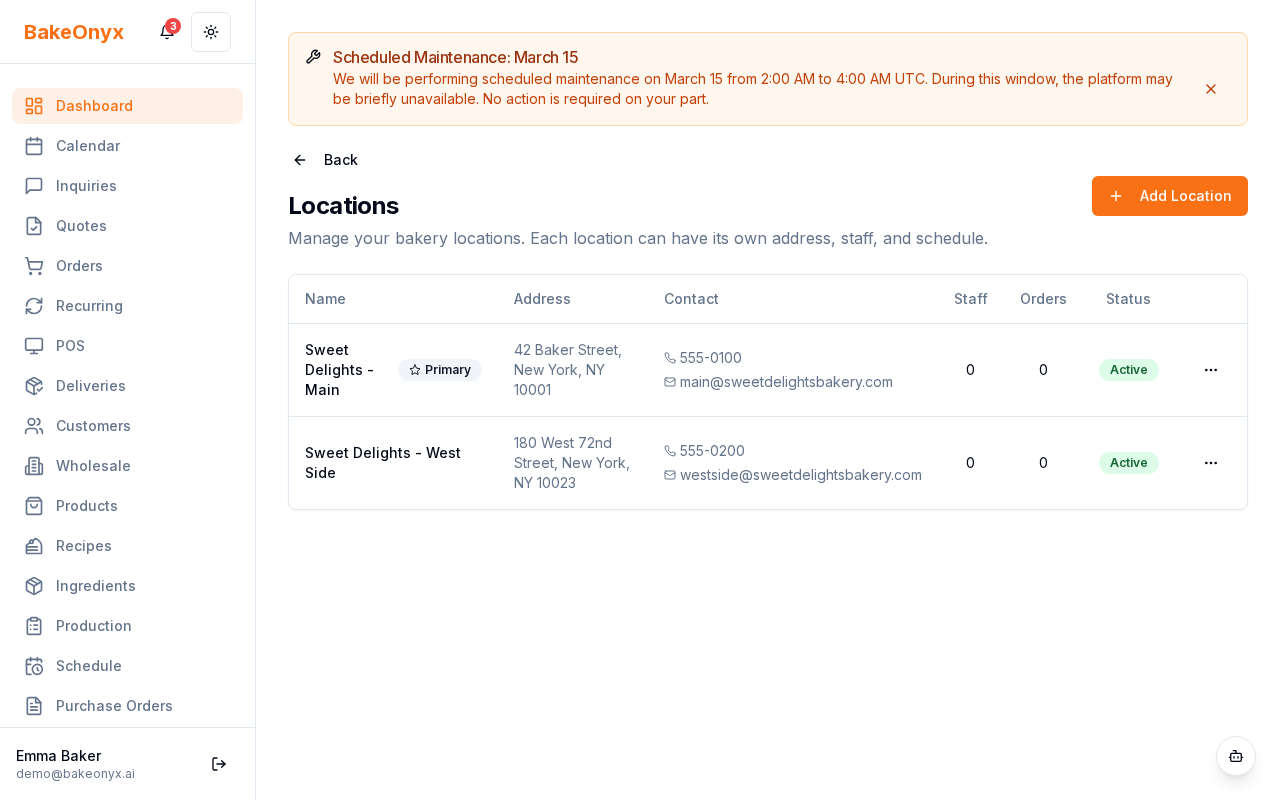
To add or manage your locations:
- Click the Settings icon in your sidebar
- Select Locations from the menu
- Click Add Location to create a new location
- Fill in the location details:
- Location Name — e.g., "Downtown Bakery" or "Airport Branch"
- Address — the full street address
- Phone — the location's phone number
- Email — the location's email address
- Status — toggle Active to enable or disable this location
- Click Save Location
Switching between locations
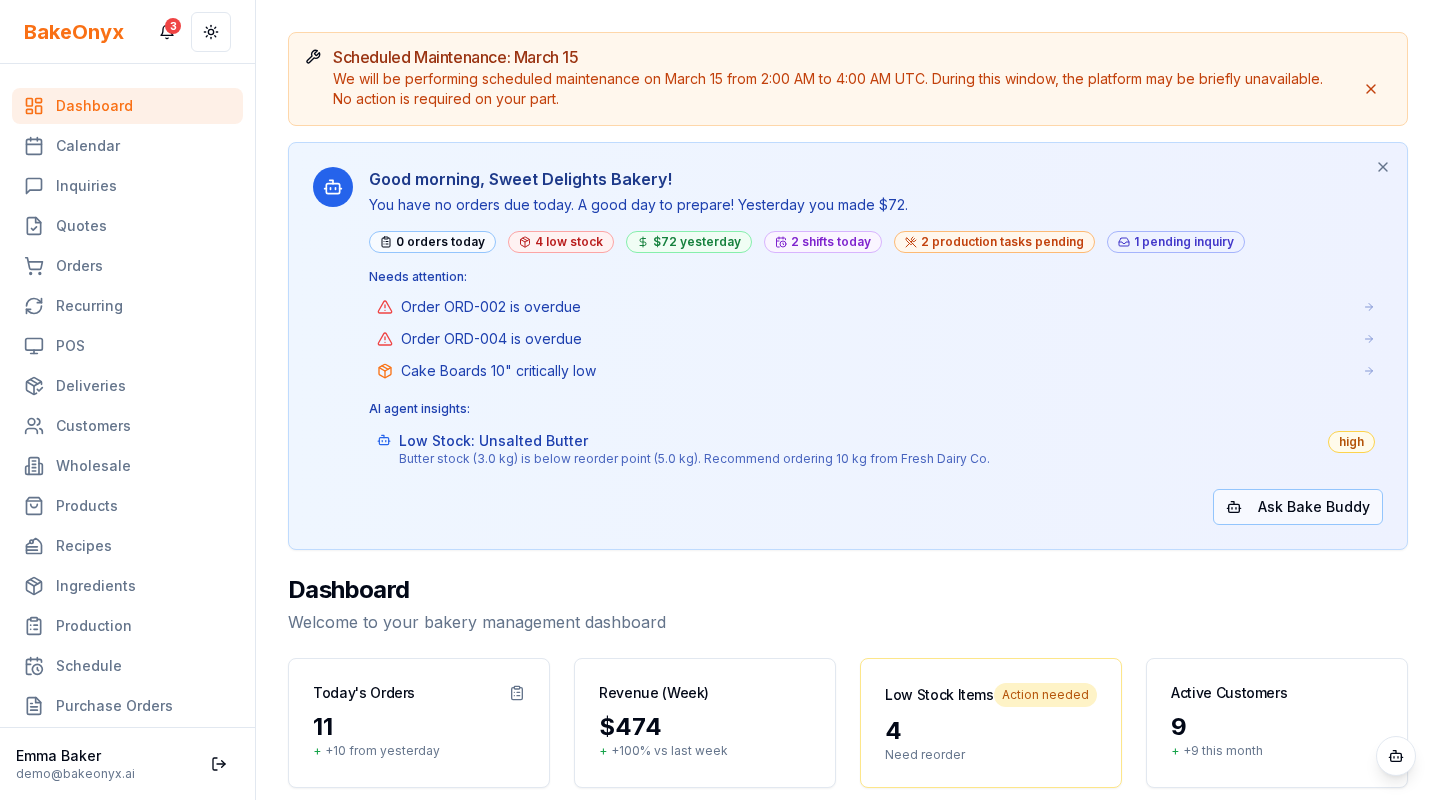
Once you've set up multiple locations, you can easily switch between them using the Location Switcher. This appears in both your desktop sidebar and mobile navigation.
- Look for the Location Switcher at the top of your sidebar (desktop) or in your mobile menu
- Click the dropdown to see all your active locations
- Select the location you want to work with
- All your data — orders, inventory, schedules — will instantly update to show only that location's information
Understanding data isolation
When you work in a specific location, most of your data is isolated to that location only. This means:
- Location-specific data: Orders, inventory, ingredients, schedules, and blocked dates are unique to each location
- Shared data: Recipes, products, customers, and suppliers are shared across all locations — so you don't have to recreate them for each bakery
This setup gives you the best of both worlds: independent operations at each location, plus the convenience of shared master data.
Managing staff by location
You can assign team members to specific locations so they only see data relevant to their bakery. When you invite a staff member or edit their profile, you'll have the option to assign them to a location. Users assigned to a location will automatically see only that location's data when they log in.
Transferring inventory between locations
BakeOnyx tracks inventory transfers between your locations so you always know where your ingredients are. When you request a transfer, it moves through a status flow: requested → in_transit → completed. This keeps your inventory counts accurate across all bakeries.
Next steps
- Inventory Transfers Between Locations — Learn how to move ingredients between bakeries
- Business Profile Settings — Update your business information and location details
- Using the Calendar — View and manage schedules across locations